-
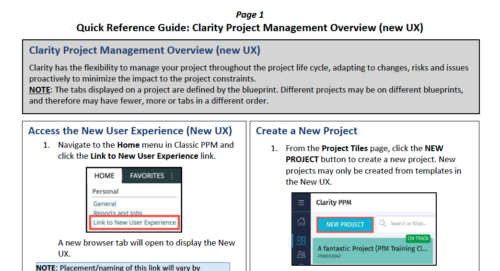 Clarity has the flexibility to manage your project throughout the project life cycle, adapting to changes, risks and issues proactively to minimize the impact to the project constraints. NOTE: The tabs displayed on a project are defined by the blueprint. Different projects may be on different blueprints, and therefore may have fewer, more or tabs in a different order.
 -
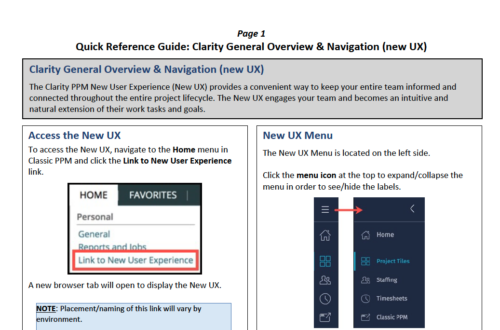 The Clarity PPM New User Experience (New UX) provides a convenient way to keep your entire team informed and connected throughout the entire project lifecycle. The New UX engages your team and becomes an intuitive and natural extension of their work tasks and goals.
 -
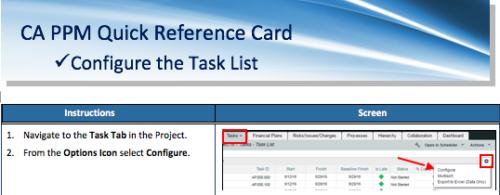 A Quick Reference Card to assist as you configure the Task List under the Task Tab on the project. You have the option to remove or add fields to the Task List.
 -
 A quick reference card to assist in the creation of a Financial Summary for an investment.
 -
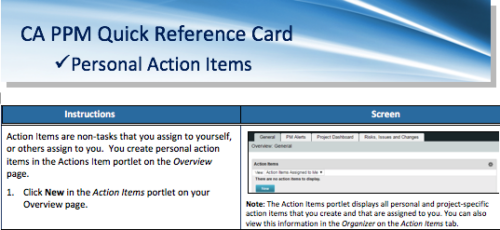 A quick reference card to assist you in making Action Items in CA PPM. Action Items are non-tasks that you assign to yourself, or others assign to you. You create personal action items in the Actions Item portlet on the Overview page.
 -
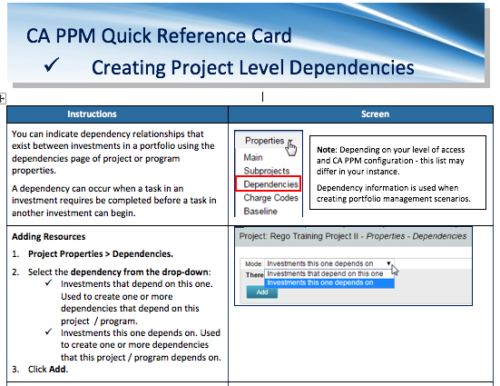 A Quick Reference Card to assist in the creation of project level dependencies. You can create dependency relationships that exist between investments in a portfolio using the dependencies page of project or program properties. A dependency can occur when a task in an investment requires to be completed before a task in another investment can begin.
 -
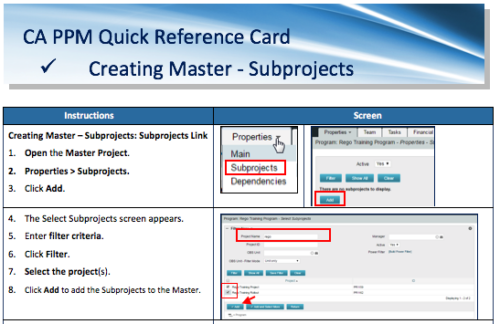 A Quick Reference Card to assist in the creation of Master-Subprojects in CA PPM.
 -
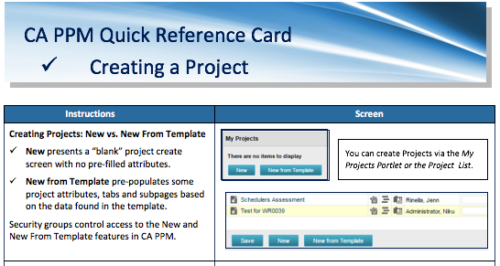 A Quick Reference Card to assist in creating a project in CA PPM. Reviews options of creating from New or New from Template.
 -
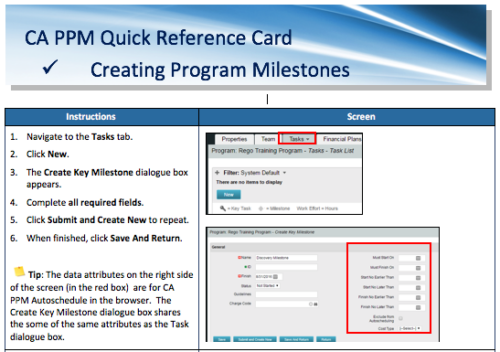 A Quick Reference Card to assist in the creation of Program Milestones in CA PPM. This can be done from the Tasks Tab or from the CA PPM Gantt.
 -
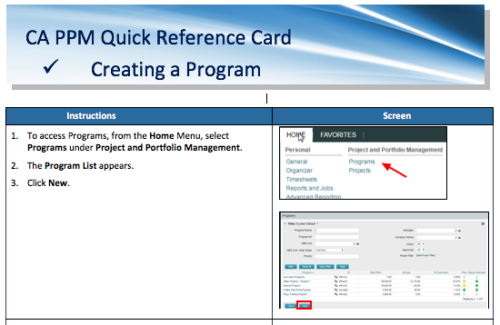 A Quick Reference Card to assist in the creation of a Program.
 -
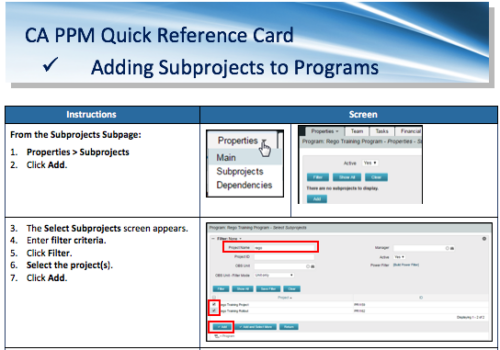 A Quick Reference Card to assist in the adding of Subprojects to Programs. Shows how add and remove from the Subprojects Subpage or from the Hierarchy Tab.
 -
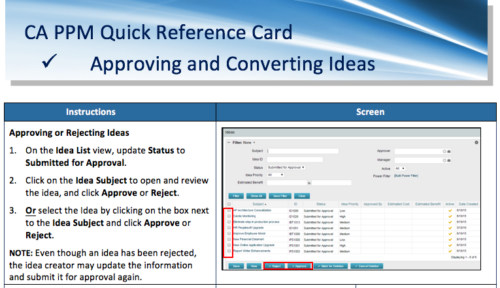 A Quick Reference Card to assist in the approving/rejecting of Ideas. Included converting Ideas once approved.
 -
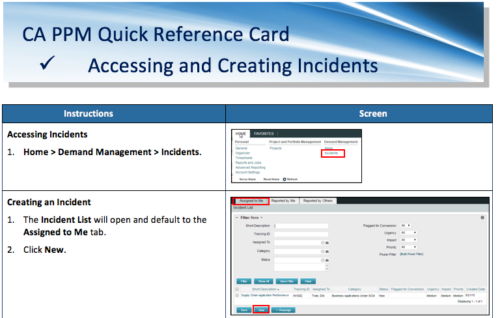 A Quick Reference Card to assist in the accessing and creation of Incidents in CA PPM. Incidents can be found by going to Home, then Demand Management to the Incident list menu item.
 -
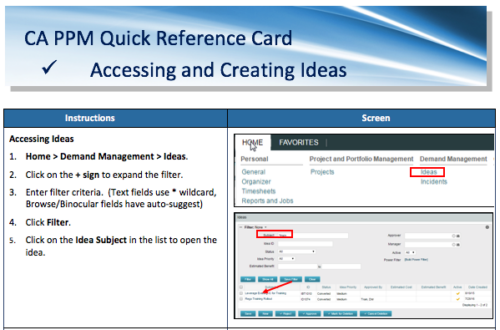 A Quick Reference Card to assist in the creation of Ideas in CA PPM. Ideas are created by going to Home, then Demand Management and choosing Ideas from the list menu.
 -
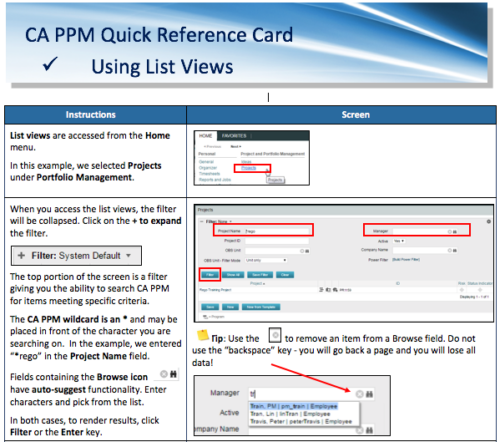 A Quick Reference Card to assist in the use of list views in CA PPM. List Views are accessed from the Home menu.
 -
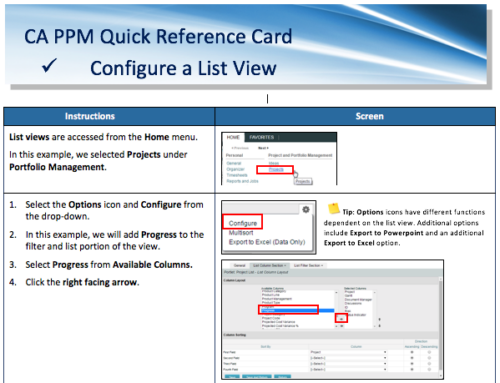 A Quick Reference Card for configuring List Views in CA PPM. List views are accessed from the Home menu.
 -
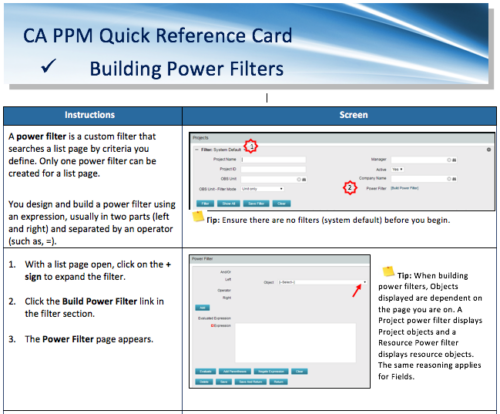 A Quick Reference Card to assist in the building of Power Filters in CA PPM. A power filter is a custom filter that searches a list page by criteria you define. Only one power filter can be created for a list page.
 -
 This video reviews the process of creating Timesheet Adjustments – making changes to a timesheet after it has been posted.
 -
 This video reviews how to return and approve Clarity timesheets as a Project or Resource Manager.
 -
 This video covers the process of adding tasks to the timesheet using Populate and Add Task, using the timesheet notes functionality, entering timesheet data, updating ETC via the timesheet, and submitting the timesheet.
 -
 This video covers the process of accessing timesheets within Clarity, both as a team member and as a Project or Resource Manager.
 -
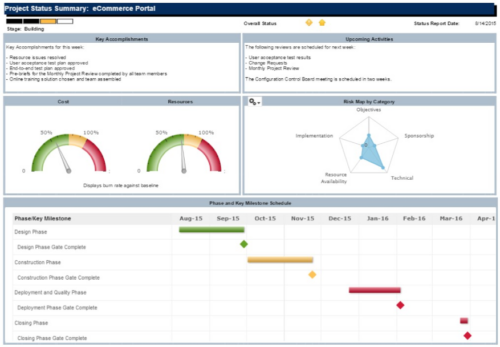 The Project Status Summary report is a transaction based Jaspersoft report that does not require the Load Jaspersoft Datawarehouse job to be run. The report will pull real-time data from the transaction tables in Clarity. This report can be run from either the Advanced Reporting or Reports and Jobs area within Clarity. The Project Status Summary report displays summary information about a project, including current stage, overall status, key accomplishments, upcoming activities, the cost and amount of resources that are consumed, mapped risks indicating categories with a high number of risks, and a high-level Gantt chart displaying information about the project phases and key milestones.
 -
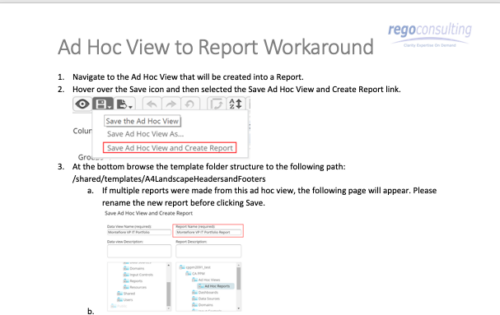 This tech-trick details the steps to convert an ad-hoc view to a report.
 -
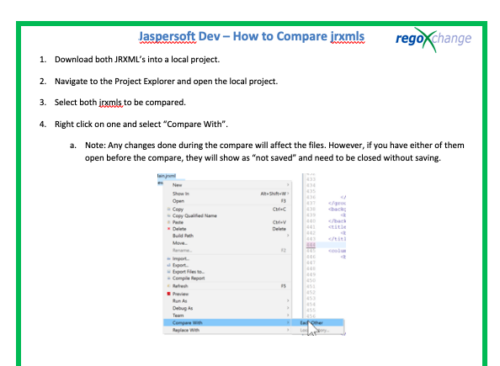 This document’s purpose is to help the reader compare jrxmls for Jaspersoft.
 -
 This tech trick document reviews the different reporting options you have in CA PPM and the benefits of each options. Jaspersoft, PowerBI and Tableau are all discussed.
 -
 Fiscal periods in DWH may need to be changed if we need to increase or decrease the number of periods for reporting.
 -
 So, you have the portlet xogged in, what now? This guide will show you how to create a page, add the portlet to the page, and add the page to the menu. This activity requires the appropriated admin rights to add content to CA PPM.
 -
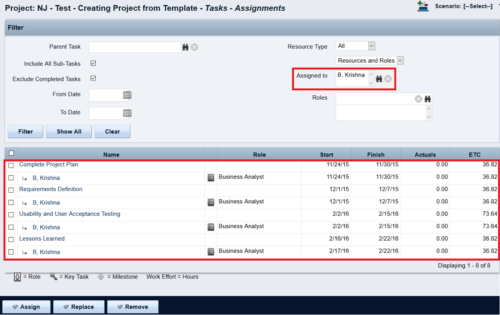
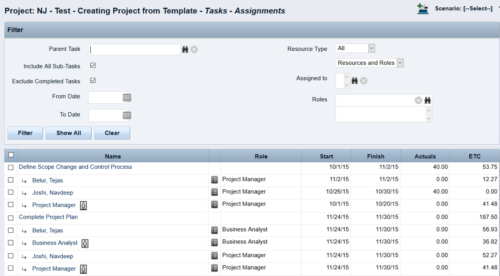 This Tech Trick walks you through the steps in CA PPM to make Bulk Role replacements on tasks. Useful when you want to make the changes to the project template which has a large WBS structure, and a lot of role assignments to tasks.
 -
 Many times Roles are spread out geographically or by function and these Roles will have different rates. For example, a developer in India may charge $25/hour vs a Developer in US may charge $50/hour. When the project team has a requirement of several developers, the PM will have to add a region specific role (Developer-US, Developer-India) so that the right rates can be applied when a cost plan is created. This creates a challenge in terms of Resource Management. As the Demand and Capacity can be spread between different region specific roles. Proper configuration on the Rate Matrix can allow you to have one Role name but different rates based on Location or Department. This allows greater flexibility and takes away the redundancy of Role Names. You can do so with the Project Team Member Properties.
 -

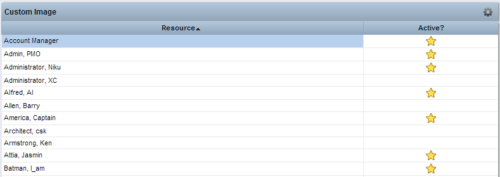 This Tech Trick provides step-by-step instructions for adding images into Clarity v13+ for use in portlets.
 -
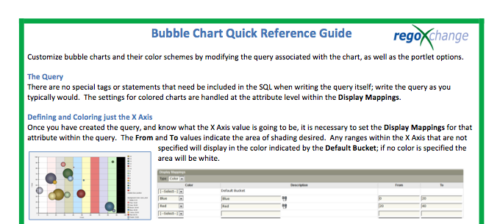 The Bubble Chart Quick Reference Guide provides the user instructions to customize bubble charts and their color schemes by modifying the query associated with the chart, as well as the portlet options. This is very beneficial as it allows the user to match or blend colors among all of the bubble portlets to better display the information the portlets are delivering. Similar data can be one color while different data can be its own color to better show the overall picture.
 -
The Bubble Chart Quick Reference Guide provides the user instructions to customize bubble charts and their color schemes by modifying the query associated with the chart, as well as the portlet options. This is very beneficial as it allows the user to match or blend colors among all of the bubble portlets to better display the information the portlets are delivering. Similar data can be one color while different data can be its own color to better show the overall picture.
-
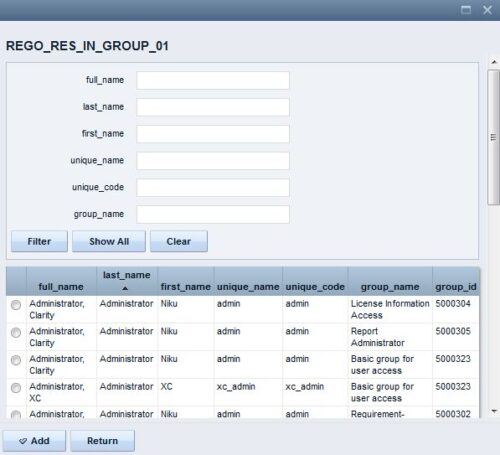 The Resource Lookups in a Group technical trick provides step-by-step instructions on creating a resource lookup based on members of a particular security group. For some fields, you want to narrow the amount of resources that the resource browse window supplies. By adding the selected users to a specific security group, the administrator may only display those resources in a resource browse window on the application side.
 -

 The Multi-Value Filter in Query-Based technical trick document provides an overview of how to create a multi-value lookup in a portlet filter, where the field is a parameter within the query. If the query imbeds the parameter normally, the portlet will only be able to have a single selection of that parameter. This technical solution will enable you to make these parameters multi-selects.
 -
 Course description: “Does CA PPM Timeslice functionality seem like a foreign language to you? This intro to timeslices will cover an Overview of Timeslice Fundamentals, Terminology, Best Practices, Diagnostics, and the basic SQL Constructs to get you started.”
 -
 Course description: “Do CA PPM performance issues discourage your users? This class will review the root causes behind CA PPM performance problems and identify steps to improve performance, including specific recommendations and real case studies.”


Copyright 2023 • Rego Consulting Corporation • Privacy Policy