
- Resource
- Resource ID
- Email Icon of Resource (So the reviewer can quickly email the Resource)
- Resource is Active
- Resource Open for Time
- Time Period (Start and Finish Dates)
- Timesheet Status
- Is Adjustment (If the timesheet is adjusted)
- Timesheet Modified Date
- Timesheet Posted Date
- Timesheet Submitted By
- Timesheet Approved By
- Project
- Task
- Proposed ETC Hours
- Pending Actual Hours
- Total Actual Hours
-
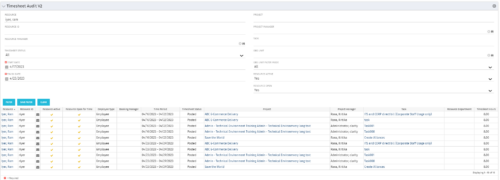 The Timesheet Audit portlet displays timesheet information in order to perform an audit. The only required data needed to search the portlet is start and finish date. Additionally, you may narrow the results by filtering by resource, resource ID, OBS Unit, resource manager, timesheet status, project, and task. The portlet provides reporting on the following:
 -
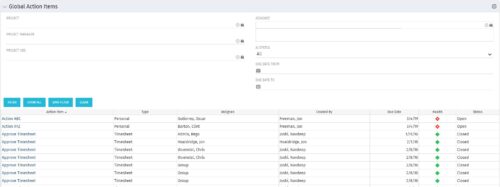 The Global Action Items portlet will help users and clarity admins to keep track of action items in the CA PPM system. This is useful to keep track of Timesheet Approval through Action Item or any other Action Item related workflows. The portlet displays Name, Type Assignee, Created by, Due Date, Health and Status of the Action Items as default columns. The portlet provides Project, Project Manager, Project OBS, Assignee, Status and Due Dates of the Action Items as default filters.
 -
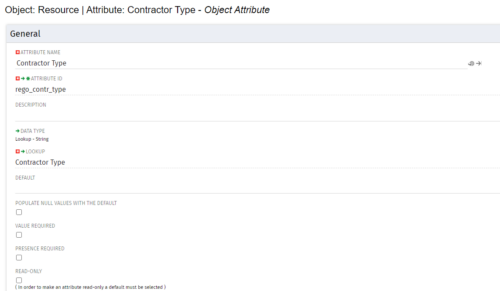
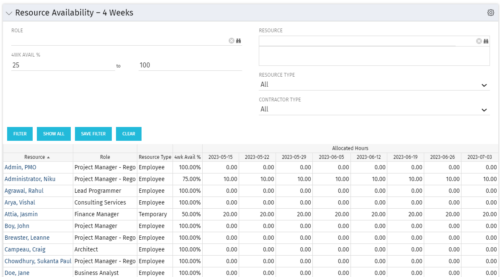 Resource Availability – 4 Weeks is a grid portlet that displays all resources with their total allocated hours by week, and an average availability percent (4 Wk Avail %) for next four weeks. If % Available is negative, this indicates an over-allocation. Zero% Average Availability indicates fully allocated (no remaining availability). Filterable by Role, Resource, Resource Type, Full-Time/Part-Time, Availability Range. Contractor Type is a custom attribute (Lookup - String) created on the Resource object. It is attached to the lookup, Contractor Type (Lookup ID: REGO_CONTRACTOR_TYPE) that has static values Part Time (PT) and Full Time(FT).
 -
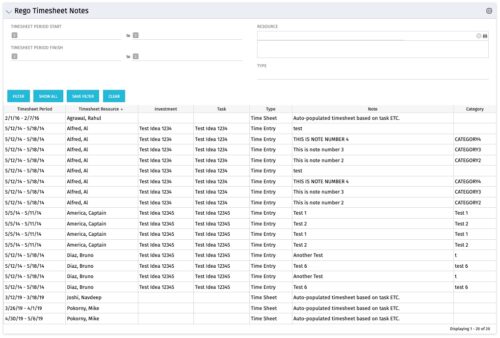 The Timesheet Notes portlet displays all timesheet notes split out by resource, investment and task. This is very useful in situations where you want to review multiple notes as you do not have to open each note separately. The table below describes the available filter fields in the portlet.
Column Label Description Timesheet Period Start Range of time periods to display filtered by start date Timesheet Period Finish Range of time periods to display filtered by finish date Resource Resource(s) to display Type Note on a timesheet or time entry (task specific) -
 Course Description: Have you considered using Rally Software® in conjunction with Clarity PPM? Have you seen or heard about the OOTB connector? This class will go through the OOTB connector in detail and show how Rego has built addons to enhance the connectivity between these two tools.
 -
 Are you on an older version of CA PPM? Do you want to understand the value of the new features and functions in recent versions? Have you seen the new UX and do you wonder when is the right time to move over? This class is a demonstration of the new UX, new features in both classic and new UX, and the value of these features for customers.
 -
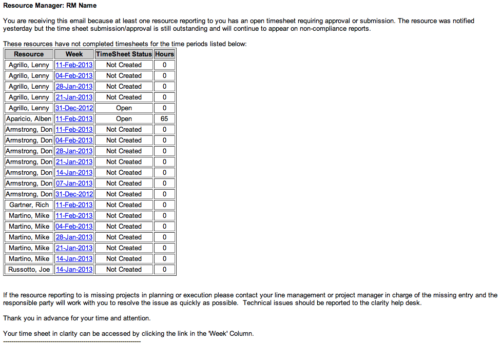 The Time Tracking Stalker - RM workflow process automatically sends an email to Resource Managers for each one of their resources that have not submitted their timesheet for a prior open time period, thus informing the RM if their resources are submitting their timesheets on time. Project Managers will also benefit since the notifications will help to ensure that time is being posted against their projects in a timely manner, helping to provide them with an accurate view of time expended on the projects.
 -
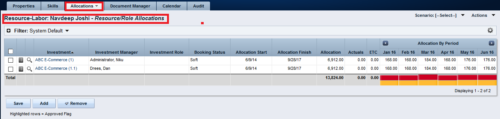
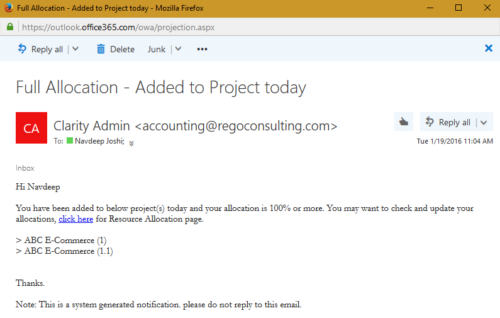 The process notifies resource who has been added to investment today and allocation is greater or equal to 100%. The process is on-demand and would require the user to have appropriate rights to run the process. Process should be scheduled as daily once job.
 -
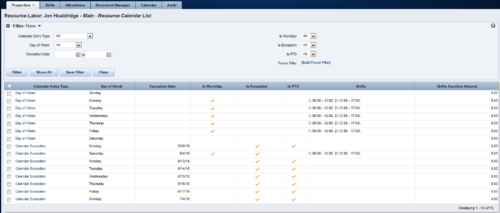 A Resource Calendar sub-object is populated by a non-object-specific process, executed by the “Execute a Process” job, which can be scheduled. The first 7 rows of the sub-object display the standard week from the base calendar, including columns for Day of Week, Is Workday (checked/unchecked), Shifts, and work Hours available. The remaining rows display calendar exceptions, including columns for Day of Week, Exception Date, Is Exception (checked), and work Hours available. If exception changes to a workday, Is Workday column is checked, and Shifts also display. If exception changes to a non-workday, Is PTO column is checked. Resource Calendar object is filterable by Calendar Entry Type (All, Calendar Exception, Day of Week), Day of Week, Exception Date Range, Is Workday, Is Exception, Is PTO, and power filter.
 -
 The process is built to clear the random timesheet locks that happens occasionally. There are three Processes and one lookup component and one job definition in the package.
- PRLock (Timesheets) Record Removal (ID: rego_prlock_rec_rmvl). This process requires PRNAME, PRTABLENAME and PRRECORDID from PRLock Table.
- The Lookup PRLock Check (Timesheet) (Id: REGO_PRLOCK_CHECK) should be used to update the GEL parameters for the above process.
- PRLock (Timesheets) Record Removal All (ID: rego_prlk_rc_rmv_all) This deletes ALL prtimesheet locks.
- Rego Remove Timesheet Locks (ID: rego_rmv_ts_locks). This process is run as a job “PrLock Clear for Timesheet Locks” which performs the same functionality as the above two processes. The process and job definition are separate XOG files.
- PRLock (Timesheets) Record Removal (ID: rego_prlock_rec_rmvl). This process requires PRNAME, PRTABLENAME and PRRECORDID from PRLock Table.
-
The process is built to clear the random timesheet locks that happens occasionally. There are three Processes and one lookup component and one job definition in the package.
- PRLock (Timesheets) Record Removal (ID: rego_prlock_rec_rmvl). This process requires PRNAME, PRTABLENAME and PRRECORDID from PRLock Table.
- The Lookup PRLock Check (Timesheet) (Id: REGO_PRLOCK_CHECK) should be used to update the GEL parameters for the above process.
- PRLock (Timesheets) Record Removal All (ID: rego_prlk_rc_rmv_all) This deletes ALL prtimesheet locks.
- Rego Remove Timesheet Locks (ID: rego_rmv_ts_locks). This process is run as a job “PrLock Clear for Timesheet Locks” which performs the same functionality as the above two processes. The process and job definition are separate XOG files.
- PRLock (Timesheets) Record Removal (ID: rego_prlock_rec_rmvl). This process requires PRNAME, PRTABLENAME and PRRECORDID from PRLock Table.
-
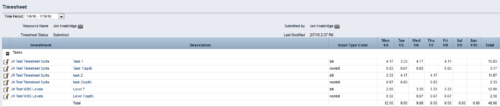
 The Timesheet Smoothing Process Workflow kicks-off when an individual timesheet is Submitted. It splits each transaction on the timesheet when total timesheet actuals exceed total weekly availability for the resource. Total weekly availability is determined by multiplying resource availability rate by the number of workdays in the week. Non-workdays include weekends, holidays, PTO, and other scheduled days off, as set on the resource calendar. If timesheet actuals <= total weekly availability, then the timesheet remains unchanged. But if timesheet actuals > total weekly availability, then the following occurs. Each timesheet transaction is reduced by a calculated percentage that will reduce the total regular hours to equal the total weekly availability. Then the remaining transaction hours are placed in a “Split” row for that task on that day, with an Input Type Code set based on a process parameter (which parameter can be set within the script action on the process). Note: If a single day has overtime hours, but the total timesheet actuals <= total weekly availability, no splitting occurs.
