-
 This training document is a Rego Consulting Quick Reference Guide to assist with Task Assignments in Clarity’s Modern User Experience. This doc references version 16.1 views. Document provides detail on how to use the Assignments tab to add resources to tasks, tips on how to group resource data, updating ETC values and Per-Period Metrics.
 -
 This training document is a Rego Consulting Quick Reference Guide to assist with the creation of Status Reports in Clarity’s Modern User Experience. This doc references version 16.2.1 views. Document covers the creation of Status Reports via the Status Module as well as the Status Report Module. Detail is provided on the widgets that can be used within the Status Report canvas as well as instructions on how to configure the canvas. Detail is also provided on how to Preview and Publish status reports.
 -
 A Quick Reference Guide that assists in managing project tasks in Clarity’s Modern UX via the Classic Gantt. Reviews how to open the Project Scheduler and use of the Gantt View.
 -
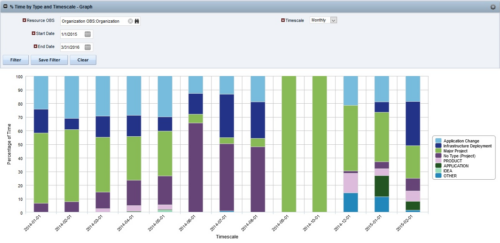
 The Percent Time by Type and Timescale - Graph portlet shows a breakout of time by timescale for resources the logged in user has view rights to. This portlet gives the Clarity user the ability to show the amount of hours spent on each project type by week, month, quarter and year. Using this portlet, the Clarity user can get an overview of all hours in a time period or use the filter to search for a specific dataset (as required). The portlet provides a filter for OBS and date ranges.
 -
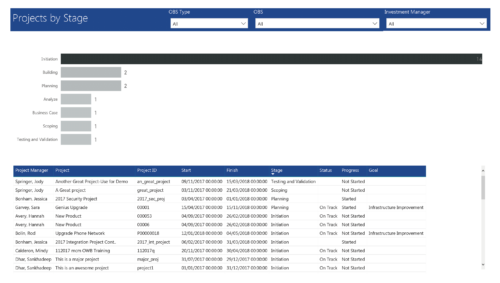 Project by Stage is a bar chart that displays count of projects by out of box Stage attribute. Stage attribute values are plotted on Y axis. Label on the bar chart slice displays the count of projects associated with that respective Stage value. User can further drill down the information to investment level by clicking on particular bar slice. You can further narrow your search by OBS Type & Path, Investment Manager.
 -
 This training document is a Rego Consulting Quick Reference Guide to assist with the management of project tasks from within the Tasks tab in Clarity’s Modern User Experience. This doc references version 16.3 views. Document covers Task Tab, Timeline View, Board View, Grid View, adding and removing columns, saving views, task details, To Dos, Assignments, Links, Conversations and View Options settings.
 -
This training document is a Rego Consulting Quick Reference Guide to assist with the use of the Links and Conversations functionality in Clarity’s Modern User Experience. This doc references version 16.3 views.
-
This training document is a Rego Consulting Quick Reference Guide to assist with the creation of Risks, Issues and Changes in Clarity’s Modern User Experience. This doc references version 16.3 views. Doc covers creating and management of these project tools.
-
 To effectively practice Agile at scale, Clarity teams first need to identify various needs. This includes thinking through considerations for funding, investment prioritization, and spend management practices.
 -
 This training document is a Rego Consulting Quick Reference Guide to assist with the management of project tasks from within the Tasks tab in Clarity’s Modern User Experience. This doc references version 16.1.2 views. Document covers Task Tab, Timeline View, Board View, Grid View, adding and removing columns, saving views, task details, To Dos, Assignments, Links, Conversations and View Options settings.
 -
 This training document is a Rego Consulting Quick Reference Guide to assist with General Navigation in Clarity’s Modern User Experience. This doc references version 16.1.2 views. Doc reviews the Menu Bar and User Tool Bar.
 -
 A Quick Reference Guide on setting up Custom Investments in Clarity’s Modern UX. Reviews setting up the Custom Investment, and creating Custom Investment Records.
 -
 This training document is a Rego Consulting Quick Reference Guide to assist with creation of agreements in Clarity’s Modern User Experience. Agreements can be created between Project, Ideas and Custom Investments. The Agreement can convey things needed for predecessors and successors while defining appropriate dates to meet the agreement. Blueprints can be leveraged to customize the agreements as required.
 -
 A review of how AbbVie is driving greater visibility into projects at the Executive level and is eliminating/reducing duplicative work across the Business Technology Solutions organization by simplifying the overall PPM landscape. This has been accomplished through implementation of consistent processes supported by Clarity as well as through system integrations with legacy systems like SAP, Fieldglass, and other Project Scheduling tools.
 -
 A presentation slide deck from Rego University 2022. This document reviews the options for managing schedules outside of the Clarity tool.
- Introduction to scheduling
- Why use an external scheduler?
- Who uses what?
- Scheduler-Specific Decision Factors
- Discussion: Scheduler Challenges
- Tips to help user adoption
- Is it time to just use Clarity?
- Microsoft Project OOTB or The Rego Connector?
-
This training document is a Rego Consulting Quick Reference Guide to assist with the creation and editing of Tasks in the Timeline View of Clarity’s Modern User Experience. This doc references version 16.3 views. Doc covers how to create a new task in the Timeline View, how to insert sibling or insert child tasks, how to set Milestones, access the Details pane and add resource Assignments. Also details how to move tasks by clicking and dragging within the Timeline View.
-
This training document is a Rego Consulting Quick Reference Guide to assist with population of project properties in Clarity’s Modern User Experience. This doc references version 16.3 views. Doc covers Project Tiles View, Project Properties – Details page and updating from the Project List view.
-
This training document is a Rego Consulting Quick Reference Guide to assist with Project creations in Clarity’s Modern User Experience. This doc references version 16.3 views. Doc covers create project from project page, create project via the New from Template button, selection of template and project creation from the project tile view.
-
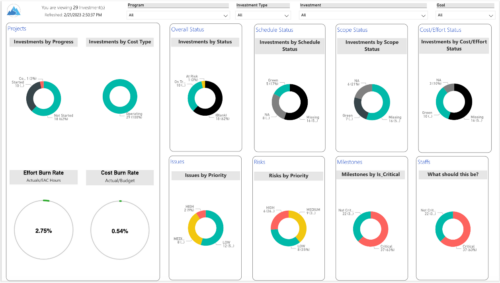 Gain an overview of program-level performance, track program milestones, and assess overall program health. Report Views include: • Change Requests • Program Costs Trend • Program Costs • Program Drill Thru • Program Effort • Program Gantt • Program Issues • Program Milestones • Program Risks • Program Staff • Program Status Reports • Program Summary • Program Tasks Demo Video - https://www.youtube.com/watch?v=6VceDIFjp-g&list=PLXJ5ktuWV0jiS9CvBpHvBIwpKPmA9uvwK&index=5 The main .rpt file will access data through the Data Warehouse. For clients on Rego’s AWS hosting, we have versions that work with Oracle and Postgres DB and access the live database, if the Rego Odata connector is being used.
 -
 This training document is a Rego Consulting Quick Reference Guide to assist with the utilization of Tasks and To Do’s in Clarity’s Modern User Experience. This doc references version 16.0.3 views. Document references the Tasks and To Do’s menu items and their associated widgets.
 -
 Do you want to improve the success of your CA PPM projects? This class will discuss some lessons learned on making CA PPM projects more successful. We will discuss things like
- developing robust test plans, creating effective use and test cases, and implementing test scripts that make sense.
- why failures occur, and what you can do to minimize the impact and plan for success: case study in lessons learned.
- developing, testing, fine tuning, and executing deployment plans for success.
-
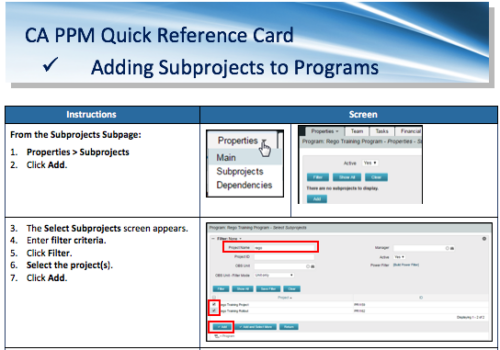 A Quick Reference Card to assist in the adding of Subprojects to Programs. Shows how add and remove from the Subprojects Subpage or from the Hierarchy Tab.
 -
 Does project and idea estimation take too long and lack visibility? This class will address one of the most common pain points within organizations: how to involve the right people within a timely project estimate. Learn some Rego best practices for defining, calculating, and modifying idea and project estimates, so you can increase throughput and ROI.
 -
 Do you want to know the best practices for implementing program management within CA PPM? More and more companies are moving to a form of program management, where projects may not be individually funded, but programs are funded instead. We will walk through how to leverage Clarity for program management, including use cases and what can and cannot be used OOTB.
 -
 Hershey shares their path to Power BI reporting. They discuss Power BI ways of working, Defining Executive Level Metrics, Design & Development, and Next Level Reporting.
 -
This training document is a Rego Consulting Quick Reference Guide to assist with the management of project Financials in Clarity’s Modern User Experience. This doc references version 16.2.1 views. Document includes summary information on the Financials module and provides detail on how to customize the grid and save views. Instructions are provided on how to filter data and how to use the ⋮ (vertical ellipses) icon to access further features. Detail is provided on the group by function, the column panel, the export of cost plan and editing cost plan and budget plan data from the grid.
-
This training document is a Rego Consulting Quick Reference Guide to assist with the utilization of Tasks and To Do’s in Clarity’s Modern User Experience. This doc references version 16.2.1 views. Document references the Tasks and To Do’s menu items and their associated widgets.
-
 This training document is a Rego Consulting Quick Reference Guide to assist in the replacement of roles with named resources in Clarity’s Modern User Experience. This doc references version 16.1.2 views. Document provides detail on soft bookings, default allocation and requested manager. Instructions are provided on how to access requests from the Staffing Plan view and how to swap the role for a named resource. If requests are not fulfilled in their entirety, details are provided on how the excess allocation is handled.
 -
 This training document is a Rego Consulting Quick Reference Guide to assist with creation and management of resource Teams in Clarity’s Modern User Experience. This doc references version 16.1.2 views. Document provides detail on how to create Teams and add resources to a Team. Instructions are provided on how to add resources by OBS and how to allocate a team to an investment. Team key points are provided with regard to Classic, Allocations, ETC and Financials.
 -
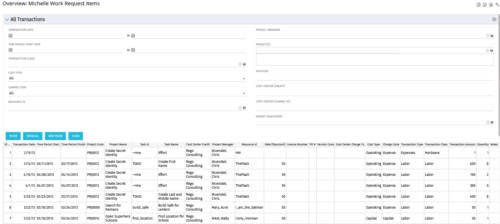 The All Transactions portlets have the capability to display any transaction within the system. Transactions from any type of investment can be viewed on this page. There are two version of this process:
- All Transactions (with security) – this will display rows only where the logged in resource has access to cost plans for projects or ideas. The portlet will check instance, OBS and global rights.
- All Transactions (without security) – will display all rows, regardless of cost plan access rights.
Column Label Description ID An unique identifier for each row displayed in the portlet. Transaction Date The data the transaction has been coded to. Time Period Start For transactions arising from timesheet entries, this will show the start period of the timesheet. Time Period Finish For transactions arising from timesheet entries, this will show the finish period of the timesheet. Project Code The ID of the investment. Project Name The name of the investment. Task ID The ID of the investment task where the actual cost has been assigned. Task Name The name of the investment task where the actual cost has been assigned. Cost Center Credit The department assigned to the resource where a cost needs to be credited. Project Manager The resource managing the investment. Resource ID The ID for the resource that has been assigned the cost. Rate (Standard) The rate for the cost. Invoice Number The invoice number. May come from a manual transaction or may be imported from a financial system integration. PO # The purchase order number. May come from a manual transaction or may be imported from a financial system integration. Vendor Code The vendor code that has been listed against the transaction. Cost Centre Charge To The department assigned to the resource where a cost needs to be charged. Cost Type Indicates whether the transaction is capital or operating. Charge Code The charge code assigned to the transaction as per the Clarity Charge Code list. Transaction Type Labour, Expense, Equipment or Material. Transaction Class The transaction class assigned to the transaction as per the Clarity transaction class list. Transaction Amount Rate x Quantity. Quantity The number of units. Notes Free text field for the transaction. -
 This training document is a Rego Consulting Quick Reference Guide to assist with accessing Project Financials in Clarity’s Modern User Experience.
 -
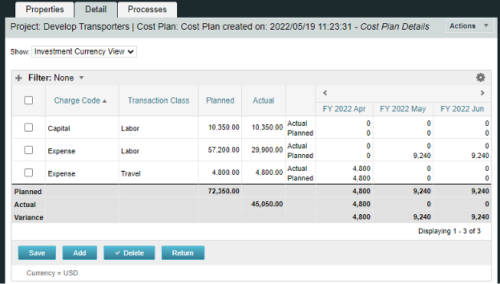
A process creating a new Cost Plan. Cost Plan properties:
Pre-conditions:Name Cost Plan created on: yyyy/mm/dd hh:mm:ss Grouping attributes Charge Code, Transaction Type Start Period The earliest fiscal period with Actuals (from PPA_WIP table) or current period, if there are no actuals Finish Period The latest fiscal period with a non-zero allocation (from PRJ_BLB_SLICES table, SLICE_REQUEST_ID = 6 Period Type Monthly Plan of Record True Planned Cost For periods in the past – from Actuals (Charge Code, Transaction Type, Quantity (Units), Cost (Amount) taken from Transactions (PPA_WIP & PPA_WIP_DETAILS); For current and future periods – from Allocations (Charge Code taken from the Project, Transaction Class from the Resource, Quantity from allocation slices, Cost from the Rate Matrix (NBI_PROJ_RES_RATES_AND_COSTS table) - the Project must be financially enabled.
- if a new Team Member is added, Rate Matrix job must be run, so the rates are populated in the NBI table.
- if the Allocation changes, allow the timeslice job to finish before running the process.
- the Project should have the Charge Code set.
-
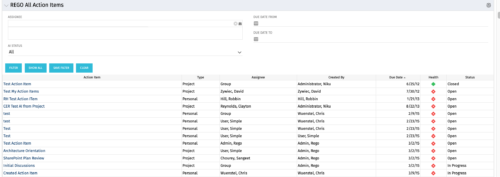 The All Action Items portlet provides detail on all actions items, including the name, type, assignee, status, due date, health indicator and creator of the action item. The portlet can be filtered by project, assignee, AI status, and due date range.
 -
 Discount Tire shares their Project Prioritization Model. It’s based on the Analytic Hierarchy Process (AHP) created in the 1970’s. It breaks down decisions into a hierarchal structure and combines both objectivity and subjectivity into a standard numerical scale.
 -
This training document is a Rego Consulting Quick Reference Guide to assist in the replacement of roles with named resources in Clarity’s Modern User Experience. This doc references version 16.2.1 views. Document provides detail on soft bookings, default allocation and requested manager. Instructions are provided on how to access requests from the Staffing Plan view and how to swap the role for a named resource. If requests are not fulfilled in their entirety, details are provided on how the excess allocation is handled.
-
This training document is a Rego Consulting Quick Reference Guide to assist with creation and management of resource Teams in Clarity’s Modern User Experience. This doc references version 16.2.1 views. Document provides detail on how to create Teams and add resources to a Team. Instructions are provided on how to add resources by OBS and how to allocate a team to an investment. Team key points are provided with regard to Classic, Allocations, ETC and Financials.


Copyright 2023 • Rego Consulting Corporation • Privacy Policy