
| Column Label | Description |
| Timesheet Period Start | Range of time periods to display filtered by start date |
| Timesheet Period Finish | Range of time periods to display filtered by finish date |
| Resource | Resource(s) to display |
| Type | Note on a timesheet or time entry (task specific) |
-
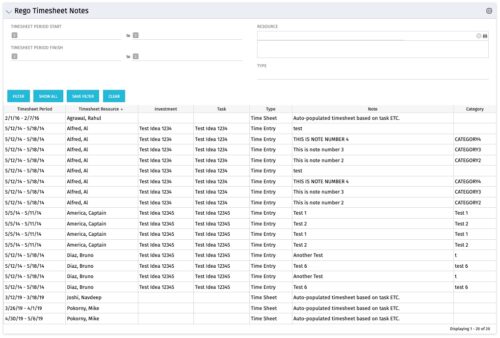 The Timesheet Notes portlet displays all timesheet notes split out by resource, investment and task. This is very useful in situations where you want to review multiple notes as you do not have to open each note separately. The table below describes the available filter fields in the portlet.
 -
The Timesheet Notes portlet displays all timesheet notes split out by resource, investment and task. This is very useful in situations where you want to review multiple notes as you do not have to open each note separately. The table below describes the available filter fields in the portlet.
Column Label Description Timesheet Period Start Range of time periods to display filtered by start date Timesheet Period Finish Range of time periods to display filtered by finish date Resource Resource(s) to display Type Note on a timesheet or time entry (task specific) -
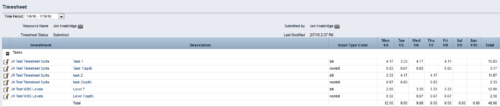
 The Timesheet Smoothing Process Workflow kicks-off when an individual timesheet is Submitted. It splits each transaction on the timesheet when total timesheet actuals exceed total weekly availability for the resource. Total weekly availability is determined by multiplying resource availability rate by the number of workdays in the week. Non-workdays include weekends, holidays, PTO, and other scheduled days off, as set on the resource calendar. If timesheet actuals <= total weekly availability, then the timesheet remains unchanged. But if timesheet actuals > total weekly availability, then the following occurs. Each timesheet transaction is reduced by a calculated percentage that will reduce the total regular hours to equal the total weekly availability. Then the remaining transaction hours are placed in a “Split” row for that task on that day, with an Input Type Code set based on a process parameter (which parameter can be set within the script action on the process). Note: If a single day has overtime hours, but the total timesheet actuals <= total weekly availability, no splitting occurs.
 -
The Timesheet Smoothing Process Workflow kicks-off when an individual timesheet is Submitted. It splits each transaction on the timesheet when total timesheet actuals exceed total weekly availability for the resource. Total weekly availability is determined by multiplying resource availability rate by the number of workdays in the week. Non-workdays include weekends, holidays, PTO, and other scheduled days off, as set on the resource calendar. If timesheet actuals <= total weekly availability, then the timesheet remains unchanged. But if timesheet actuals > total weekly availability, then the following occurs. Each timesheet transaction is reduced by a calculated percentage that will reduce the total regular hours to equal the total weekly availability. Then the remaining transaction hours are placed in a “Split” row for that task on that day, with an Input Type Code set based on a process parameter (which parameter can be set within the script action on the process). Note: If a single day has overtime hours, but the total timesheet actuals <= total weekly availability, no splitting occurs.
-
The Timesheet Smoothing Process Workflow kicks-off when an individual timesheet is Submitted. It splits each transaction on the timesheet when total timesheet actuals exceed total weekly availability for the resource. Total weekly availability is determined by multiplying resource availability rate by the number of workdays in the week. Non-workdays include weekends, holidays, PTO, and other scheduled days off, as set on the resource calendar. If timesheet actuals <= total weekly availability, then the timesheet remains unchanged. But if timesheet actuals > total weekly availability, then the following occurs. Each timesheet transaction is reduced by a calculated percentage that will reduce the total regular hours to equal the total weekly availability. Then the remaining transaction hours are placed in a “Split” row for that task on that day, with an Input Type Code set based on a process parameter (which parameter can be set within the script action on the process). Note: If a single day has overtime hours, but the total timesheet actuals <= total weekly availability, no splitting occurs.
-
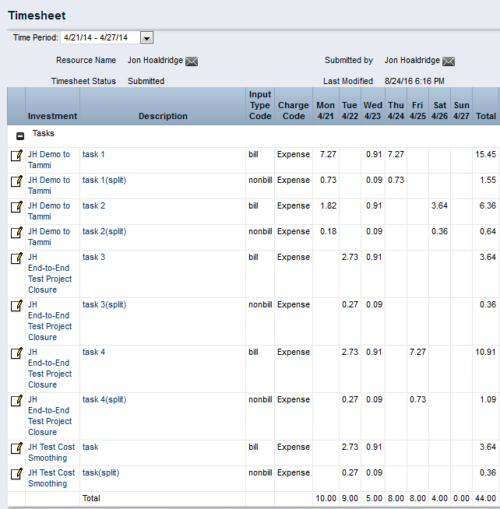
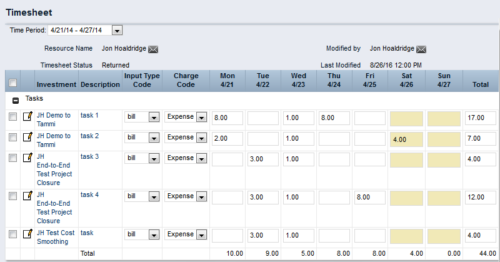 This process workflow with gel script forces billable hours on timesheet down to 40 hours, and sets overtime hours to non-billable. Timesheets with 40 or fewer hours are not touched. Process kicks off upon submission of timesheet. Steps are:
- Determine if timesheet has > 40 hours. If so, proceed.
- Create a SPLIT row for each timesheet row, with Input Type Code = Non-Bill.
- Divide 40 by total timesheet ours. Store this value.
- Multiply each timesheet cell by the stored value, and enter the result into that cell.
- Take the difference (original cell value – new cell value), and enter in same cell on Split row.
- The end result will be 40 hours total on Billable rows, and overtime hours on Non-Billable rows.
-
This process workflow with gel script forces billable hours on timesheet down to 40 hours, and sets overtime hours to non-billable. Timesheets with 40 or fewer hours are not touched. Process kicks off upon submission of timesheet. Steps are:
- Determine if timesheet has > 40 hours. If so, proceed.
- Create a SPLIT row for each timesheet row, with Input Type Code = Non-Bill.
- Divide 40 by total timesheet ours. Store this value.
- Multiply each timesheet cell by the stored value, and enter the result into that cell.
- Take the difference (original cell value – new cell value), and enter in same cell on Split row.
- The end result will be 40 hours total on Billable rows, and overtime hours on Non-Billable rows.
-
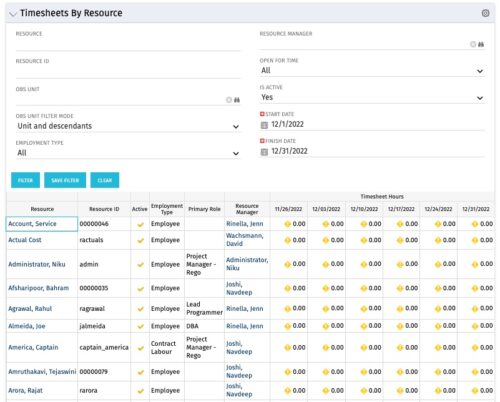 The Timesheets by Resource portlet gives the ability to highlight the time periods where resources are working overtime or working less than 25 hours a week. The filter requires timesheet Start Date and End Date to be provided. Additionally, the information can be filtered by Resource, Resource ID, OBS Unit, Employment Type, Resource Manager, Open for Time, and Active status. This portlet displays Resource, Resource ID, Active (yes/no), Employment Type, Primary Role, Resource Manager, and Timesheet Hours Flag. The flags are set with the logic
- Yellow = timesheets not posted / zero hour timesheets
- Green = where number of hours posted is > 25 and less than 45
- Red = where number of hours posted is < 25 or > 45
-
The Timesheets by Resource portlet gives the ability to highlight the time periods where resources are working overtime or working less than 25 hours a week. The filter requires timesheet Start Date and End Date to be provided. Additionally, the information can be filtered by Resource, Resource ID, OBS Unit, Employment Type, Resource Manager, Open for Time, and Active status. This portlet displays Resource, Resource ID, Active (yes/no), Employment Type, Primary Role, Resource Manager, and Timesheet Hours Flag. The flags are set with the logic
- Yellow = timesheets not posted / zero hour timesheets
- Green = where number of hours posted is > 25 and less than 45
- Red = where number of hours posted is < 25 or > 45
-
The Timesheets by Resource portlet gives the ability to highlight the time periods where resources are working overtime or working less than 25 hours a week. The filter requires timesheet Start Date and End Date to be provided. Additionally, the information can be filtered by Resource, Resource ID, OBS Unit, Employment Type, Resource Manager, Open for Time, and Active status. This portlet displays Resource, Resource ID, Active (yes/no), Employment Type, Primary Role, Resource Manager, and Timesheet Hours Flag. The flags are set with the logic
- Yellow = timesheets not posted / zero hour timesheets
- Green = where number of hours posted is > 25 and less than 45
- Red = where number of hours posted is < 25 or > 45
-
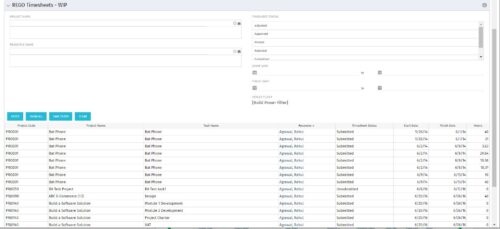 The REGO Timesheets - WIP portlet displays timesheet information for timesheets that have a status of posted but have not been posted to the WIP tables. This does not include records hung up in invalid transactions. Users can further narrow their search by Project Name, Resource Name, Timesheet Status, Start Date, and Finish Date.
 -
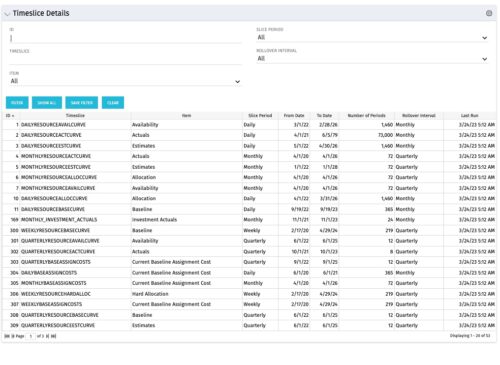 This allows users without admin access to see the timeslice settings and also allows the data to be exported to excel easily. Many organizations like to document their timeslice settings which is a manual process as you cannot export the timeslice page to excel. This allows them to periodically export the portlet results to excel to meet their documentation requirements.
 -
This allows users without admin access to see the timeslice settings and also allows the data to be exported to excel easily. Many organizations like to document their timeslice settings which is a manual process as you cannot export the timeslice page to excel. This allows them to periodically export the portlet results to excel to meet their documentation requirements.
-
This allows users without admin access to see the timeslice settings and also allows the data to be exported to excel easily. Many organizations like to document their timeslice settings which is a manual process as you cannot export the timeslice page to excel. This allows them to periodically export the portlet results to excel to meet their documentation requirements.
-
 Course description: “Does CA PPM Timeslice functionality seem like a foreign language to you? This intro to timeslices will cover an Overview of Timeslice Fundamentals, Terminology, Best Practices, Diagnostics, and the basic SQL Constructs to get you started.”
 -
 This training document is a Rego Consulting Quick Reference Guide to assist with the use of the To Dos functionality in Clarity. It illustrates accessing the To Do list from the Menu and then the functionality of the To Do page.
 -
 A .pdf file that has the slide by slide presentation at 2015 RegoU on basic administration of CA PPM. The agenda covers an administration overview, objects, lookups, OBS/Security, portlets, processes, and support items.
 -
 A .pdf file that has the slide by slide presentation at 2015 RegoU on the elements of Financial Processing in CA PPM. The agenda covers a financial process overview, enabling time reporting, enabling financials, posting timesheets, transaction entries, posting to WIP, adjustments, importing financial actuals, and job scheduling.
 -
 To help you stay ahead of the curve, we've asked our 250+ expert guides to share the key trends they've seen firsthand while working with our clients. The result? We are equipped to prepare you for what’s coming next. In this class, Rego’s senior strategists will reveal the top trending PPM / SPM themes and share practical insights to help your organization thrive. Learn what’s shaping the future of PPM / SPM and discover actionable strategies you can utilize right away.
 -
 A presentation slide deck from Rego University 2022. This course reviewed Adoption Metrics and Reliable Data Collection.
- Reliable Data Collection and Business Performance
- Adoption Metrics and Customer Adoption
- Data Quality, Data Integrity and Ensuring User Confidence
- Business Performance
- Reliable Data Collection and Business Performance
-
 Maximize the value of your training delivery by increasing end user engagement with the course content. Discuss options to optimize efficiency and help ensure users are engaged while participating in training.
 -
 Tight budgets or disbursed teams often necessitate virtual training delivery. Discuss best practices and strategies to increase the effectiveness of your virtual courses.
 -
 Expand your training delivery options beyond MS Word and PowerPoint. Discuss the various training delivery mechanisms, and how to choose the right delivery method and combination of materials for the different types of courses you’ll deliver to your end users.
 -

The Transaction Adapter – is a text based CSV file which automates the importing of monthly non labor financial data into Clarity directly from your financial system. This integration eliminates the need to create non-labor transactions manually in Clarity and will provide more accurate project, program, and portfolio financial reporting. -
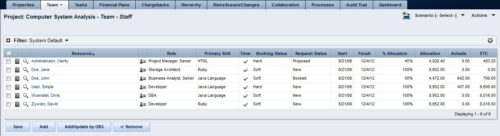 The Rego: Transfer Primary Skill process updates the primary skill on the team object by running the process with the execute process job. The process takes the primary skill that is on the resource object and moves it to all of that resource's team records where the primary skill on the team record is null. Utilizing these fields and process provide a quick way to determine what skill each resource is bringing to the project. This process makes the transition seamless from resource primary skill to team primary skill.
 -
The Rego: Transfer Primary Skill process updates the primary skill on the team object by running the process with the execute process job. The process takes the primary skill that is on the resource object and moves it to all of that resource's team records where the primary skill on the team record is null. Utilizing these fields and process provide a quick way to determine what skill each resource is bringing to the project. This process makes the transition seamless from resource primary skill to team primary skill.
-
The Rego: Transfer Primary Skill process updates the primary skill on the team object by running the process with the execute process job. The process takes the primary skill that is on the resource object and moves it to all of that resource's team records where the primary skill on the team record is null. Utilizing these fields and process provide a quick way to determine what skill each resource is bringing to the project. This process makes the transition seamless from resource primary skill to team primary skill.
-
 By its very nature, the shift to Product Funding is going to require that tracking of that funding. Agile tools do not have much, if any, financial capabilities, so it is important to create an eco-system that can support this value stream—from funding, through delivery, and finally to tracking the realization of financial value. Learn how Rally and Clarity PPM do this very well together.
 -
 By its very nature, the shift to Product Funding is going to require that tracking of that funding. Agile tools do not have much, if any, financial capabilities, so it is important to create an eco-system that can support this value stream—from funding, through delivery, and finally to tracking the realization of financial value. Learn how Rally and Clarity PPM do this very well together.
 -
 Are you considering moving to CA PPM SaaS? This class will provide lessons learned while we walk you through business cases, conversion time-lines, and the advantages of both hosting strategies.
 -
 A presentation slide deck from RegoU 2023. This course discussed how IBM’s Turbonomic and Apptio’s Cloudability can work together. Using these two tools will empower your FinOps Organization.
 -
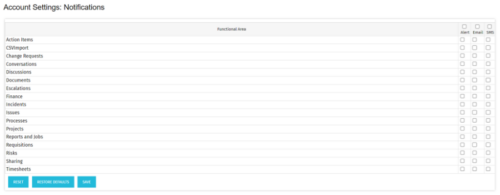 The Turn off Notifications process disables all Email, SMS and Alerts notifications for all users. This process is helpful if users would not like to receive emails from the system regarding actions items, timesheet submissions, etc. The script may be modified to include all users or all users that have been created within the last day.
 -
The Turn off Notifications process disables all Email, SMS and Alerts notifications for all users. This process is helpful if users would not like to receive emails from the system regarding actions items, timesheet submissions, etc. The script may be modified to include all users or all users that have been created within the last day.
-
The Turn off Notifications process disables all Email, SMS and Alerts notifications for all users. This process is helpful if users would not like to receive emails from the system regarding actions items, timesheet submissions, etc. The script may be modified to include all users or all users that have been created within the last day.
-
 What is your elevator speech for continually selling the value of TBM? Reacquaint yourself with key value proposals for TBM and why TBM matters to your organization
 -
 A presentation slide deck from Rego University 2022. This document reviews the principles of Lean Portfolio Management. • What is Lean Portfolio Management (LPM)? • Artifacts of the LPM • Roles of the LPM • Ceremonies of the LPM
