-
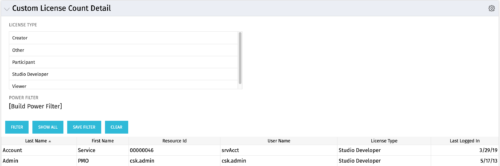 The Custom License Count Detail portlet displays the license type information for all users within Clarity as well as last login date for clean-up. This portlet can be modified by adjusting the query to exclude certain rights within manager licenses based on negotiated license types with CA. For example, if CA allows creation of a sub-object to Incident to be included in a Team Member license, this portlet can be used to reflect the true license counts vs. the standard CA license counts.
 -
The Custom License Count Detail portlet displays the license type information for all users within Clarity as well as last login date for clean-up. This portlet can be modified by adjusting the query to exclude certain rights within manager licenses based on negotiated license types with CA. For example, if CA allows creation of a sub-object to Incident to be included in a Team Member license, this portlet can be used to reflect the true license counts vs. the standard CA license counts.
-
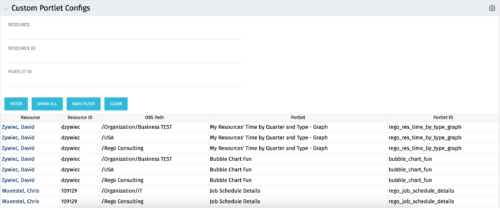 The Custom Portlet Configs portlet will display all portlets where the user has modified any settings like the filter or list views. This portlet is helpful for troubleshooting and to determine which users may be affected during an upgrade. The portlet may be filtered by several criteria and displays the resource name, ID, OBS path, portlet, and portlet ID.
 -
The Custom Portlet Configs portlet will display all portlets where the user has modified any settings like the filter or list views. This portlet is helpful for troubleshooting and to determine which users may be affected during an upgrade. The portlet may be filtered by several criteria and displays the resource name, ID, OBS path, portlet, and portlet ID.
-
The Custom Portlet Configs portlet will display all portlets where the user has modified any settings like the filter or list views. This portlet is helpful for troubleshooting and to determine which users may be affected during an upgrade. The portlet may be filtered by several criteria and displays the resource name, ID, OBS path, portlet, and portlet ID.
-
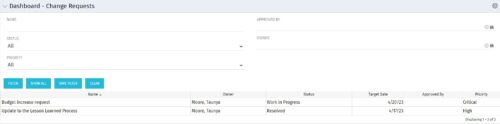 The Dashboard: Change Requests portlet gives an overview of all change requests on the project. The portlet will pull the "id" from the page it is placed on, so this portlet is usually placed on the project dashboard tab. The portlet sorts the issues first by priority and then by target date. It displays the name, owner, status, target date, approved by, and the priority.
 -
The Dashboard: Change Requests portlet gives an overview of all change requests on the project. The portlet will pull the "id" from the page it is placed on, so this portlet is usually placed on the project dashboard tab. The portlet sorts the issues first by priority and then by target date. It displays the name, owner, status, target date, approved by, and the priority.
-
 The Dashboard: Open Issues portlet gives an overview of all issues that are not closed or resolved for a single project. The portlet will pull the "id" from the page it is placed on, so this portlet is usually placed on the project dashboard tab. The portlet sorts the issues first by priority and then by target date. It displays the name, target date, owner, status and priority.
 -
The Dashboard: Open Issues portlet gives an overview of all issues that are not closed or resolved for a single project. The portlet will pull the "id" from the page it is placed on, so this portlet is usually placed on the project dashboard tab. The portlet sorts the issues first by priority and then by target date. It displays the name, target date, owner, status and priority.
-
The Dashboard: Open Issues portlet gives an overview of all issues that are not closed or resolved for a single project. The portlet will pull the "id" from the page it is placed on, so this portlet is usually placed on the project dashboard tab. The portlet sorts the issues first by priority and then by target date. It displays the name, target date, owner, status and priority.
-
 The Dashboard: Open Milestones portlet gives an overview of all milestones that are started or not started for a single project. The portlet will pull the "id" from the page it is placed on, so this portlet is usually placed on the project dashboard tab. The milestones are sorted by Due Date. It displays the name, Due Date, Baseline Date, Days Late (Due Date – Baseline Date), and Days Old (Current Date – Due Date).
 -
The Dashboard: Open Milestones portlet gives an overview of all milestones that are started or not started for a single project. The portlet will pull the "id" from the page it is placed on, so this portlet is usually placed on the project dashboard tab. The milestones are sorted by Due Date. It displays the name, Due Date, Baseline Date, Days Late (Due Date – Baseline Date), and Days Old (Current Date – Due Date).
-
The Dashboard: Open Milestones portlet gives an overview of all milestones that are started or not started for a single project. The portlet will pull the "id" from the page it is placed on, so this portlet is usually placed on the project dashboard tab. The milestones are sorted by Due Date. It displays the name, Due Date, Baseline Date, Days Late (Due Date – Baseline Date), and Days Old (Current Date – Due Date).
-
 The Dashboard: Open Risks portlet gives an overview of all risks that are not closed or resolved for a single project. The portlet will pull the "id" from the page it is placed on, so this portlet is usually placed on the project dashboard tab. The portlet sorts the risks first by priority and then by target date. It displays the name, owner, target date, probability impact, and priority.
 -
The Dashboard: Open Risks portlet gives an overview of all risks that are not closed or resolved for a single project. The portlet will pull the "id" from the page it is placed on, so this portlet is usually placed on the project dashboard tab. The portlet sorts the risks first by priority and then by target date. It displays the name, owner, target date, probability impact, and priority.
-
The Dashboard: Open Risks portlet gives an overview of all risks that are not closed or resolved for a single project. The portlet will pull the "id" from the page it is placed on, so this portlet is usually placed on the project dashboard tab. The portlet sorts the risks first by priority and then by target date. It displays the name, owner, target date, probability impact, and priority.
-
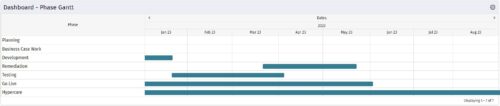 The Dashboard: Phase Gantt portlet gives an overview of all WBS level 1 tasks or milestones for a single project. The portlet will pull the "id" from the page it is placed on, so this portlet is usually placed on the project dashboard tab. The portlet displays the name, and a graphical representation of the timeline for the phases. The date range may be configured by day, month, year, or quarter. The start date may also be configured to any date or a relative date (start of current month, start of next year, etc).
 -
The Dashboard: Phase Gantt portlet gives an overview of all WBS level 1 tasks or milestones for a single project. The portlet will pull the "id" from the page it is placed on, so this portlet is usually placed on the project dashboard tab. The portlet displays the name, and a graphical representation of the timeline for the phases. The date range may be configured by day, month, year, or quarter. The start date may also be configured to any date or a relative date (start of current month, start of next year, etc).
-
The Dashboard: Phase Gantt portlet gives an overview of all WBS level 1 tasks or milestones for a single project. The portlet will pull the "id" from the page it is placed on, so this portlet is usually placed on the project dashboard tab. The portlet displays the name, and a graphical representation of the timeline for the phases. The date range may be configured by day, month, year, or quarter. The start date may also be configured to any date or a relative date (start of current month, start of next year, etc).
-
 The Dashboard: Project Information portlet gives a set of high-level information about the project. The portlet will pull the "id" from the page it is placed on, so this portlet is usually placed on the project dashboard tab. The portlet displays the name, project ID, project manager, description, start date, finish date, baseline start, and baseline finish.
 -
The Dashboard: Project Information portlet gives a set of high-level information about the project. The portlet will pull the "id" from the page it is placed on, so this portlet is usually placed on the project dashboard tab. The portlet displays the name, project ID, project manager, description, start date, finish date, baseline start, and baseline finish.
-
The Dashboard: Project Information portlet gives a set of high-level information about the project. The portlet will pull the "id" from the page it is placed on, so this portlet is usually placed on the project dashboard tab. The portlet displays the name, project ID, project manager, description, start date, finish date, baseline start, and baseline finish.
-
 The Dashboard: Project Status Single-line portlet gives an overview of the project overall status as well as the status indicators on the "current" status report object. The portlet will pull the "id" from the page it is placed on, so this portlet is usually placed on the project dashboard tab. This portlet displays the report date, symbols relating to the overall status, scope, schedule, cost/effort, and the overall explanation across a single line in the portlet.
 -
The Dashboard: Project Status Single-line portlet gives an overview of the project overall status as well as the status indicators on the "current" status report object. The portlet will pull the "id" from the page it is placed on, so this portlet is usually placed on the project dashboard tab. This portlet displays the report date, symbols relating to the overall status, scope, schedule, cost/effort, and the overall explanation across a single line in the portlet.
-
The Dashboard: Project Status Single-line portlet gives an overview of the project overall status as well as the status indicators on the "current" status report object. The portlet will pull the "id" from the page it is placed on, so this portlet is usually placed on the project dashboard tab. This portlet displays the report date, symbols relating to the overall status, scope, schedule, cost/effort, and the overall explanation across a single line in the portlet.
-
 Are you looking for some great examples of dashboards that include metrics/KPIs? This session will review a host of sample metric dashboards in use today that can spark ideas for you to implement in your company.
 -
 Are you looking for some great examples of dashboards that include metrics/KPIs? This session will review a host of sample metric dashboards in use today that can spark ideas for you to implement in your company.
 -

 This Portlet can be used to define User License Output information including the following:
- Resource
- Resource User Name
- Resource Id
- Resource Manager
- Resource Manager Email
- Primary Role
- Employment Type
- Org Structure Path
- Org Structure Lowest Unit
- Last Logged in Date
- User License
- Right License
- Access Right
- Access Right Type
- Access Right to OBS
- Granted Through Type
- Granted Through (Security Group)
- Access Right Description
- Resource OBS
- Resource
- Resource Manager
- Primary Role
- Employment Type
-
This Portlet can be used to define User License Output information including the following:
- Resource
- Resource User Name
- Resource Id
- Resource Manager
- Resource Manager Email
- Primary Role
- Employment Type
- Org Structure Path
- Org Structure Lowest Unit
- Last Logged in Date
- User License
- Right License
- Access Right
- Access Right Type
- Access Right to OBS
- Granted Through Type
- Granted Through (Security Group)
- Access Right Description
- Resource OBS
- Resource
- Resource Manager
- Primary Role
- Employment Type
-
This Portlet can be used to define User License Output information including the following:
- Resource
- Resource User Name
- Resource Id
- Resource Manager
- Resource Manager Email
- Primary Role
- Employment Type
- Org Structure Path
- Org Structure Lowest Unit
- Last Logged in Date
- User License
- Right License
- Access Right
- Access Right Type
- Access Right to OBS
- Granted Through Type
- Granted Through (Security Group)
- Access Right Description
- Resource OBS
- Resource
- Resource Manager
- Primary Role
- Employment Type
-
 Do you have enough experience with the data model to be dangerous - maybe just the basic project and resource tables? This class will take you to the next level in understanding the Clarity data model and provide training on how to write NSQL queries within Clarity for use in your portlets and reports.
 -
 A presentation slide deck from Rego University 2021. This course covered Project Tables, OBS, Timeslices, and Methods to find DB objects.
 -
 Course description: “Do you want to learn how to get basic data out of CA PPM for use in portlets? This class will review the basic CA PPM data model and provide training on how to write queries within CA PPM for use in your portlets and reports.” Download file is the slide deck used during the class.
 -
 A presentation slide deck from Rego University 2022. This document outlines the training for our Data Model Class.
- Base Tables
- Modern UX
- Data Warehouse (DWH)
- Tips and Tricks
- Admin Activities and System Settings
-
 Do you have enough experience with the data model to be dangerous - maybe just the basic project and resource tables? This class will take you to the next level in understanding the Clarity data model and provide training on how to write NSQL queries within Clarity for use in your portlets and reports.
 -
 Has your organization made significant investments in technology solutions without seeing precise results? Do you have the right capabilities yet lack an interconnected, end-to-end solution? Come to this session to learn more about the importance of a living strategic roadmap and how Rego's Digital Ecosystem Assessment program can help. This session will review the key elements needed to create an effective roadmap that can drive increased maturity and excitement within your organization, and how that roadmap can help optimize your digital ecosystem.


Copyright 2023 • Rego Consulting Corporation • Privacy Policy