-
 Expand your training delivery options beyond MS Word and PowerPoint. Discuss the various training delivery mechanisms, and how to choose the right delivery method and combination of materials for the different types of courses you’ll deliver to your end users.
 -

The Transaction Adapter – is a text based CSV file which automates the importing of monthly non labor financial data into Clarity directly from your financial system. This integration eliminates the need to create non-labor transactions manually in Clarity and will provide more accurate project, program, and portfolio financial reporting. -
 Are you considering moving to CA PPM SaaS? This class will provide lessons learned while we walk you through business cases, conversion time-lines, and the advantages of both hosting strategies.
 -
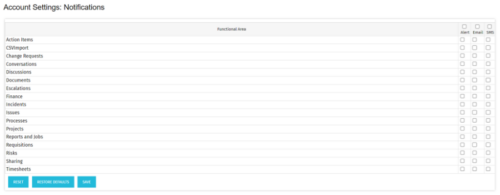 The Turn off Notifications process disables all Email, SMS and Alerts notifications for all users. This process is helpful if users would not like to receive emails from the system regarding actions items, timesheet submissions, etc. The script may be modified to include all users or all users that have been created within the last day.
 -
The Turn off Notifications process disables all Email, SMS and Alerts notifications for all users. This process is helpful if users would not like to receive emails from the system regarding actions items, timesheet submissions, etc. The script may be modified to include all users or all users that have been created within the last day.
-
The Turn off Notifications process disables all Email, SMS and Alerts notifications for all users. This process is helpful if users would not like to receive emails from the system regarding actions items, timesheet submissions, etc. The script may be modified to include all users or all users that have been created within the last day.
-
 The Unlock Projects workflow process can be run through the "Execute a Process" job. The workflow will execute a query that will automatically unlock projects that have been exported / checked out for over 2 days. This prevents any projects from remaining in the “locked” state for a long period of time, preventing time from posting to these projects.
 -
The Unlock Projects workflow process can be run through the "Execute a Process" job. The workflow will execute a query that will automatically unlock projects that have been exported / checked out for over 2 days. This prevents any projects from remaining in the “locked” state for a long period of time, preventing time from posting to these projects.
-
The Unlock Projects workflow process can be run through the "Execute a Process" job. The workflow will execute a query that will automatically unlock projects that have been exported / checked out for over 2 days. This prevents any projects from remaining in the “locked” state for a long period of time, preventing time from posting to these projects.
-
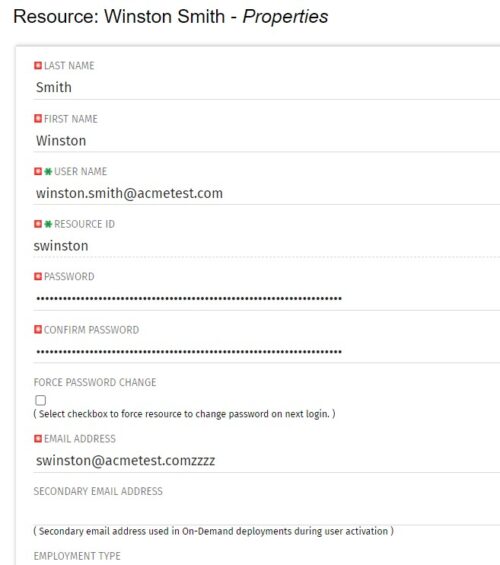 The Update Email Ids workflow sets all users’ email addresses to non-working by appending a “ZZZZ” to the end of the email address. This process is used for when there are refreshes to your Development or Testing environments and do not want emails going to users. When complete, the log will display the total amount of email addresses updated. A second process is included in this workflow that will revert the email addresses to remove the “ZZZZ” added in the first workflow. In some instances, the process may be run in error, or you may want to send emails from a Development or Testing environment; using this second process you will be able to enable all emails again.
 -
The Update Email Ids workflow sets all users’ email addresses to non-working by appending a “ZZZZ” to the end of the email address. This process is used for when there are refreshes to your Development or Testing environments and do not want emails going to users. When complete, the log will display the total amount of email addresses updated. A second process is included in this workflow that will revert the email addresses to remove the “ZZZZ” added in the first workflow. In some instances, the process may be run in error, or you may want to send emails from a Development or Testing environment; using this second process you will be able to enable all emails again.
-
The Update Email Ids workflow sets all users’ email addresses to non-working by appending a “ZZZZ” to the end of the email address. This process is used for when there are refreshes to your Development or Testing environments and do not want emails going to users. When complete, the log will display the total amount of email addresses updated. A second process is included in this workflow that will revert the email addresses to remove the “ZZZZ” added in the first workflow. In some instances, the process may be run in error, or you may want to send emails from a Development or Testing environment; using this second process you will be able to enable all emails again.
-
 Fiscal periods in DWH may need to be changed if we need to increase or decrease the number of periods for reporting.
 -
 There’s an upgrade in your future. Do you want to understand the costs, durations, and lessons learned? We’ll review existing and upcoming releases, the pros and cons of moving to various versions, and upgrade strategies, so you can prepare your budget and plan.
 -
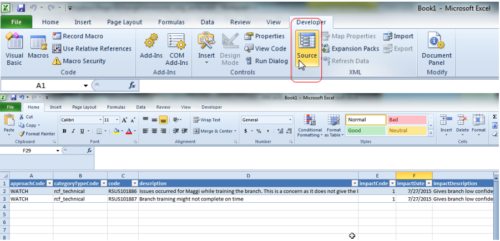 This tech trick demonstrates how to use Microsoft Excel to map data to XOG files by using the Developer tab in Excel 2010+. Using a standard XML XOG file as provided by CA the guide and walkthrough video shows off the power of Excel and the ease in which object instance values can be directly inserted into or updated in Clarity.
 -
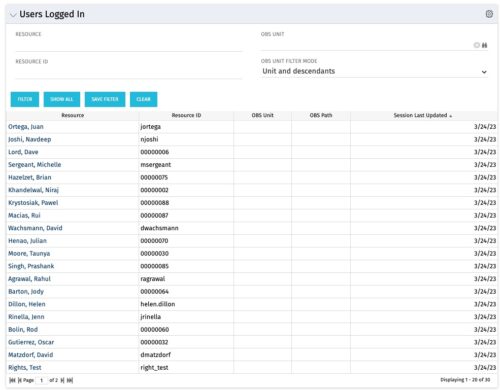 The Users Logged In portlet displays all users logged into the system. This portlet is helpful to determine the capacity during peak times, users still working before downtime, and the ability to view users logged in during the day. The portlet will display the resource, ID, OBS unit, OBS path, and when the user’s session was last updated.
 -
The Users Logged In portlet displays all users logged into the system. This portlet is helpful to determine the capacity during peak times, users still working before downtime, and the ability to view users logged in during the day. The portlet will display the resource, ID, OBS unit, OBS path, and when the user’s session was last updated.
-
The Users Logged In portlet displays all users logged into the system. This portlet is helpful to determine the capacity during peak times, users still working before downtime, and the ability to view users logged in during the day. The portlet will display the resource, ID, OBS unit, OBS path, and when the user’s session was last updated.
-
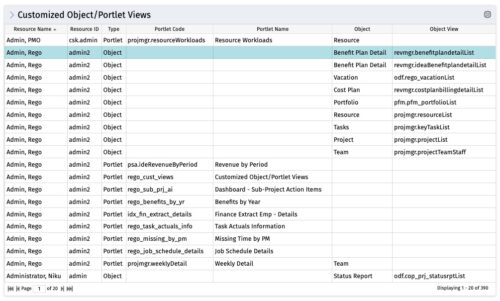 The Customized Object/Portlet Views portlet displays all user edited object/portlet views and the resource(s) that have edited them. This can assist in identifying users who need to be notified prior to publishing view changes. The table below describes the available columns on the object.
Column Label Description Resource Name Name of the resource Resource ID ID of the resource Type Object or Portlet Portlet Code ID of the portlet Portlet Name Name of the portlet Object Associated Object Object View ID of the modified view on the object Object Code Internal code used by the query pkid Internal code used by the query portlet_dbid Database id of the portlet res_dbid Database id of the resource -
The Customized Object/Portlet Views portlet displays all user edited object/portlet views and the resource(s) that have edited them. This can assist in identifying users who need to be notified prior to publishing view changes. The table below describes the available columns on the object.
Column Label Description Resource Name Name of the resource Resource ID ID of the resource Type Object or Portlet Portlet Code ID of the portlet Portlet Name Name of the portlet Object Associated Object Object View ID of the modified view on the object Object Code Internal code used by the query pkid Internal code used by the query portlet_dbid Database id of the portlet res_dbid Database id of the resource -
 Course Description: Struggling to figure out how to best organize your blueprints? This class will walk through best practice blueprint design, including how many to have, how to use channels, using custom subobjects within the blueprint, and swapping blueprints at various project stages to mimic project phases or ideas. We’ll highlight some of the creative ways we’ve seen blueprints used in client implementations.
 -
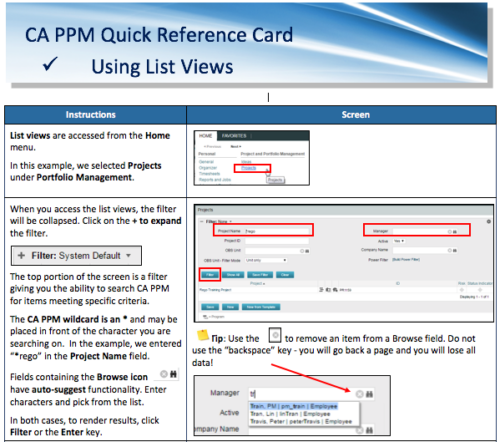 A Quick Reference Card to assist in the use of list views in CA PPM. List Views are accessed from the Home menu.
 -
 Struggling to use an external scheduler like MS Project or Smartsheet with Clarity or investigating its potential? Learn how to effectively use these tools with Clarity in this training, which includes best practices and lessons learned. We will show both OOTB and Rego build connectors that will make the bidirectional connections seamless.
 -
 A tech trick document that assists you in update Data Source when utilizing the Power BI reports found in RegoXchange.
 -
 "Learn how to use, and follow best practices with the Clarity REST APIs
- Execute a REST Call
- Create JSON payloads and parse JSON responses
- Capture the result of the request"
-
 Learn how to use, and follow best practices with the Clarity REST APIs - Execute a REST Call - Create JSON payloads and parse JSON responses - Capture the result of the request
 -
 A Quick Reference Guide that provides an overview of the Common Grid components in Clarity PPM’s Modern UX. Looks at functionality of the Common Grid view, View Options, Adjusting Columns, Details Panel, and Group by Mode.
 -
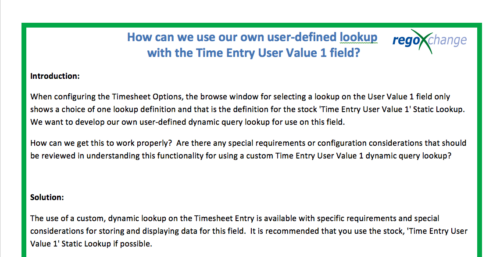 When configuring the Timesheet Options, the browse window for selecting a lookup on the User Value 1 field only shows a choice of one lookup definition and that is the definition for the stock 'Time Entry User Value 1' Static Lookup. We want to develop our own user-defined dynamic query lookup for use on this field. How can we get this to work properly? Are there any special requirements or configuration considerations that should be reviewed in understanding this functionality for using a custom Time Entry User Value 1 dynamic query lookup? The use of a custom, dynamic lookup on the Timesheet Entry is available with specific requirements and special considerations for storing and displaying data for this field. It is recommended that you use the stock, 'Time Entry User Value 1' Static Lookup if possible.
 -
 With ValueOps Insights you can gain transparency into full value stream analytics. Come learn about metrics to run your business including flow metrics, DORA, and value realization metrics that give your management team a compass to find the value your teams are delivering.
 -
 A presentation slide deck from Rego University 2022. Broadcom’s presentation on customer stories in the ValueOps arena.
- Introduction
- A note on Customer Case studies
- Transforming Customer
- Profile and Solution Use Case Objectives
- Solution Configuration Diagram
- Lessons Learned through adoption
- Q&A
- Kitchen Sink Customer
- Profile and Solution Use Case Objectives
- Solution Configuration Diagram
- Lessons Learned through adoption
- Q&A
-

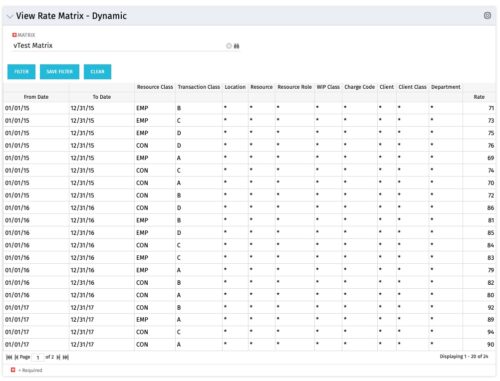 View Rate Matrix is a grid portlet that provides users a single place to view all the rates defined across multiple rate matrix without going to administration tab. Each Matrix may be defined with different columns (ex: Charge Code, Client, Department, Entity, Input type Code etc). This portlet dynamically brings only the columns associated with that rate matrix and provides the detailed information. User can view information related to one matrix at a time.
 -
View Rate Matrix is a grid portlet that provides users a single place to view all the rates defined across multiple rate matrix without going to administration tab. Each Matrix may be defined with different columns (ex: Charge Code, Client, Department, Entity, Input type Code etc). This portlet dynamically brings only the columns associated with that rate matrix and provides the detailed information. User can view information related to one matrix at a time.
-
View Rate Matrix is a grid portlet that provides users a single place to view all the rates defined across multiple rate matrix without going to administration tab. Each Matrix may be defined with different columns (ex: Charge Code, Client, Department, Entity, Input type Code etc). This portlet dynamically brings only the columns associated with that rate matrix and provides the detailed information. User can view information related to one matrix at a time.
-
 Are you struggling to come up with a visualization strategy with all of the options available - widgets, portlets, Jaspersoft, Ad Hoc, etc? This class will explore the various visualization tools available in Clarity and help you understand the best way to output your data. We will provide use cases and examples to assist you in developing a strategy for your organization.
 -
 Are you looking for some great examples of dashboards in Clarity? We know you can’t get enough of them and neither can we! Come to this session to see a host of new reports that Rego has created! This session will review a myriad of pre-built dashboards in use today that can spark ideas for you to implement in your organization. Learn about Rego's approach to prioritize and create reports, and how we gathered requirements from our Rego experts to target the content you need!
 -
 Are you struggling to come up with a visualization strategy with all of the options available - widgets, portlets, Jaspersoft, Ad Hoc, etc.? This class will explore the various visualization tools available in Clarity and help you understand the best way to output your data. We will provide use cases and examples to assist you in developing a strategy for your organization.


Copyright 2023 • Rego Consulting Corporation • Privacy Policy