-
 The My Resource Vacation portlet allows a resource to view the current logged in users' annual vacation allowance, as set by the resource manager, against the resource vacation calendar hours and actual posted timesheet hours. The portlet is useful for determining the amount of hours a resource has requested off and has remaining. The portlet also ensures the resource has accounted for all annual vacation allowance hours in the calendar and has posted time for all past calendar request hours.
 -
The My Resource Vacation portlet allows a resource to view the current logged in users' annual vacation allowance, as set by the resource manager, against the resource vacation calendar hours and actual posted timesheet hours. The portlet is useful for determining the amount of hours a resource has requested off and has remaining. The portlet also ensures the resource has accounted for all annual vacation allowance hours in the calendar and has posted time for all past calendar request hours.
-
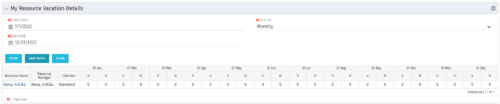 The My Resource Vacation Details portlet returns the logged in users calendar at a glance by week or month for a selected time period. It shows the Resource Name, Resource Manager, Calendar, H (holiday), and V (vacation) hours for the select time frame.
 -
The My Resource Vacation Details portlet returns the logged in users calendar at a glance by week or month for a selected time period. It shows the Resource Name, Resource Manager, Calendar, H (holiday), and V (vacation) hours for the select time frame.
-
The My Resource Vacation Details portlet returns the logged in users calendar at a glance by week or month for a selected time period. It shows the Resource Name, Resource Manager, Calendar, H (holiday), and V (vacation) hours for the select time frame.
-
 The My Resources’ Time by Quarter and Type portlet displays all subordinate resources’ time by type for each quarter. The portlet is able to display either actuals or estimates for each resource. This portlet allows the resource manager to see how each of his or her resources’ time is utilized by project type. The user may filter on a specific date range (quarter) and resource OBS.
 -
The My Resources’ Time by Quarter and Type portlet displays all subordinate resources’ time by type for each quarter. The portlet is able to display either actuals or estimates for each resource. This portlet allows the resource manager to see how each of his or her resources’ time is utilized by project type. The user may filter on a specific date range (quarter) and resource OBS.
-
The My Resources’ Time by Quarter and Type portlet displays all subordinate resources’ time by type for each quarter. The portlet is able to display either actuals or estimates for each resource. This portlet allows the resource manager to see how each of his or her resources’ time is utilized by project type. The user may filter on a specific date range (quarter) and resource OBS.
-
 Are you on an older version of CA PPM? Do you want to understand the value of the new features and functions in recent versions? Have you seen the new UX and do you wonder when is the right time to move over? This class is a demonstration of the new UX, new features in both classic and new UX, and the value of these features for customers.
 -
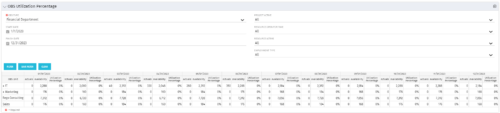 This view depicts the Resource Utilization by comparing actual hours booked as a percentage of total resource availability grouped and totaled by OBS Unit in a hierarchical fashion. Resource availability is determined by the working days and daily availability on the individual Resource Calendar and is depicted on a Monthly basis. This portlet uses Monthly Times and the Time Slice job may need to run before the end user will see results in the portlet. The portlet filters for Project Activity, Resource Open for Time, Resource Activity, and Employment time have been added to OBS Type and the Start and Finish dates.
 -
This view depicts the Resource Utilization by comparing actual hours booked as a percentage of total resource availability grouped and totaled by OBS Unit in a hierarchical fashion. Resource availability is determined by the working days and daily availability on the individual Resource Calendar and is depicted on a Monthly basis. This portlet uses Monthly Times and the Time Slice job may need to run before the end user will see results in the portlet. The portlet filters for Project Activity, Resource Open for Time, Resource Activity, and Employment time have been added to OBS Type and the Start and Finish dates.
-
This view depicts the Resource Utilization by comparing actual hours booked as a percentage of total resource availability grouped and totaled by OBS Unit in a hierarchical fashion. Resource availability is determined by the working days and daily availability on the individual Resource Calendar and is depicted on a Monthly basis. This portlet uses Monthly Times and the Time Slice job may need to run before the end user will see results in the portlet. The portlet filters for Project Activity, Resource Open for Time, Resource Activity, and Employment time have been added to OBS Type and the Start and Finish dates.
-
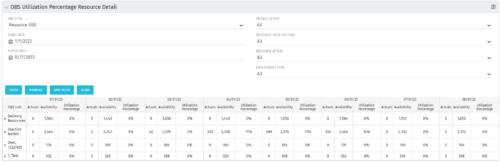
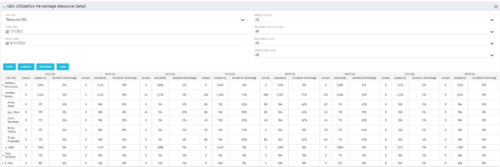 This portlet depicts the Resource Utilization by comparing actual hours booked as a percentage of total resource availability grouped and totaled by OBS Unit in a hierarchical fashion. Resource availability is determined by the working days and daily availability on the individual Resource Calendar and is depicted on a Monthly basis. This portlet uses Monthly Times and the Time Slice job may need to run before the end user will see results in the portlet. The portlet filters for Project Activity, Resource Open for Time, Resource Activity, and Employment time have been added to OBS Type and the Start and Finish dates. The OBS summary totals show on a single line, but can be clicked (+) to roll out the details behind each OBS total.
 -
This portlet depicts the Resource Utilization by comparing actual hours booked as a percentage of total resource availability grouped and totaled by OBS Unit in a hierarchical fashion. Resource availability is determined by the working days and daily availability on the individual Resource Calendar and is depicted on a Monthly basis. This portlet uses Monthly Times and the Time Slice job may need to run before the end user will see results in the portlet. The portlet filters for Project Activity, Resource Open for Time, Resource Activity, and Employment time have been added to OBS Type and the Start and Finish dates. The OBS summary totals show on a single line, but can be clicked (+) to roll out the details behind each OBS total.
-
This portlet depicts the Resource Utilization by comparing actual hours booked as a percentage of total resource availability grouped and totaled by OBS Unit in a hierarchical fashion. Resource availability is determined by the working days and daily availability on the individual Resource Calendar and is depicted on a Monthly basis. This portlet uses Monthly Times and the Time Slice job may need to run before the end user will see results in the portlet. The portlet filters for Project Activity, Resource Open for Time, Resource Activity, and Employment time have been added to OBS Type and the Start and Finish dates. The OBS summary totals show on a single line, but can be clicked (+) to roll out the details behind each OBS total.
-
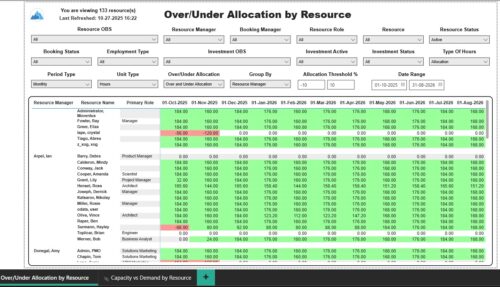 The Over/Under Allocation by Resource report displays resource remaining capacity amounts by resource. The report displays amounts by week or month. The amounts can be displayed as hours or FTEs. This report allows you to drill down to the Capacity vs. Demand by Resource report, by clicking a resource name, to see more information about the resource capacity and demand. Report Prerequisites Verify that you have completed the following prerequisites before you run this report: • The Load Data Warehouse job must be run before you run this report. If the Data Warehouse is not populated, the report will not display any data. Also, most of the report parameters do not display options.
 -
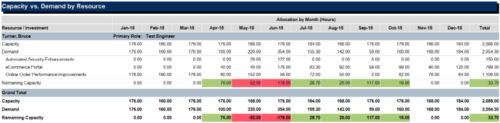
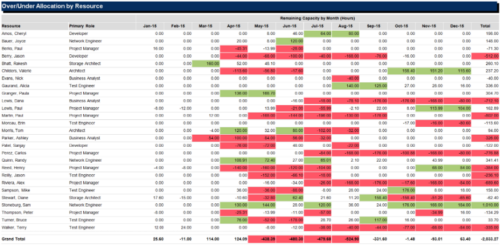 The Over/Under Allocation by Resource report is a transaction based Jaspersoft report that does not require the Load Jaspersoft Datawarehouse job to be run. The report will pull real-time data from the transaction tables in Clarity. This report can be run from either the Advanced Reporting or Reports and Jobs area within Clarity. The Over/Under Allocation by Resource report displays resource remaining capacity amounts by resource. The report displays amounts by week or month, and in total. The amounts can be displayed as hours or FTEs.
 -
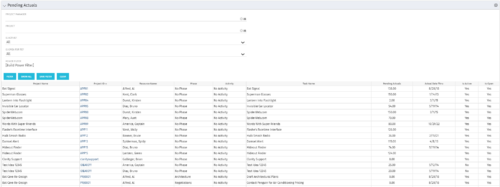 The Pending Actuals portlet displays pending actuals for resources by task. This portlet allows the user to filter on Project, Project Manager, Is Active and Is Open for Time Entry. This portlet provides Resource Managers and Project Managers a simple way to analyse which actuals have been submitted but not posted on specific tasks, as well as the aggregate pending hour total. Note: the information displayed is dependent on what the user has security rights to view.
 -
The Pending Actuals portlet displays pending actuals for resources by task. This portlet allows the user to filter on Project, Project Manager, Is Active and Is Open for Time Entry. This portlet provides Resource Managers and Project Managers a simple way to analyse which actuals have been submitted but not posted on specific tasks, as well as the aggregate pending hour total. Note: the information displayed is dependent on what the user has security rights to view.
-
The Pending Actuals portlet displays pending actuals for resources by task. This portlet allows the user to filter on Project, Project Manager, Is Active and Is Open for Time Entry. This portlet provides Resource Managers and Project Managers a simple way to analyse which actuals have been submitted but not posted on specific tasks, as well as the aggregate pending hour total. Note: the information displayed is dependent on what the user has security rights to view.
-
 The Pending Contractor Termination Stalker process sends email to Resource Manager if the Contractor(s) termination date is 3 weeks or less. This is an On Demand process in Clarity named Contractor Reminders and can be manually executed from the Organizer. If there are number of processes in the Organizer – Available Processes, this process can be filtered and then checked to Start. When Contractor Reminders process is started it will be seen in the Initiated on the Processes tab. The process status can be monitored from Running to the Completed stage. The Progress when 100% and the Status is Completed an email would have arrived to the Resource Manager with subject: “Contractor(s) With Termination Date in 3 weeks or less”. This email will list the Contractors whose contracts will terminate on the identified date.
 -
The Pending Contractor Termination Stalker process sends email to Resource Manager if the Contractor(s) termination date is 3 weeks or less. This is an On Demand process in Clarity named Contractor Reminders and can be manually executed from the Organizer. If there are number of processes in the Organizer – Available Processes, this process can be filtered and then checked to Start. When Contractor Reminders process is started it will be seen in the Initiated on the Processes tab. The process status can be monitored from Running to the Completed stage. The Progress when 100% and the Status is Completed an email would have arrived to the Resource Manager with subject: “Contractor(s) With Termination Date in 3 weeks or less”. This email will list the Contractors whose contracts will terminate on the identified date.
-
The Pending Contractor Termination Stalker process sends email to Resource Manager if the Contractor(s) termination date is 3 weeks or less. This is an On Demand process in Clarity named Contractor Reminders and can be manually executed from the Organizer. If there are number of processes in the Organizer – Available Processes, this process can be filtered and then checked to Start. When Contractor Reminders process is started it will be seen in the Initiated on the Processes tab. The process status can be monitored from Running to the Completed stage. The Progress when 100% and the Status is Completed an email would have arrived to the Resource Manager with subject: “Contractor(s) With Termination Date in 3 weeks or less”. This email will list the Contractors whose contracts will terminate on the identified date.
-
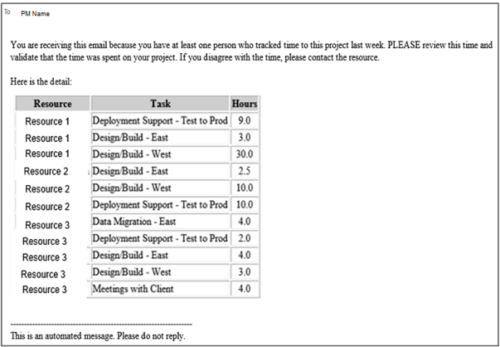 This process pulls in the total hours tracked, by resource, by task, for a given project for the weekly time period that ended. The information is sent to the Project Manager listed on the project. This process can be scheduled via the Execute a Process job.


Copyright 2023 • Rego Consulting Corporation • Privacy Policy