-
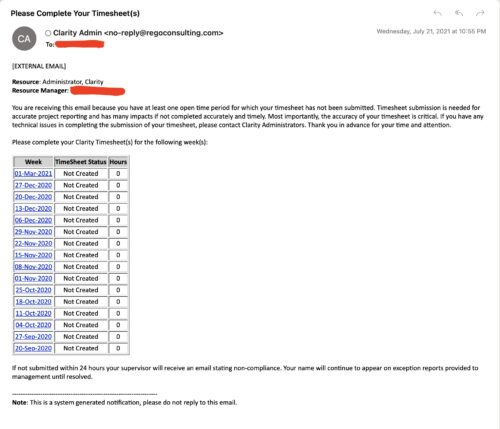 The Enhanced Time Tracking Stalker – RM workflow process automatically sends a single email to Resource Managers which contains a list of any of their resources that have not submitted their timesheet for a prior open time period. The email informs the RM if their resources are submitting their timesheets on time. The email includes a table that provides this information for each resource: Resource Name, Time Period, Timesheet Status and Total Hours saved on the timesheet with links to the timesheet in the Modern User Experience of Clarity. These notifications will help to ensure that time is being posted and approved in a timely manner.
 -
 The Timesheet Approval - RM process is an auto-start process that begins once the resource submits his or her timesheet. This process provides a checks-and-balances style to ensure that all resources entering time have entered the 40 hours. Once the timesheet is submitted, the process will lock the user’s timesheet to prevent editing. The process will then select the next action based on three different factors:
- The timesheet has less than 40 hours.
- The timesheet has 40 or more hours.
- The resource’s availability is less than 8hrs/day.
-
 The Give RM Calendar & Time Rights workflow process can be run through the "Execute a Process" job. The workflow will execute a query that gives a Resource Manager Calendar Edit and Timesheet Edit rights for their resources. These rights are not inherent for Resource Managers when they are named as an individual’s resource manager.
 -
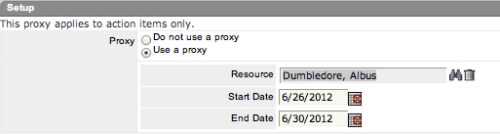 The Grant Edit Time to Proxy process utilizes the proxy feature within Clarity to assign timesheet edit rights to a proxy for any resources that the user is the current resource manager for. The process, when run, will also remove any timesheet edit rights for any users if the proxy has been removed or the resource manager has changed. This process would allow a resource manager to designate a subordinate the ability to enter time on other resources’ behalf while still going to the resource manager for approval.
 -
 The Grant Edit Skill and Calendar workflow process grants the ability for resources to edit both the skill and calendar sections for their record. This workflow simplifies the task or updating a resource’s calendar or skill set by the user to update any new skills or new time off requests he or she is planning.
 -
The Grant Edit Skill and Calendar workflow process grants the ability for resources to edit both the skill and calendar sections for their record. This workflow simplifies the task or updating a resource’s calendar or skill set by the user to update any new skills or new time off requests he or she is planning.
-
The Grant Edit Skill and Calendar workflow process grants the ability for resources to edit both the skill and calendar sections for their record. This workflow simplifies the task or updating a resource’s calendar or skill set by the user to update any new skills or new time off requests he or she is planning.
-
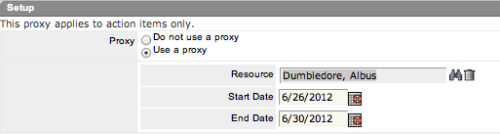 The Grant Approve Time to Proxy process utilizes the proxy feature within Clarity to assign timesheet approval and edit rights to a proxy for any resources that the user is the current resource manager for. The process, when run, will also remove any timesheet approval and edit rights for any users if the proxy has been removed or the resource manager has changed. This process is used for resource managers that will be out of the office.
 -
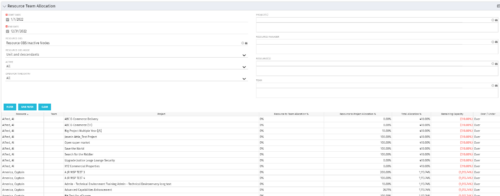 This portlet displays the % allocation of resources to projects. The portlet shows if the resource is allocated to the projects as an individual resource or as part of an Agile team, in which case it will display the resource % allocation to the team and what that will represent in terms of % allocation to the project. The Total Allocation % display the allocation of the resource to all investments is allocated to. Remaining Capacity and Over/Under columns will help identify the resources that still have availability and the ones that are over allocated.
 -
 The Resources Demand Summary portlet displays the total Estimate to Complete (ETC’s) for Resources. The portlet displays the total per time scale value selected per resource and a grand total of all ETC’s for the selected time period. Filtering capabilities allow the user to filter by an individual resource, resource manager, time scale values, dates, and OBS. The portlet provides a Resource Manager with a single location to view ETC’s by Resource.
 -
The Resources Demand Summary portlet displays the total Estimate to Complete (ETC’s) for Resources. The portlet displays the total per time scale value selected per resource and a grand total of all ETC’s for the selected time period. Filtering capabilities allow the user to filter by an individual resource, resource manager, time scale values, dates, and OBS. The portlet provides a Resource Manager with a single location to view ETC’s by Resource.
-
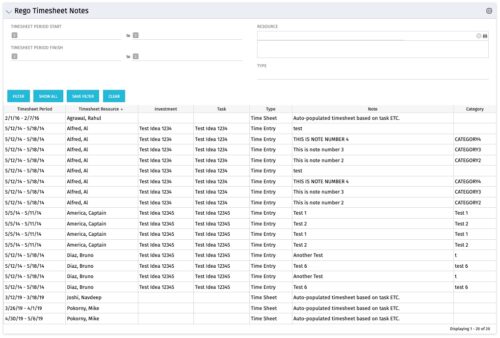 The Timesheet Notes portlet displays all timesheet notes split out by resource, investment and task. This is very useful in situations where you want to review multiple notes as you do not have to open each note separately. The table below describes the available filter fields in the portlet.
Column Label Description Timesheet Period Start Range of time periods to display filtered by start date Timesheet Period Finish Range of time periods to display filtered by finish date Resource Resource(s) to display Type Note on a timesheet or time entry (task specific)


Copyright 2023 • Rego Consulting Corporation • Privacy Policy