-
 The Reset Admin Password technical trick provides the queries necessary to reset the administrator's password via the database. Passwords are forgotten, overwritten and misplaced often; using this technical trick, the support team will always have a back-up plan to gaining back access to the system.
 -
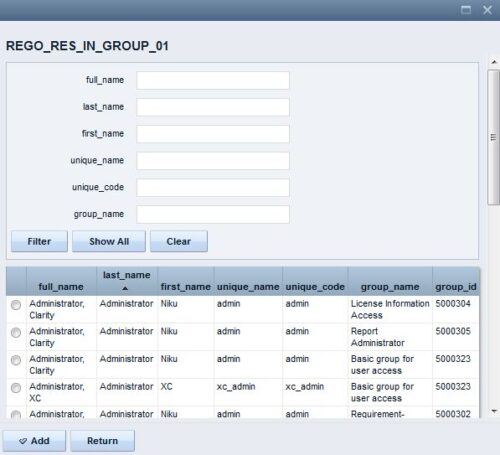 The Resource Lookups in a Group technical trick provides step-by-step instructions on creating a resource lookup based on members of a particular security group. For some fields, you want to narrow the amount of resources that the resource browse window supplies. By adding the selected users to a specific security group, the administrator may only display those resources in a resource browse window on the application side.
 -
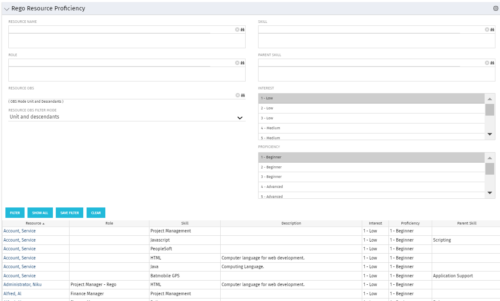 This grid displays Skill Proficiency and Interest Level by Resource. Users can utilize this view to search for Resources by Skill, Parent Skill, Interest, Role, Parent Role, Resource and Resource OBS. This portlet grants a Project Manager or Resource Manager the ability to determine which Resources best fit the needs for their project.
 -
This grid displays Skill Proficiency and Interest Level by Resource. Users can utilize this view to search for Resources by Skill, Parent Skill, Interest, Role, Parent Role, Resource and Resource OBS. This portlet grants a Project Manager or Resource Manager the ability to determine which Resources best fit the needs for their project.
-
This grid displays Skill Proficiency and Interest Level by Resource. Users can utilize this view to search for Resources by Skill, Parent Skill, Interest, Role, Parent Role, Resource and Resource OBS. This portlet grants a Project Manager or Resource Manager the ability to determine which Resources best fit the needs for their project.
-
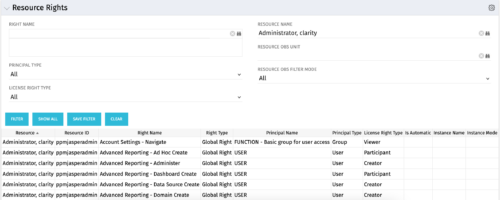 The Resource Rights portlet displays information for all global, OBS, and instance-based rights that are present in the system. This portlet can easily determine who has certain rights and what is causing them to retain a certain license status (creator, studio developer, etc).
 -
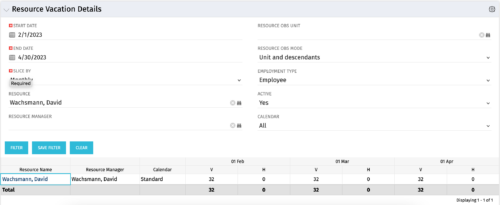 The Resource Vacation Details portlet allows a resource manager, or administrator, to see a resource’s calendar at a glance, displayed by week or month for a selected time period. This portlet shows the Resource Name, Resource Manager, Calendar, H (holiday), and V (vacation) hours for the select time frame.
 -
The Resource Vacation Details portlet allows a resource manager, or administrator, to see a resource’s calendar at a glance, displayed by week or month for a selected time period. This portlet shows the Resource Name, Resource Manager, Calendar, H (holiday), and V (vacation) hours for the select time frame.
-
The Resource Vacation Details portlet allows a resource manager, or administrator, to see a resource’s calendar at a glance, displayed by week or month for a selected time period. This portlet shows the Resource Name, Resource Manager, Calendar, H (holiday), and V (vacation) hours for the select time frame.
-
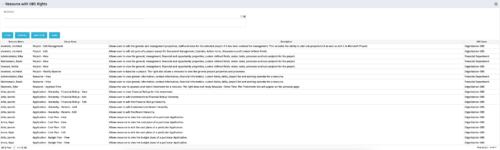 This portlet displays list of resources with OBS rights. This would be helpful for admins to know if a user can perform any actions on object instances of an OBS.
 -
This portlet displays list of resources with OBS rights. This would be helpful for admins to know if a user can perform any actions on object instances of an OBS.
-
This portlet displays list of resources with OBS rights. This would be helpful for admins to know if a user can perform any actions on object instances of an OBS.
-
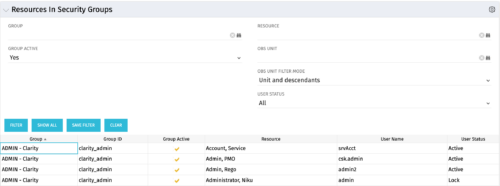 The Resources in Security Groups portlet shows security group information for resources. (Note: the information displayed is dependent on what the user has security rights to view.) The portlet displays the Group, Group ID, if the Group is active, Resource, User Name and User Status. This portlet also includes the ability to filter on a specific group or resource, by whether the group is active, by user status or OBS.
 -
 This beginner-friendly course will begin exploring project management related themes and how they translate to Clarity. We'll discuss resources and calendars that demonstrate resource availability, and project teams which represent demand against your resources.
 -
 Take a deep dive into Clarity's REST APIs. You will learn different ways to explore Clarity's API's using the REST API explorer, Postman, and Chrome's Developer Tools. We will cover HTTP methods, status codes, Clarity-specific headers, and creating and parsing JSON.
 -
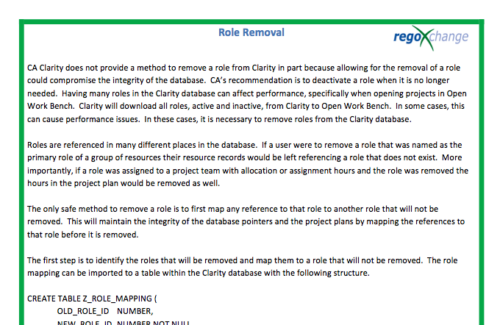 In many instances, having excess information stored within the database can cause poor performance or slowness when retrieving data. Administrators are always seeking out ways to clean and remove unused information. This technical trick on role removal provides the steps necessary to remove roles that would otherwise be unused and eliminating unwanted information. The Role Removal Technical Trick provides the information for the creation of the following tables and columns which are necessary to perform the role removal:
- Role – mapping table
- Tables / Columns that need to be updated with Resource ID fields
- Tables / Columns that need to be updated with Role Code fields
- Tables that will need to be deleted
- PRTEAM table should be checked
-
 Course Description: What is Technology Business Management (TBM) or IT Financial Management (ITFM)? Why is it important for IT? This session explores the need for TBM as well as how it drives significant cost optimization and more effective business-technology management practices. We will review the TBM framework, taxonomy, model, and how TBM processes and tools compliment your existing investment in PPM tools.
 -
 The Scheduled Jobs Cleanup process removes all completed job instances that have run before a date set by the administrator. The administrator may use the gel parameter to update the amount of days since each job has run. Based on that date, the workflow will eliminate all jobs that have surpassed that threshold. This workflow helps administrators maintain the job logs and queue by eliminating jobs that users have potentially forgotten to remove on their own.
 -
The Scheduled Jobs Cleanup process removes all completed job instances that have run before a date set by the administrator. The administrator may use the gel parameter to update the amount of days since each job has run. Based on that date, the workflow will eliminate all jobs that have surpassed that threshold. This workflow helps administrators maintain the job logs and queue by eliminating jobs that users have potentially forgotten to remove on their own.
-
The Scheduled Jobs Cleanup process removes all completed job instances that have run before a date set by the administrator. The administrator may use the gel parameter to update the amount of days since each job has run. Based on that date, the workflow will eliminate all jobs that have surpassed that threshold. This workflow helps administrators maintain the job logs and queue by eliminating jobs that users have potentially forgotten to remove on their own.
-
 Join us to discuss one of the most important - but also one of the most confusing Clarity topics - security. Learn how an OBS can be utilized to control security, how security permissions can be granted and revoked, and the pros and cons of the different types of security permissions.
 -
 The Self Assign workflow process updates a selected resource field on an object based on someone checking a boolean field on the same object. Using this process, whomever is editing the object, will be placed in this field automatically eliminating the need for each user to come in and update the field manually. The field will run when the Boolean is ticked and the user saves the page. It is important to note that the page will need to be reloaded to see the changes reflected. This can be used as a fast way to self-assign yourself to an object - you can create a boolean field that is checked and have the process assign you to that item.
 -
The Self Assign workflow process updates a selected resource field on an object based on someone checking a boolean field on the same object. Using this process, whomever is editing the object, will be placed in this field automatically eliminating the need for each user to come in and update the field manually. The field will run when the Boolean is ticked and the user saves the page. It is important to note that the page will need to be reloaded to see the changes reflected. This can be used as a fast way to self-assign yourself to an object - you can create a boolean field that is checked and have the process assign you to that item.
-
 Course Description: Do some folks in your organization view Clarity PPM as worthless or of little value? In this class, we will discuss how to increase the value perception of Clarity PPM and innovative ways to sell the value Clarity PPM provides to stakeholders and users.
 -
 Course Description: For clients that have both ServiceNow and Clarity PPM, passing information between the systems becomes vital for the enterprise with ITSM, demand, and PPM toolsets. One of the biggest areas of interaction is around demand management. Come and see Rego's integration solution, which flexibly allows for ServiceNow records (incident, problem, idea, enhancement, and demands) to generate Clarity PPM ideas or projects.
 -
 This process must be run using the “Execute a Process” job. Job may be scheduled or run on-demand. Process pulls Availability Rate from the Availability blob for each resource, where blob is not null. Then it populates this value into a custom Daily Availability attribute (Number field with 2 decimals) on the Resource object. This field does not have to be displayed to be used for reporting. Because the OOB Availability Rate field is stored only in a blob, it is difficult to include in portlet or report output. The use of this custom attribute makes the value easily reportable.
 -
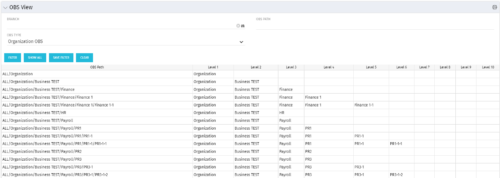 This grid portlet shows the OBS name and ID along with the associated hierarchy, both as an aggregated view along with each of the levels broken out. The table below describes the available filter fields in the portlet.
Column Label Description Branch Branch of the OBS OBS Type OBS to use OBS Path Path of the OBS -
This grid portlet shows the OBS name and ID along with the associated hierarchy, both as an aggregated view along with each of the levels broken out. The table below describes the available filter fields in the portlet.
Column Label Description Branch Branch of the OBS OBS Type OBS to use OBS Path Path of the OBS -
This grid portlet shows the OBS name and ID along with the associated hierarchy, both as an aggregated view along with each of the levels broken out. The table below describes the available filter fields in the portlet.
Column Label Description Branch Branch of the OBS OBS Type OBS to use OBS Path Path of the OBS -
 Join us for a round table discussion on advanced SQL. We'll discuss sub-queries, common table expressions (CTE's), analytic functions, and any other requested topics. With multiple instructors we can break out into smaller groups for a more targeted experience.
 -
 Are your reports and portlets performing well? This class will walk through specific SQL tuning tricks to make queries run faster, increase end-user satisfaction, and smooth-out system performance. This is an easy way to promote efficient future development and make a huge, positive impact on user experience.
 -
 Are your reports and portlets performing well? This class will walk through specific SQL tuning tricks to make queries run faster, increase end-user satisfaction, and smooth-out system performance. This is an easy way to promote efficient future development and make a huge, positive impact on user experience.
 -
 Course Description: How do companies track stage gates within Clarity PPM? This session will review some best practices for tracking, monitoring, and approving stage gates within Clarity PPM. We will also discuss pros and cons of various options to help you select the best method for your company.
 -
 Course description: “People are the #1 key to successful implementation, acceptance and sustaining adoption after the project is long gone. Find out some tips and tricks on how to keep those key stakeholders engaged.” Download file is the presentation slide deck.
 -
 Course Description: People are the #1 key to successful implementation, acceptance, and sustaining adoption after the project is long gone. Learn some tips and tricks on how to keep key stakeholders engaged.
 -
 A presentation slide deck from Rego University 2022. This course reviewed the importance of user feedback on the use of the tool.
- What is Feedback?
- Why is Feedback Important?
- Audience Participation
- Group Discussion
- Methods of Collecting Feedback
- Case Studies
- Staying Connected to Your Users


Copyright 2023 • Rego Consulting Corporation • Privacy Policy