RegoXchange
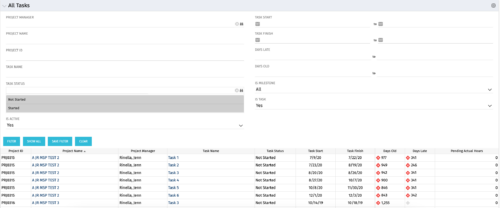
  • The All Tasks portlet displays all tasks related to active projects that the logged in user has view rights to.  The portlet provides the project manager a single place to view tasks across multiple projects without having to go into each project individually, and allows for more efficient management and reporting across projects. The portlet displays project actuals and estimates from the project (datamart tables). The portlet allows analysis like:
    • PMs may have several critical tasks that were supposed to start on a certain date.  To verify progress, they filter for that start date to perform a review of the tasks.
    • PMs can review days late to see how tasks are doing against the baseline date (<7 days is green, 7-14 is yellow, and >14 is red)
    • PMs can review days old to see how tasks are doing against today’s date (<7 days is green, 7-14 is yellow, and >14 is red)
    The table below describes the available columns in the portlet. The first 10 are configured in the default view:
    Column Label Description
    Project ID Unique project identifier
    Project Name Name of the project
    Project Manager Manager of the project
    Task Name Name of the task
    Task Status Not Started, Started, or Completed
    Task Start Start Date of this task
    Task Finish Finish Date of this task
  • The All Tasks portlet displays all tasks related to active projects that the logged in user has view rights to.  The portlet provides the project manager a single place to view tasks across multiple projects without having to go into each project individually, and allows for more efficient management and reporting across projects. The portlet displays project actuals and estimates from the project (datamart tables). The portlet allows analysis like:
    • PMs may have several critical tasks that were supposed to start on a certain date.  To verify progress, they filter for that start date to perform a review of the tasks.
    • PMs can review days late to see how tasks are doing against the baseline date (<7 days is green, 7-14 is yellow, and >14 is red)
    • PMs can review days old to see how tasks are doing against today’s date (<7 days is green, 7-14 is yellow, and >14 is red)
    The table below describes the available columns in the portlet. The first 10 are configured in the default view:
    Column Label Description
    Project ID Unique project identifier
    Project Name Name of the project
    Project Manager Manager of the project
    Task Name Name of the task
    Task Status Not Started, Started, or Completed
    Task Start Start Date of this task
    Task Finish Finish Date of this task
  • The All Tasks portlet displays all tasks related to active projects that the logged in user has view rights to.  The portlet provides the project manager a single place to view tasks across multiple projects without having to go into each project individually, and allows for more efficient management and reporting across projects. The portlet displays project actuals and estimates from the project (datamart tables). The portlet allows analysis like:
    • PMs may have several critical tasks that were supposed to start on a certain date.  To verify progress, they filter for that start date to perform a review of the tasks.
    • PMs can review days late to see how tasks are doing against the baseline date (<7 days is green, 7-14 is yellow, and >14 is red)
    • PMs can review days old to see how tasks are doing against today’s date (<7 days is green, 7-14 is yellow, and >14 is red)
    The table below describes the available columns in the portlet. The first 10 are configured in the default view:
    Column Label Description
    Project ID Unique project identifier
    Project Name Name of the project
    Project Manager Manager of the project
    Task Name Name of the task
    Task Status Not Started, Started, or Completed
    Task Start Start Date of this task
    Task Finish Finish Date of this task
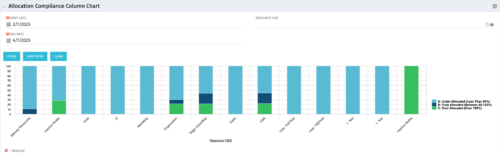
  • This view depicts Allocation Compliance for resources grouped by OBS.  Using the daily Resource Availability and Daily Resource Allocation Time Slices this column chart groups aggregate Allocation vs Availability by OBS Unit.  The chart allows quick analysis to see if resources are adequately allocated (between 80% to 120% of their capacity) or if they are significantly under or over allocated. NOTE:  The grouping of OBS unit is limited to 1 level below the selected OBS in the portlet filter.
  • This view depicts Allocation Compliance for resources grouped by OBS.  Using the daily Resource Availability and Daily Resource Allocation Time Slices this column chart groups aggregate Allocation vs Availability by OBS Unit.  The chart allows quick analysis to see if resources are adequately allocated (between 80% to 120% of their capacity) or if they are significantly under or over allocated. NOTE:  The grouping of OBS unit is limited to 1 level below the selected OBS in the portlet filter.
  • This view depicts Allocation Compliance for resources grouped by OBS.  Using the daily Resource Availability and Daily Resource Allocation Time Slices this column chart groups aggregate Allocation vs Availability by OBS Unit.  The chart allows quick analysis to see if resources are adequately allocated (between 80% to 120% of their capacity) or if they are significantly under or over allocated. NOTE:  The grouping of OBS unit is limited to 1 level below the selected OBS in the portlet filter.
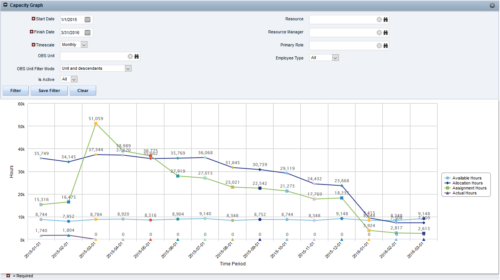
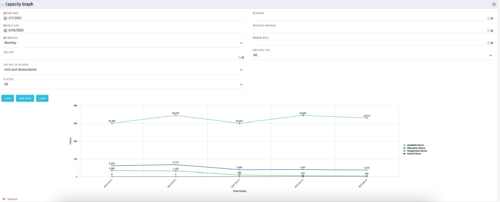
  • The Capacity Graph portlet displays Availability, Allocations, Actuals and Assignments for one or more active resource(s) in a single view. This portlet pulls data from timeslices, and allows the user to filter on a weekly, monthly or quarterly data.  The Estimated Time to Complete (ETC) and Allocation data will only show for projects that are active. This portlet provides Resource Managers, PMOs and Executives with a simple way to analyse:  Allocations vs. Availability, Allocations vs. Actuals, Allocations vs. ETC and ETC vs. Availability.  The graph allows the user to determine where areas of improvement may exist and quickly identify potential areas of constraint. Note: the information displayed is dependent on what the user has security rights to view.
  • The Capacity Graph portlet displays Availability, Allocations, Actuals and Assignments for one or more active resource(s) in a single view. This portlet pulls data from timeslices, and allows the user to filter on a weekly, monthly or quarterly data.  The Estimated Time to Complete (ETC) and Allocation data will only show for projects that are active. This portlet provides Resource Managers, PMOs and Executives with a simple way to analyse:  Allocations vs. Availability, Allocations vs. Actuals, Allocations vs. ETC and ETC vs. Availability.  The graph allows the user to determine where areas of improvement may exist and quickly identify potential areas of constraint. Note: the information displayed is dependent on what the user has security rights to view.
  • The Capacity Graph portlet displays Availability, Allocations, Actuals and Assignments for one or more active resource(s) in a single view. This portlet pulls data from timeslices, and allows the user to filter on a weekly, monthly or quarterly data.  The Estimated Time to Complete (ETC) and Allocation data will only show for projects that are active. This portlet provides Resource Managers, PMOs and Executives with a simple way to analyse:  Allocations vs. Availability, Allocations vs. Actuals, Allocations vs. ETC and ETC vs. Availability.  The graph allows the user to determine where areas of improvement may exist and quickly identify potential areas of constraint. Note: the information displayed is dependent on what the user has security rights to view.
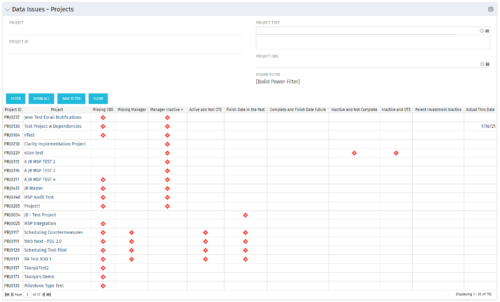
  • The Project Data Issues portlet is used to identify data exceptions related to project setup.  This portlet helps to identify where projects are missing key data or are possibly sitting in an exception state.  This view will show projects that have one or many exceptions, including inactive projects. The user may also narrow the results by project, OBS, or project type.
  • The Project Data Issues portlet is used to identify data exceptions related to project setup.  This portlet helps to identify where projects are missing key data or are possibly sitting in an exception state.  This view will show projects that have one or many exceptions, including inactive projects. The user may also narrow the results by project, OBS, or project type.
  • The Project Data Issues portlet is used to identify data exceptions related to project setup.  This portlet helps to identify where projects are missing key data or are possibly sitting in an exception state.  This view will show projects that have one or many exceptions, including inactive projects. The user may also narrow the results by project, OBS, or project type.
Go to Top