RegoXchange
  • The process is built to clear the random timesheet locks that happens occasionally.  There are three Processes and one lookup component and one job definition in the package.
    • PRLock (Timesheets) Record Removal (ID: rego_prlock_rec_rmvl). This process requires PRNAME, PRTABLENAME and PRRECORDID from PRLock Table.
      • The Lookup PRLock Check (Timesheet) (Id: REGO_PRLOCK_CHECK) should be used to update the GEL parameters for the above process.
    • PRLock (Timesheets) Record Removal All (ID: rego_prlk_rc_rmv_all) This deletes ALL prtimesheet locks.
    Or
    • Rego Remove Timesheet Locks (ID: rego_rmv_ts_locks). This process is run as a job “PrLock Clear for Timesheet Locks” which performs the same functionality as the above two processes. The process and job definition are separate XOG files.
  • The process is built to clear the random timesheet locks that happens occasionally.  There are three Processes and one lookup component and one job definition in the package.
    • PRLock (Timesheets) Record Removal (ID: rego_prlock_rec_rmvl). This process requires PRNAME, PRTABLENAME and PRRECORDID from PRLock Table.
      • The Lookup PRLock Check (Timesheet) (Id: REGO_PRLOCK_CHECK) should be used to update the GEL parameters for the above process.
    • PRLock (Timesheets) Record Removal All (ID: rego_prlk_rc_rmv_all) This deletes ALL prtimesheet locks.
    Or
    • Rego Remove Timesheet Locks (ID: rego_rmv_ts_locks). This process is run as a job “PrLock Clear for Timesheet Locks” which performs the same functionality as the above two processes. The process and job definition are separate XOG files.

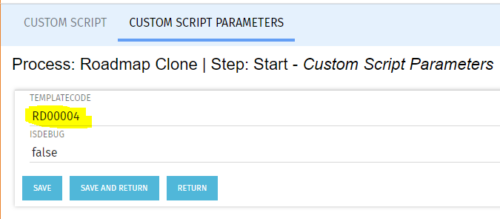
  • The Roadmap Cloning process creates a clone of any existing roadmap.  It should be run using the “Execute a Process” job.  To specify a roadmap to clone the Start Step Action’s Custom Script Parameters need to be updated to include the proper roadmap ID in the templateCode field.
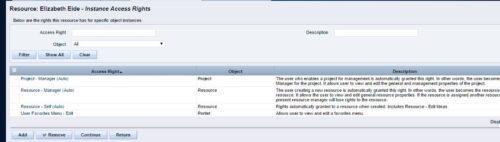
  • This can be used to remove all automatic permissions (Project Manager Auto) granted to users as a result of becoming a project manager. NOTE: The ability to remove the right is with the admin only.
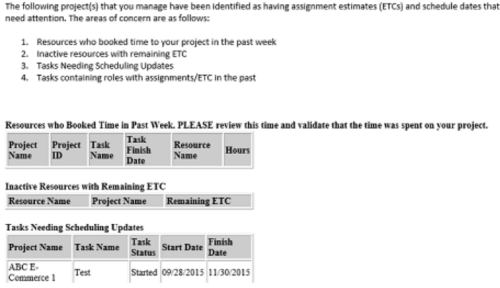
  • “PM Stalker – Project Validations & Issues” executes various queries against the Clarity database and sends an email to all PMs who have one or more projects with any of the following conditions:
    • Resources have booked time in the past week (validation needed)
    • Inactive Resources with ETCs still on the project
    • Tasks past their Finish Date but not completed
    • Task Role Assignments in the past
    This notification will assist PMs to maintain their projects and keep them current.
  • A process that removes all the group assignments for inactive users after execution of process. The following are removed for all inactive users:
    • Group assignments
    • Instance rights
    • Global rights
    Note: It will not remove the instance rights which are generated automatically (like Project – Manager (Auto), Resource Manager(Auto) etc).
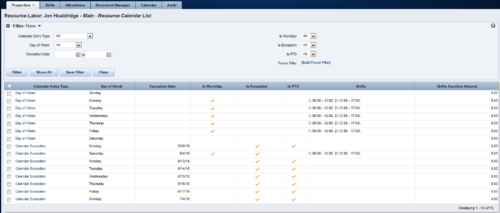
  • A Resource Calendar sub-object is populated by a non-object-specific process, executed by the “Execute a Process” job, which can be scheduled. The first 7 rows of the sub-object display the standard week from the base calendar, including columns for Day of Week, Is Workday (checked/unchecked), Shifts, and work Hours available. The remaining rows display calendar exceptions, including columns for Day of Week, Exception Date, Is Exception (checked), and work Hours available.  If exception changes to a workday, Is Workday column is checked, and Shifts also display.  If exception changes to a non-workday, Is PTO column is checked. Resource Calendar object is filterable by Calendar Entry Type (All, Calendar Exception, Day of Week), Day of Week, Exception Date Range, Is Workday, Is Exception, Is PTO, and power filter.
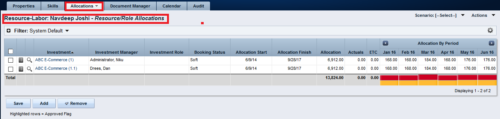
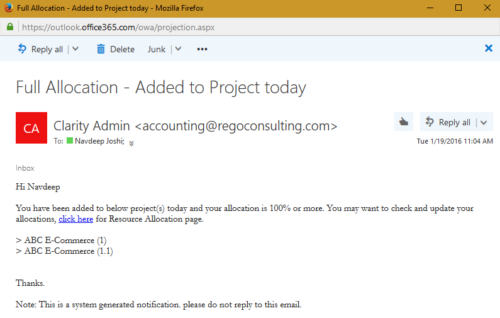
  • The process notifies resource who has been added to investment today and allocation is greater or equal to 100%. The process is on-demand and would require the user to have appropriate rights to run the process. Process should be scheduled as daily once job.
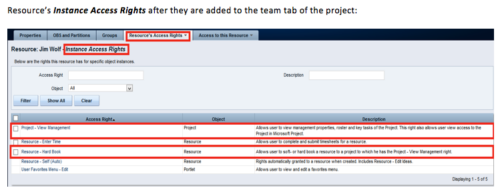
  • When a team member is added to the Team tab of the project, this process will add Project -  View Management and Resource – Hard Book instance access right to the team member’s profile. This allows the team member to add their own allocations. NOTE: The process is NOT auto-start, and hence, needs to be run manually from Home > Organizer > Processes > Available
  • The Pending Contractor Termination Stalker process sends email to Resource Manager if the Contractor(s) termination date is 3 weeks or less. This is an On Demand process in Clarity named Contractor Reminders and can be manually executed from the Organizer. If there are number of processes in the Organizer – Available Processes, this process can be filtered and then checked to Start. When Contractor Reminders process is started it will be seen in the Initiated on the Processes tab. The process status can be monitored from Running to the Completed stage. The Progress when 100% and the Status is Completed an email would have arrived to the Resource Manager with subject: “Contractor(s) With Termination Date in 3 weeks or less”. This email will list the Contractors whose contracts will terminate on the identified date.
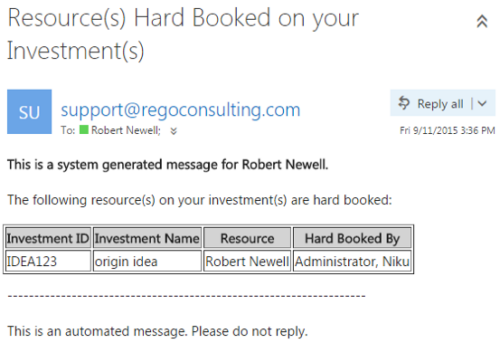
  • This notification process sends an email to the Manager of an investment (Project, Application, Idea, etc) when the resource assigned to the team has been hard booked.   The process should be scheduled to run on a daily basis as the logic in it looks to all resources where their Booking  Status has been changed from Soft to Hard on the day that the process is run.  It compares the audit trail date change field to the system date. If the process is not scheduled to run daily no notification will occur on hardbookings from previous days.
  • This notification process sends an email to the Manager of an investment (Project, Application, Idea, etc) when the resource assigned to the team has been hard booked.   The process should be scheduled to run on a daily basis as the logic in it looks to all resources where their Booking  Status has been changed from Soft to Hard on the day that the process is run.  It compares the audit trail date change field to the system date. If the process is not scheduled to run daily no notification will occur on hardbookings from previous days.
Go to Top