-
 A Quick Reference Guide to assist in the use of Scenarios within Roadmaps. They allow for "what-if" analysis on Roadmaps. Scenarios will save roadmap specific information at the item level. For example, adjusting the cost, capacity, or dates of a roadmap item. They will also save target information and what is/isn’t included in the plan. An unlimited number of scenarios may be created on a roadmap. All users with access to the roadmap may view the scenarios. Scenarios may be marked as Baseline and/or Plan of Record (POR). All roadmaps will be created with a Default scenario.
 -

 This training document is a Rego Consulting Quick Reference Guide to assist with Entering and Submitting Time in Clarity’s Modern User Experience. This doc references version 16.3 views. Document includes Accessing & Selecting Timesheets, Populate Timesheet, Updating Timesheet, Submitting Timesheet and Entering Time for Someone Else.
 -

 This Portlet can be used to define User License Output information including the following:
- Resource
- Resource User Name
- Resource Id
- Resource Manager
- Resource Manager Email
- Primary Role
- Employment Type
- Org Structure Path
- Org Structure Lowest Unit
- Last Logged in Date
- User License
- Right License
- Access Right
- Access Right Type
- Access Right to OBS
- Granted Through Type
- Granted Through (Security Group)
- Access Right Description
- Resource OBS
- Resource
- Resource Manager
- Primary Role
- Employment Type
-
This workflow is run as a scheduled or immediate Job to populate Project Cost Plans. It can be configured to run on any desired set of projects. It can be configured to populate the Cost Plan of Record based on Allocations or based on Assignments.
-
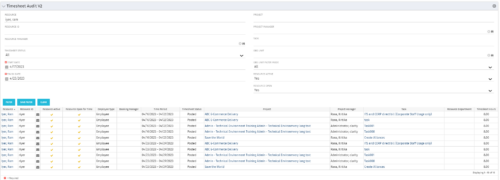 The Timesheet Audit portlet displays timesheet information in order to perform an audit. The only required data needed to search the portlet is start and finish date. Additionally, you may narrow the results by filtering by resource, resource ID, OBS Unit, resource manager, timesheet status, project, and task. The portlet provides reporting on the following:
- Resource
- Resource ID
- Email Icon of Resource (So the reviewer can quickly email the Resource)
- Resource is Active
- Resource Open for Time
- Time Period (Start and Finish Dates)
- Timesheet Status
- Is Adjustment (If the timesheet is adjusted)
- Timesheet Modified Date
- Timesheet Posted Date
- Timesheet Submitted By
- Timesheet Approved By
- Project
- Task
- Proposed ETC Hours
- Pending Actual Hours
- Total Actual Hours
-
 Do you want to add REST interfaces to your Clarity instance? We’ll walk you through specific custom interface examples in GEL and showcase Rego’s Data Processor REST capabilities you can leverage to reduce the time and cost of implementation.
 -
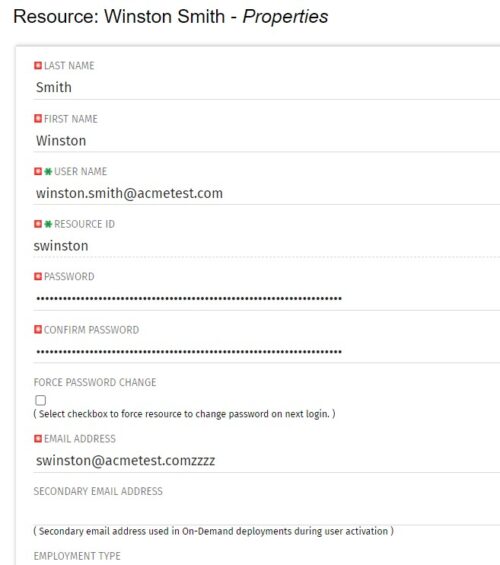 The Update Email Ids workflow sets all users’ email addresses to non-working by appending a “ZZZZ” to the end of the email address. This process is used for when there are refreshes to your Development or Testing environments and do not want emails going to users. When complete, the log will display the total amount of email addresses updated. A second process is included in this workflow that will revert the email addresses to remove the “ZZZZ” added in the first workflow. In some instances, the process may be run in error, or you may want to send emails from a Development or Testing environment; using this second process you will be able to enable all emails again.
 -
 A Quick Reference Guide to assist in the creation of Objectives in Clarity. Clarity now has an out of the box module called objectives which can replace a custom objective module that was previously created and has default attributes for both Objectives and Key Results (sub-object).
 -
 A Quick Reference Guide to assist in the creation of a new Channel in Clarity. A Channel can be used to embed content from an internal or external source. Channels are added within Blueprints as a module.
 -
A Quick Reference Guide to assist in the administrative process of creating a new Group in Clarity. A group is a collection of users that require the same set of access rights. Access rights are generally granted to groups (and not directly to users).
-
A Quick Reference Guide to assist in the administrative process of creating a new Clarity Blueprint. An applications administrator can use blueprints to configure different layouts for different types of projects, ideas or investments.
-
A Quick Reference Guide to assist in adding Modules to a Clarity Blueprint. User must have access to the Administration Module.


Copyright 2023 • Rego Consulting Corporation • Privacy Policy