RegoXchange
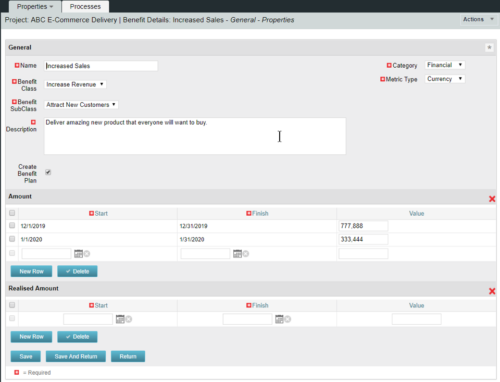
  • This configuration and accompanying process allows users to capture Financial and Non-Financial (Metrics, Soft, etc.) Benefit in a custom sub-object, then programmatically create an out-of-the-box Benefit Plan with just the Financial Portion from the custom sub-object.  The solution is comprised of:
    • Sub-Object (Benefit Plan Details, Parent = Project)
    • Process: Create Benefit Plan (uses sub-object as primary input, native BP is output)
    • Process: Update sql - Cost Benefit Plans (one-time script to update Projects)
    The Process to create the Benefit Plan is initiated when users check the Create Benefit Plan box on the sub-object.  Every time the Process runs it aggregates all rows from the sub-object that are flagged as Financial and creates a new Benefit Plan.  The resulting BP is not linked to any Cost Plans. Users who install this base solution will want to consider:
    • Ensure on the Benefit Details List view the Planned and Realized Amounts are displayed
    • Modifying the Create Benefit Plan Process in support of a BP naming convention consistent with local PMO Practices
    • Modifying the Create Benefit Plan Process to link the BP to the Cost Plan of Record
    • Creating a Portlet that pulls together rows of data from the sub-object across multiple projects in a summarized view as well as a detailed view
    Once installed, please refer to the Benefit Detail Functionality Document for how to create Benefit Detail records, initiate the process, and the Benefit Plan Creation.
  • This configuration and accompanying process allows users to capture Financial and Non-Financial (Metrics, Soft, etc.) Benefit in a custom sub-object, then programmatically create an out-of-the-box Benefit Plan with just the Financial Portion from the custom sub-object.  The solution is comprised of:
    • Sub-Object (Benefit Plan Details, Parent = Project)
    • Process: Create Benefit Plan (uses sub-object as primary input, native BP is output)
    • Process: Update sql - Cost Benefit Plans (one-time script to update Projects)
    The Process to create the Benefit Plan is initiated when users check the Create Benefit Plan box on the sub-object.  Every time the Process runs it aggregates all rows from the sub-object that are flagged as Financial and creates a new Benefit Plan.  The resulting BP is not linked to any Cost Plans. Users who install this base solution will want to consider:
    • Ensure on the Benefit Details List view the Planned and Realized Amounts are displayed
    • Modifying the Create Benefit Plan Process in support of a BP naming convention consistent with local PMO Practices
    • Modifying the Create Benefit Plan Process to link the BP to the Cost Plan of Record
    • Creating a Portlet that pulls together rows of data from the sub-object across multiple projects in a summarized view as well as a detailed view
    Once installed, please refer to the Benefit Detail Functionality Document for how to create Benefit Detail records, initiate the process, and the Benefit Plan Creation.
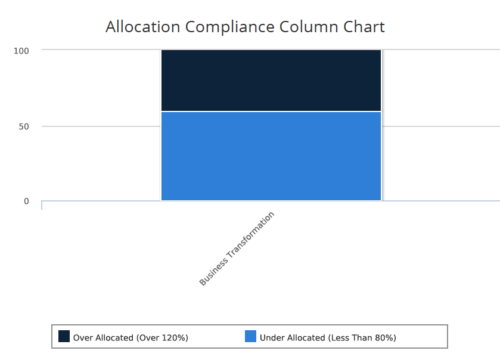
  • Allocation Compliance Column Chart provides the resource manager a single place to view the Allocation compliance information in the form of a stacked column chart. Allocation Compliance is calculated based on the value of 'Availability to Allocation Hours %'. Allocation Compliance is 'Under Allocated (Less Than 80%)' WHEN 'Availability to Allocation Hours %’ is less than 80. Allocation Compliance is 'Appropriately Allocated (Between 80-120%)' WHEN 'Availability to Allocation Hours %' is between 80 and 120. Allocation Compliance is 'Over Allocated (Over 120%)' WHEN 'Availability to Allocation Hours %' is greater than  120. User can further narrow their search by Resource Is Active?, OBS Type & Path, Associated Project OBS?, Allocation Start Date, Investment Name and Resource Manager. User can use exact dates or relative dates for Allocation Start Date filter parameter.
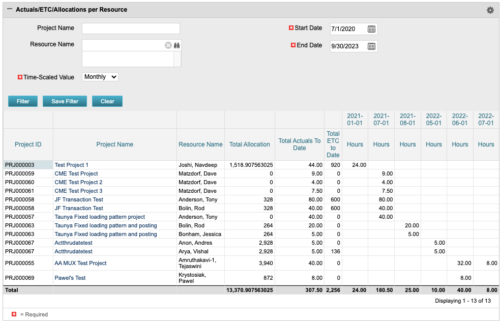
  • The portlet displays posted time by project for the logged in user based on time period and date range.  This allows the user to see at a glance their ETC and actuals on the projects. The portlet displays the Total Allocation and Total Actuals to Date for the user on the projects they are allocated/assigned to.  The actuals are displayed per month in the form of TSVs.
  • The portlet displays posted time by project for the logged in user based on time period and date range.  This allows the user to see at a glance their ETC and actuals on the projects. The portlet displays the Total Allocation and Total Actuals to Date for the user on the projects they are allocated/assigned to.  The actuals are displayed per month in the form of TSVs.
  • The portlet displays posted time by project for the logged in user based on time period and date range.  This allows the user to see at a glance their ETC and actuals on the projects. The portlet displays the Total Allocation and Total Actuals to Date for the user on the projects they are allocated/assigned to.  The actuals are displayed per month in the form of TSVs.
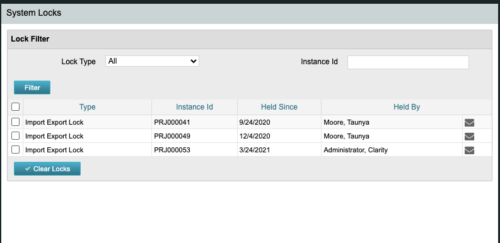
  • The CA Clarity Hidden Page Security Locks document provides an overview of how to view and remove the locks currently being held on the system using the Security Locks hidden page.
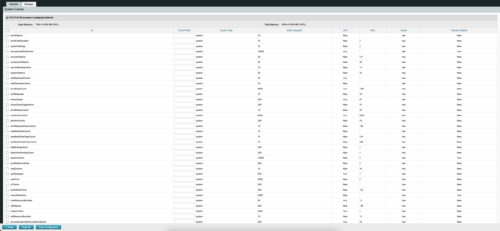
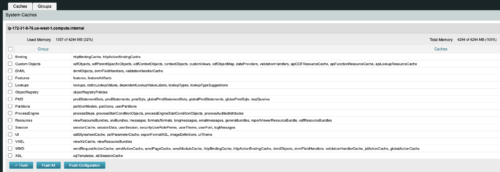
  • The CA Clarity Hidden Page Flush Caches document provides an overview of how to clear the cache on an application server without exiting the CA Clarity Application itself utilizing a hidden page within the system.
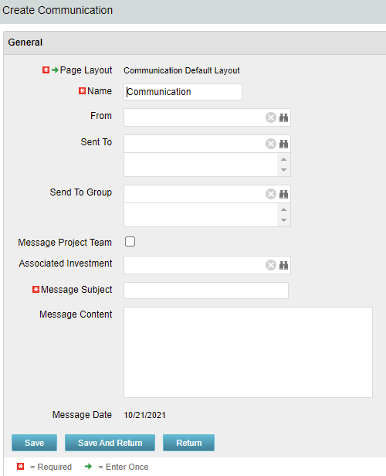
  • The Communications Object allows a user to send an html-based email to all users on a project, in a security group, or to individual users directly from Clarity.  An email can be sent by creating a new entry on the Communication List page, upon saving a new entry the email process with trigger and send the email. Auto Start Solution: An email can be sent by creating a new entry on the Communication List page, upon saving a new entry the email process with trigger. On Demand Solution: All emails could be sent together as a broadcast communication by running the process manually from the Organizer. This process could also be scheduled to run on a specific time using Jobs The table below describes the available columns on the object.
    Column Label Description
    From Who the email is coming from
    Sent To Individual users the message should send to
    Send to Group Security groups the message should send to (users within the security groups)
    Message Project Team Should this message be sent to a project team
    Associated Investment If Message Project Team is checked, which project should the team list be pulled from
    Message Subject Subject line of the email
    Message Content Body of the email (html)
    Message date Internal code used by the query
    Either of the on-demand process or auto start process should be active at a time. The package provides two Processes: 1.  Send Notification (ID:rego_send_notification) This is an auto start process. The notification is sent immediately when a new entry is created on the Communication object. Only one email notification will be sent for one entry. Any updates to the same entry will not trigger any new notifications. 2.  Email Communication (ID:rego_email_comm) This is an on-demand process that could be run from the Organizer. This send notification to all the entries on the Communication objects for which a communication was not already sent. This process does not have a Primary object. The processes are designed to work both in Oracle and Postgres environment. If the DB vendor information from Properties.xml is Postgres the SQL query for Postgres will be called. If not, the default SQL is Oracle. Important Note: Either of the processes should be active for an Implementation. If both the processes are active the on-demand process has no effect and will never send any communication. All object entries have a sent flag which will be marked whenever a notification is sent. Both the processes set the same flag on the object instance. Only with admin DB rights this flag could be overwritten. Object Name:Communication Object ID: rego_communication Flag Attribute Name: Sent (Id: rego_sent)

  • The Communications Object allows a user to send an html-based email to all users on a project, in a security group, or to individual users directly from Clarity.  An email can be sent by creating a new entry on the Communication List page, upon saving a new entry the email process with trigger and send the email. Auto Start Solution: An email can be sent by creating a new entry on the Communication List page, upon saving a new entry the email process with trigger. On Demand Solution: All emails could be sent together as a broadcast communication by running the process manually from the Organizer. This process could also be scheduled to run on a specific time using Jobs The table below describes the available columns on the object.
    Column Label Description
    From Who the email is coming from
    Sent To Individual users the message should send to
    Send to Group Security groups the message should send to (users within the security groups)
    Message Project Team Should this message be sent to a project team
    Associated Investment If Message Project Team is checked, which project should the team list be pulled from
    Message Subject Subject line of the email
    Message Content Body of the email (html)
    Message date Internal code used by the query
    Either of the on-demand process or auto start process should be active at a time. The package provides two Processes: 1.  Send Notification (ID:rego_send_notification) This is an auto start process. The notification is sent immediately when a new entry is created on the Communication object. Only one email notification will be sent for one entry. Any updates to the same entry will not trigger any new notifications. 2.  Email Communication (ID:rego_email_comm) This is an on-demand process that could be run from the Organizer. This send notification to all the entries on the Communication objects for which a communication was not already sent. This process does not have a Primary object. The processes are designed to work both in Oracle and Postgres environment. If the DB vendor information from Properties.xml is Postgres the SQL query for Postgres will be called. If not, the default SQL is Oracle. Important Note: Either of the processes should be active for an Implementation. If both the processes are active the on-demand process has no effect and will never send any communication. All object entries have a sent flag which will be marked whenever a notification is sent. Both the processes set the same flag on the object instance. Only with admin DB rights this flag could be overwritten. Object Name:Communication Object ID: rego_communication Flag Attribute Name: Sent (Id: rego_sent)
  • The Communications Object allows a user to send an html-based email to all users on a project, in a security group, or to individual users directly from Clarity.  An email can be sent by creating a new entry on the Communication List page, upon saving a new entry the email process with trigger and send the email. Auto Start Solution: An email can be sent by creating a new entry on the Communication List page, upon saving a new entry the email process with trigger. On Demand Solution: All emails could be sent together as a broadcast communication by running the process manually from the Organizer. This process could also be scheduled to run on a specific time using Jobs The table below describes the available columns on the object.
    Column Label Description
    From Who the email is coming from
    Sent To Individual users the message should send to
    Send to Group Security groups the message should send to (users within the security groups)
    Message Project Team Should this message be sent to a project team
    Associated Investment If Message Project Team is checked, which project should the team list be pulled from
    Message Subject Subject line of the email
    Message Content Body of the email (html)
    Message date Internal code used by the query
    Either of the on-demand process or auto start process should be active at a time. The package provides two Processes: 1.  Send Notification (ID:rego_send_notification) This is an auto start process. The notification is sent immediately when a new entry is created on the Communication object. Only one email notification will be sent for one entry. Any updates to the same entry will not trigger any new notifications. 2.  Email Communication (ID:rego_email_comm) This is an on-demand process that could be run from the Organizer. This send notification to all the entries on the Communication objects for which a communication was not already sent. This process does not have a Primary object. The processes are designed to work both in Oracle and Postgres environment. If the DB vendor information from Properties.xml is Postgres the SQL query for Postgres will be called. If not, the default SQL is Oracle. Important Note: Either of the processes should be active for an Implementation. If both the processes are active the on-demand process has no effect and will never send any communication. All object entries have a sent flag which will be marked whenever a notification is sent. Both the processes set the same flag on the object instance. Only with admin DB rights this flag could be overwritten. Object Name:Communication Object ID: rego_communication Flag Attribute Name: Sent (Id: rego_sent)
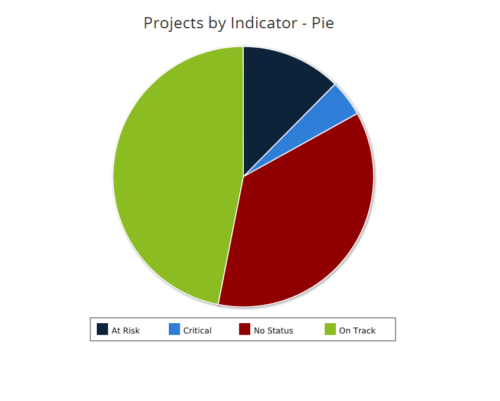
  • Projects by Status Indicator is a pie chart that displays count of projects by out of box Status Indicator attribute. Legend displays the colors associated with various Status Indicator values. Mouse over the pie chart slice displays the count of projects associated with that respective Status Indicator value. You can further narrow your search by OBS Path, Project Manager and Is Project Active?.
Go to Top