-
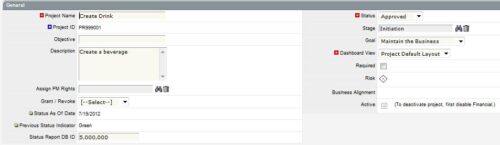
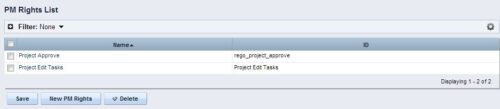 The Allow PM to Give Certain Rights modification allows the project manager to delegate rights (chosen by the administrator on the PM Rights object) on his or her projects. This modification eliminates the need for project managers to request additional rights through the PMO/management and simplifies the entire process for everyone involved. The system administrator is able to customize the PM Rights object to pick which rights should be granted to users by the process. The process begins when a change is made on the newly created “Grant / Revoke” field on the project object. The process will then grant or revoke (depending on what option is selected) any rights listed in the PM Rights object to the user in the “Assign PM Rights” field on the project object.
 -
 Course description: “Does your organization struggle with resource management? Have you considered creating a Resource Management Office (RMO)? This session will review how some organizations are using RMOs to drive adoption and effectively manage resources, including real world examples of RMO setup and execution.” Download file is the presentation slide deck.
 -
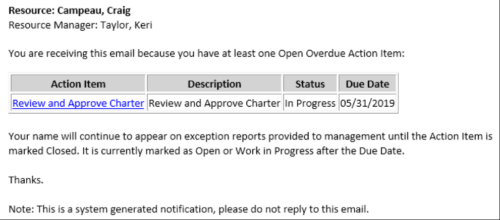 This Process sends an email to every Action Item Assignee where the Due Date/Time has passed and the Status is either Open, or In Progress. Users may want to modify this stalker to include Status = Deferred. In addition, the Resource Manager for the Assignee receives a copy of the email. In order to generate emails, the SMTP gateway must be up and running and Resources must have a valid email address.
 -
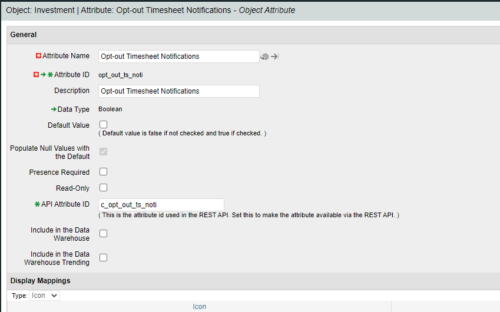
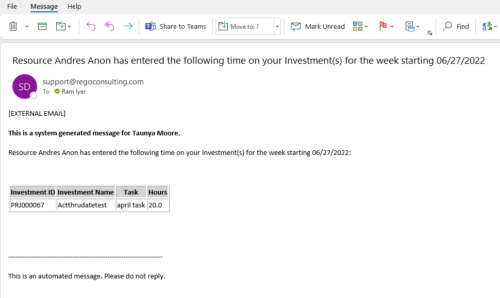 Notify the PM with a list of tasks for their project as soon as the Timesheet is submitted. This is a good substitute for PM approval. When a timesheet is submitted, then the PM knows the time entered by person. This is an Auto-start process in Clarity named PM Time Notification - On Timesheet Submission and will be automatically spawned when a Timesheet is submitted. When the process is started it will be seen in the Initiated on the Processes tab. The process status can be monitored from Running to the Completed stage. The Progress when 100% and the Status is Completed, an email would have arrived to the Project Manager with subject: “Resource <Name> has entered the following time on your Investment(s) for the week starting <Timesheet Start Date> ”. This email will list the Investments managed by the PM where task was entered by the Resource submitting the timesheet. Each PM would get a separate notification. PM for project X notified, and PM for project Y gets notified in another email. Therefore, one timesheet may spawn out multiple emails. But, if both the Projects have the Same PM, then only a single email gets sent out. “Opt-out Timesheet Notifications" checkbox is provided on the Project for PM’s who do not want to get notified on those projects.
 -
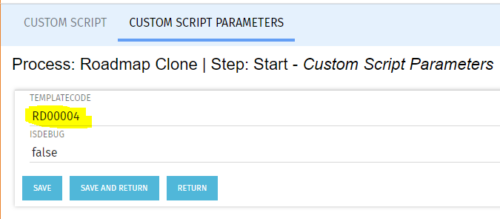 The Roadmap Cloning process creates a clone of any existing roadmap. It should be run using the “Execute a Process” job. To specify a roadmap to clone the Start Step Action’s Custom Script Parameters need to be updated to include the proper roadmap ID in the templateCode field.
 -
 This can be used to remove all automatic permissions (Resource Manager Auto) granted to users as a result of becoming a resource manager. NOTE: The ability to remove the right is with the admin only
 -
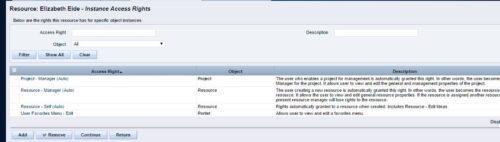 A process that removes all the group assignments for inactive users after execution of process. The following are removed for all inactive users:
- Group assignments
- Instance rights
- Global rights
-
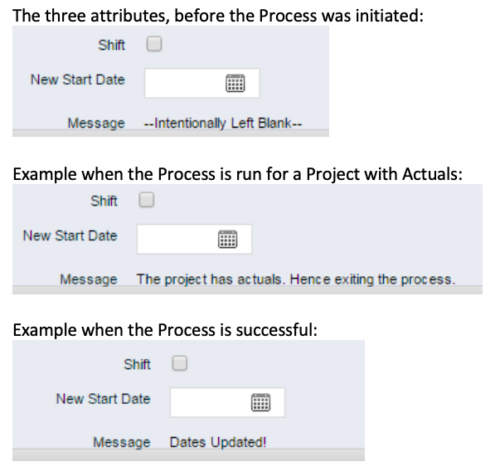 This process, Shift Project Dates, helps Project Managers change an entire Project / Idea’s dates to a new start date. Once the three attributes are added to the Idea /Project Views, the PM can trigger the process by entering a date in the New Start Date field and checking the Shift checkbox. The process runs automatically on Save. The process calculates the date difference between the original Start Date and New Start Date then shifts all Allocation, Task, and Assignment dates by the calculated difference. For example, if a Project is set to begin on January 1st and needs to be pushed to a February 1st start date, the process first determines that there are 31 days between the original start date and the new date. Next the process increases the start date for each Task, Allocation and Assignment by 31 days. NOTE: The process will shift Allocation dates regardless of resource restrictions such as a Termination Date or non-working time as marked on their calendar. The Team page will reflect the Available Start and Finish as shifted by the process, but the Allocation hours and % will take unavailable time into account. For example, if a shift process sets the start date for a resource to be after their date of termination the dates will change by the date difference, but the Allocation hours will correctly be calculated as zero.
 -
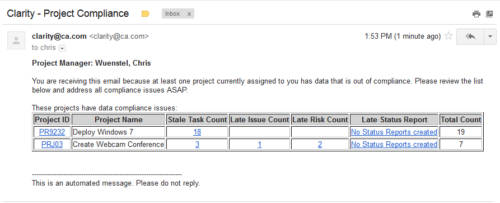 The Project Compliance Stalker – PM sends an email to Project Managers (and also their managers if so desired) at a set interval to alert them to project compliance issues. Areas of compliance that are reviewed include: stale project tasks (stale = past due date), late issues and risks (past due date) and late status reports.
 -
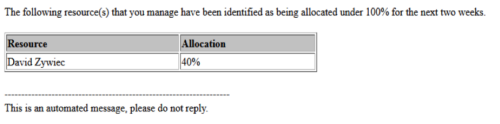 Based on the pre-determined schedule frequency, this job will send an email to Resource Managers that have a Resource meeting the criteria of: Average allocations are less than 100% where Resource(s) and Project(s) are active over the next two weeks. This serves as a reminder to Resource Managers to monitor and manage allocations. The contents of the email include a message indicating the Resource Manager has at least one Resource meeting this criteria and a table indicating the Resource and that resource’s average, next 90 days allocations.
 -
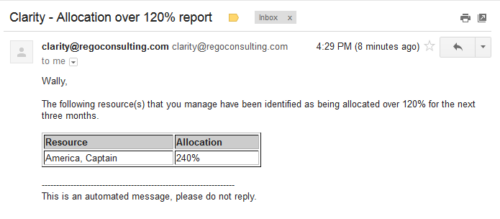 Based on the pre-determined schedule frequency, this job will send an email to Resource Managers that have a Resource meeting the criteria of: Average allocations are greater than 120% where Resource(s) and Project(s) are active over the next 90 days. This serves as a reminder to Resource Managers to monitor and manage allocations. The contents of the email include a message indicating the Resource Manager has at least one Resource meeting this criteria and a table indicating the Resource and that resource’s average, next 90 days allocations.
 -
 The Grant Team Project Edit Rights workflow allows a project manager to grant Project – Edit Management rights to all users staffed on the project. This workflow saves not only the project manager time by allowing all users on the project to update information, but also saves the administrator time from granting each resource these rights individually. The process will also remove any rights from members that have been removed from the project.


Copyright 2023 • Rego Consulting Corporation • Privacy Policy