-
 Have you looked in the regoXchange or reviewed Rego’s innovation offerings? This class will show you the power of Rego’s pre-built content library, integrations, and other assets. See example after example of portlets, processes, and materials you can use to add value to your instance of Clarity. Learn how you can introduce email-based approvals with Rego's action item responder. Get a peek at Rego's new MSP integration that avoids the issues faced with the OOTB integration. Finally, understand Rego's pre-built connectors and how they can benefit your instance. Including blueprint migrator. Include free tools like GEL builder, query, XOGbridge.
 -
 Are you starting a resource management implementation, or do you want to compare how you are using these functions vs. others or best practices? In this class we will discuss some best practices from successful customers.
 -
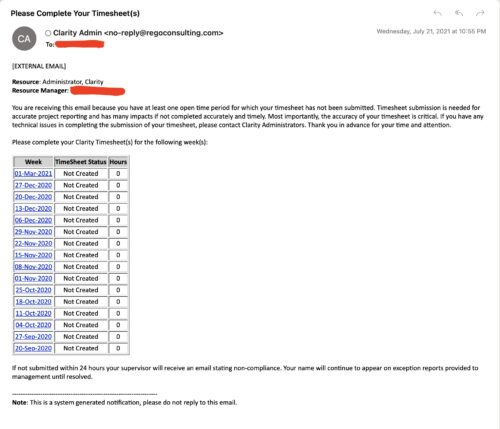 The Enhanced Time Tracking Stalker – RM workflow process automatically sends a single email to Resource Managers which contains a list of any of their resources that have not submitted their timesheet for a prior open time period. The email informs the RM if their resources are submitting their timesheets on time. The email includes a table that provides this information for each resource: Resource Name, Time Period, Timesheet Status and Total Hours saved on the timesheet with links to the timesheet in the Modern User Experience of Clarity. These notifications will help to ensure that time is being posted and approved in a timely manner.
 -
 Effective resource management is vital for delivering successful and profitable projects. Get it right and costs will be controlled, objectives achieved, and deadlines met. Get it wrong and we run the risk of not just project timescales slipping but also margins and competitive advantages eroding. This paper looks at resource management best practices and how we can adopt practices to increase project quality, agility, and efficiency. This White Paper is downloaded from the Rego Consulting site. You will be asked to provide your email address and current ppm tool. - http://info.regoconsulting.com/smarter-resource-mgmt-whitepaper ** No Download - Do not Add to Cart **
 -
 A Quick Reference Guide that covers how to staff a Team in Clarity’s Modern UX. It reviewes some of the key terminology, covers Allocation vs. ETC, accessing the Staffing Tab, and viewing time-scaled allocations.
 -
 This training document is a Rego Consulting Quick Reference Guide to assist with placeholder role replacement in Clarity’s Modern User Experience. The document reviews accessing and fulfilling requests.
 -
 This training document is a Rego Consulting Quick Reference Guide to assist with the use of the Staffing Plan in Clarity’s Modern User Experience. This doc references version 16.0.3 views. Document provides information on how to swap between views to see investments by resource or resources by investment. Instructions on filtering are provided, as well as detail on how to update the unit of measure between FTE (Full Time Equivalent) and Hours. Tips are provided on how to expand the list of investments within each view and how to view the properties for the allocations. A Legend is also documented to provide information on each of the icons that are displayed on this page.
 -
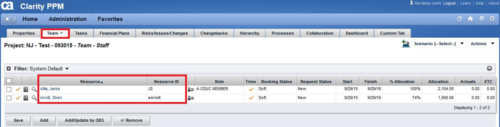
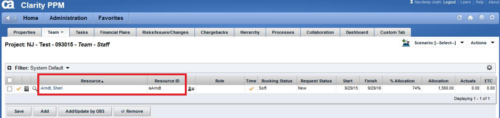 This technical trick provides a supported method for removing team members from a project programmatically. This is a XOG-based solution that might be called by a gel script in a process workflow. Limitation is that the resource must NOT have actuals booked.
 -
 This training document is a Rego Consulting Quick Reference Guide to assist with the Resources Workspace in Clarity’s Modern User Experience. This doc references version 16.1.2 views. Document reviews the Resources, Roles and Teams tabs in the Resources Workspace.
 -
 This training document is a Rego Consulting Quick Reference Guide to assist with the staffing of a Team on an investment in Clarity’s Modern User Experience. This doc references version 16.2.1 views. Doc covers Common Terms, setting up a Default Allocation, Allocation vs ETC, Staff Tab, and Staffing the Team – Time Scale.
 -
 Does your organization struggle with resource management? Have you considered creating a Resource Management Office (RMO)? Do you struggle with a lack of executive sponsorship to drive adoption? This session will review how some organizations are succeeding in driving adoption and effectively managing resources by engaging leadership, RMOs, and utilizing more dedicated resources. Learn best practices for driving effective resource management across your organization.
 -
 Take your Resource Planning to the next level with itDesign’s Advanced Resource Planning add-on for Clarity.


Copyright 2023 • Rego Consulting Corporation • Privacy Policy