-
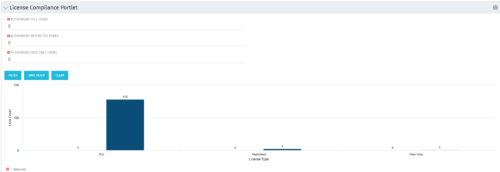 Portlet to quickly show License Compliance for all license types. Simply Enter your License Limits in the filter – The portlet will display the three license types in a grid format with compliance chart and RYG Icons.
 -
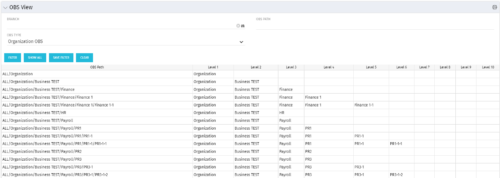 This grid portlet shows the OBS name and ID along with the associated hierarchy, both as an aggregated view along with each of the levels broken out. The table below describes the available filter fields in the portlet.
Column Label Description Branch Branch of the OBS OBS Type OBS to use OBS Path Path of the OBS -
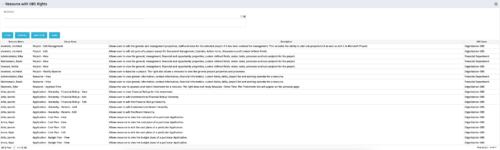 This portlet displays list of resources with OBS rights. This would be helpful for admins to know if a user can perform any actions on object instances of an OBS.
 -
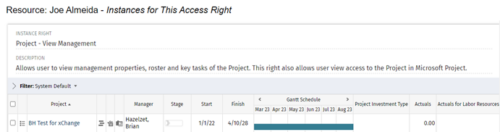
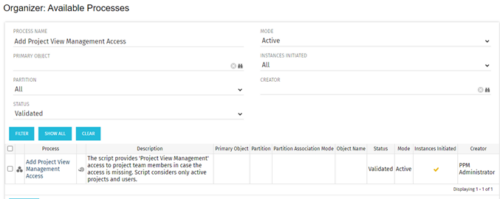 This process grants Project Management instance rights to all of the project team members within the program hierarchy. Allows users to view management properties, roster and key tasks of the project. This also allows user view access to the project in Microsoft Project.
 -
 What integrations are the most requested and the most utilized? This class will review the most common interfaces to and from Clarity, including best practice use cases and lessons learned from real implementations.
 -
 This training document is a Rego Consulting Quick Reference Guide to assist with the use of the Staffing View in Clarity’s Modern User Experience. This doc references version 16.1 views. Document provides information on how to swap between views to see investments by resource or resources by investment. Instructions on filtering are provided, as well as detail on how to update the unit of measure between FTE (Full Time Equivalent) and Hours. Tips are provided on how to expand the list of investments within each view and how to view the properties for the allocations. A Legend is also documented to provide information on each of the icons that are displayed on this page.
 -
 A presentation slide deck from Rego University 2022. This document is an outline used for the class on using GEL Scripts in Clarity development.
- XML Manipulation
- SOAP Web Services (XOG)
- Code Reuse
- Best Practices
-
 A presentation slide deck from Rego University 2022. This document reviews the issues around tool adoption and strategies to overcome them.
- The Perception of Adoption
- Top 5 Signs That You May Have Low Adoption
- What is Adoption
- Survey – What is Your State of Adoption
- Keys to Success – What We Have Seen
-
 A presentation slide deck from Rego University 2022. The document reviews the process to follow post tool implementation.
- Typical Post-Implementation / Operational Challenges
- Aspirations for and Outcomes of a High Performing Ownership Team
- Model Solution:
- Roles and Responsibilities
- Intake, Triage, and Delivery Process
- Clarity Board-Based Solution
-
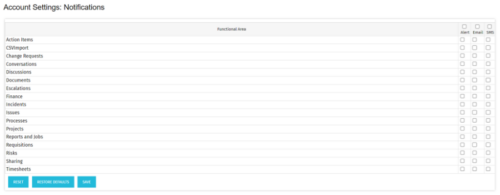 The Turn off Notifications process disables all Email, SMS and Alerts notifications for all users. This process is helpful if users would not like to receive emails from the system regarding actions items, timesheet submissions, etc. The script may be modified to include all users or all users that have been created within the last day.
 -
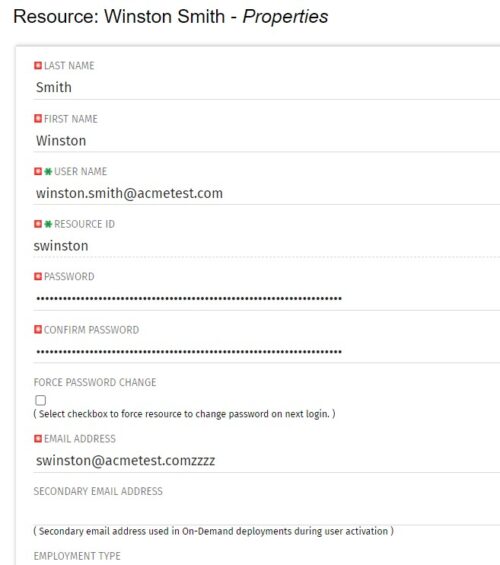 The Update Email Ids workflow sets all users’ email addresses to non-working by appending a “ZZZZ” to the end of the email address. This process is used for when there are refreshes to your Development or Testing environments and do not want emails going to users. When complete, the log will display the total amount of email addresses updated. A second process is included in this workflow that will revert the email addresses to remove the “ZZZZ” added in the first workflow. In some instances, the process may be run in error, or you may want to send emails from a Development or Testing environment; using this second process you will be able to enable all emails again.
 -
 Take a deep dive into Clarity's REST APIs. You will learn different ways to explore Clarity's API's using the REST API explorer, Postman, and Chrome's Developer Tools. We will cover HTTP methods, status codes, Clarity-specific headers, and creating and parsing JSON.


Copyright 2023 • Rego Consulting Corporation • Privacy Policy