RegoXchange
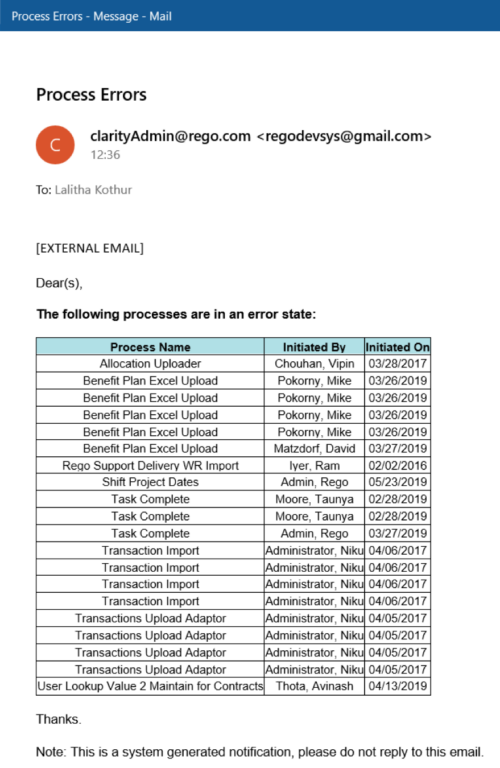
  • The Email Process Instance Errors workflow process will email a selected group within Clarity informing them of process errors that are currently in the system. The selected group is input through a gel parameter so it may be easily changed. This workflow helps to resolve errors quickly by emailing group members of the errors within the system so they may take action immediately.
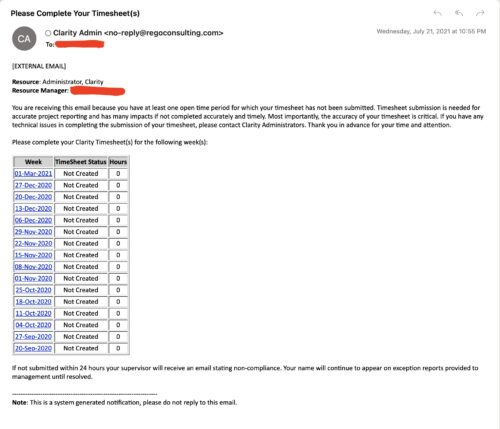
  • The Enhanced Time Tracking Stalker – RM workflow process automatically sends a single email to Resource Managers which contains a list of any of their resources that have not submitted their timesheet for a prior open time period.  The email informs the RM if their resources are submitting their timesheets on time.  The email includes a table that provides this information for each resource: Resource Name, Time Period, Timesheet Status and Total Hours saved on the timesheet with links to the timesheet in the Modern User Experience of Clarity. These notifications will help to ensure that time is being posted and approved in a timely manner.
  • The Executive Dashboard portlet displays information regarding projects the user has security rights to view. It provides a one-stop place for the PMO or management to view all critical information about projects. The portlet not only displays status indicators as well as dates for late items, variances and days late, but also displays the project status fields from the Status Report sub-object.
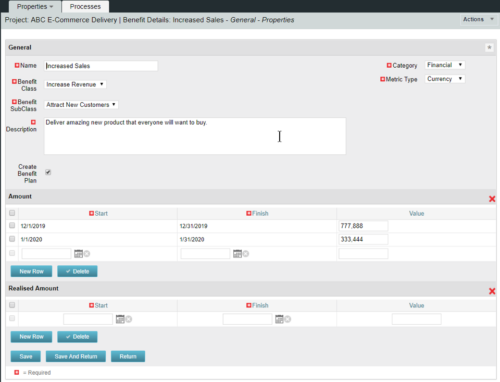
  • This configuration and accompanying process allows users to capture Financial and Non-Financial (Metrics, Soft, etc.) Benefit in a custom sub-object, then programmatically create an out-of-the-box Benefit Plan with just the Financial Portion from the custom sub-object.  The solution is comprised of:
    • Sub-Object (Benefit Plan Details, Parent = Project)
    • Process: Create Benefit Plan (uses sub-object as primary input, native BP is output)
    • Process: Update sql - Cost Benefit Plans (one-time script to update Projects)
    The Process to create the Benefit Plan is initiated when users check the Create Benefit Plan box on the sub-object.  Every time the Process runs it aggregates all rows from the sub-object that are flagged as Financial and creates a new Benefit Plan.  The resulting BP is not linked to any Cost Plans. Users who install this base solution will want to consider:
    • Ensure on the Benefit Details List view the Planned and Realized Amounts are displayed
    • Modifying the Create Benefit Plan Process in support of a BP naming convention consistent with local PMO Practices
    • Modifying the Create Benefit Plan Process to link the BP to the Cost Plan of Record
    • Creating a Portlet that pulls together rows of data from the sub-object across multiple projects in a summarized view as well as a detailed view
    Once installed, please refer to the Benefit Detail Functionality Document for how to create Benefit Detail records, initiate the process, and the Benefit Plan Creation.

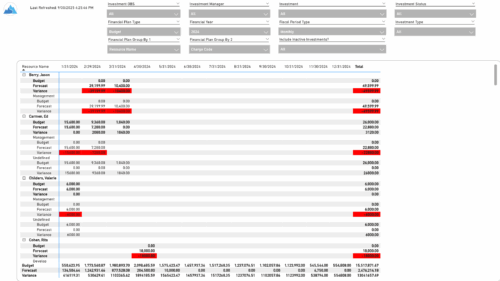
  • The Financial Budget vs. Forecast by Period report provides insight into financial performance by comparing planned or budgeted costs against forecasted costs across defined time periods. It highlights period-level and total variances to help identify trends and deviations. Results can be grouped by up to two financial attributes, such as Charge Code, Cost Type, Department, Input Type, Location, Resource, Resource Class, Role, Transaction Class, or User Values 1 and 2, allowing flexible analysis by key dimensions.
  • The Financial Budget vs. Forecast by Period Detail report provides a detailed breakdown of planned or budgeted costs compared to forecasted costs by investment. It displays variances for each period and in total. Users can filter or drill down to view the specific investments that contribute to selected financial plan groupings.
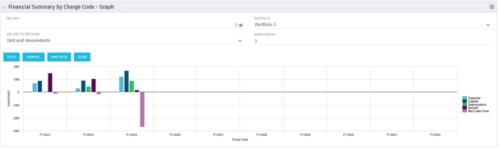
  • The Financial Summary by Charge Code - Graph portlet displays yearly charge code financial information across all projects in a bar graph. This portlet provides management with a snapshot of all projects’ financial information totaled and sorted by expense, capital, depreciation, benefit, and net cash flow.   The depreciation is calculated based on a straight line method.  The user may filter on OBS unit and/or portfolio to narrow down the search results.
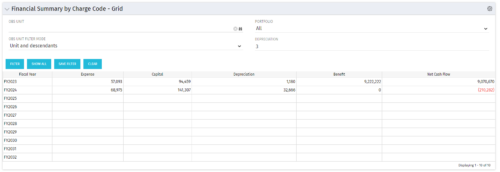
  • The Financial Summary by Charge Code – Grid portlet displays yearly charge code financial information across all projects.  This portlet provides management with a snapshot of all projects’ financial information totaled and sorted by expense, capital, depreciation, benefit, and net cash flow.   The depreciation is calculated based on a straight-line method.  The user may filter on OBS unit and/or portfolio to narrow down the search results.
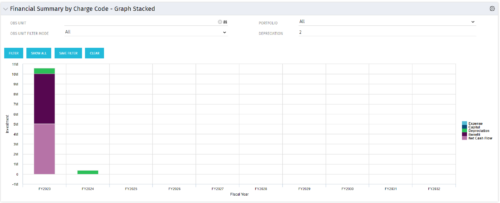
  • The Financial Summary by Charge Code – Graph Stacked portlet displays yearly charge code financial information across all projects in a stacked bar graph.  This portlet provides management with a snapshot of all projects’ financial information totaled and sorted by expense, capital, depreciation, benefit, and net cash flow.   The depreciation is calculated based on a straight-line method.  The user may filter on OBS unit and/or portfolio to narrow down the search results.
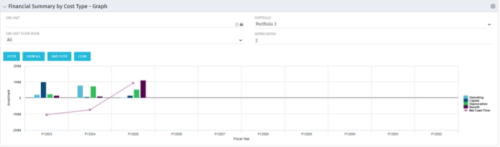
  • The Financial Summary by Cost Type  - Graph provides a visual stacked graph for each years financial picture beginning with current year and going forward into the future. It will show the user where they need to concentrate their efforts in order to meet financial commitments.
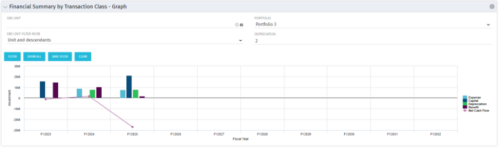
  • The Financial Summary by Transaction Class - Graph provides a visual graph for each years financial picture beginning with current year and going forward into the future. It will show the user where they need to concentrate their efforts in order to meet financial commitments.
  • This Portlet produces a Grid View of Resources using total Resource Allocation from each Project’s Team / Staff, per month; output is expressed as a %.  Users can specify which Resource OBS to use as a Filter (unit and descendants is assumed) as well as a Start/End Date.
Go to Top