-

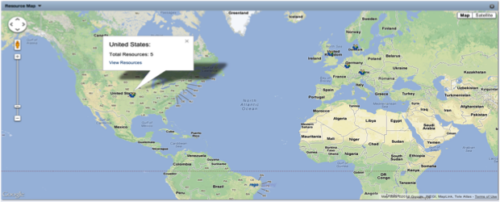 The Resource Map portlet is designed to display resource counts, by country, on a map of the world. Clicking one of the resource markers on the map will display the total resource count for that country. Additionally, a link is provided that connects to a grid portlet which displays all resources that reside in that country. The ability to zoom in and out on areas of the world is available. Due to the requirements outlined in the Special Installation Instructions section, this portlet requires 2-3 Rego Consulting hours to install. Further customization of the data on this map and its associated grid portlet may be requested. Please contact us for more details.
 -
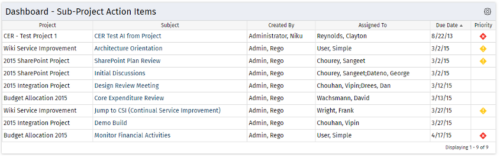 The Program Dashboard Sub Project Action Items portlet display Action Items of Sub Projects in a Program. The portlet will pull the "Action Items" from all the sub projects in the Program, and this information is placed on the Dashboard tab. This portlet displays each Project, name of the Action Item as mentioned in the Subject, and the resource who Created this Action Item. Assigned To field will display the resource to whom the Action Item has been Assigned. Due Date mentions the date the Action Item will be completed and the Priority level of the Action Item is a stoplight showing red, yellow and green for the different levels of priority. The table below describes the available columns in the portlet. The first 6 are configured in the default view:
Column Label Description Project Name of the Project Subject Defines the name for Action Item Created By Resource who created the Action Item Assigned To Resource who the Action Item is Assigned to Due Date Date the Action Item is due for completion Prty Specifies the priority level of the Action Item Action Item ID Internal ID used by the query Created By ID Internal ID used by the query Created Date Date the Action Item was created Days Open No. of days the Status of Action Item has remained opened since it was created Priority Name Based on high, medium, or low priority with corresponding red, yellow, or green stoplights Project DB ID Internal ID used by the query Project ID Unique ID of the Project within Clarity Project Manager Project Manager -
The Program Dashboard Sub Project Action Items portlet display Action Items of Sub Projects in a Program. The portlet will pull the "Action Items" from all the sub projects in the Program, and this information is placed on the Dashboard tab. This portlet displays each Project, name of the Action Item as mentioned in the Subject, and the resource who Created this Action Item. Assigned To field will display the resource to whom the Action Item has been Assigned. Due Date mentions the date the Action Item will be completed and the Priority level of the Action Item is a stoplight showing red, yellow and green for the different levels of priority. The table below describes the available columns in the portlet. The first 6 are configured in the default view:
Column Label Description Project Name of the Project Subject Defines the name for Action Item Created By Resource who created the Action Item Assigned To Resource who the Action Item is Assigned to Due Date Date the Action Item is due for completion Prty Specifies the priority level of the Action Item Action Item ID Internal ID used by the query Created By ID Internal ID used by the query Created Date Date the Action Item was created Days Open No. of days the Status of Action Item has remained opened since it was created Priority Name Based on high, medium, or low priority with corresponding red, yellow, or green stoplights Project DB ID Internal ID used by the query Project ID Unique ID of the Project within Clarity Project Manager Project Manager -
The Program Dashboard Sub Project Action Items portlet display Action Items of Sub Projects in a Program. The portlet will pull the "Action Items" from all the sub projects in the Program, and this information is placed on the Dashboard tab. This portlet displays each Project, name of the Action Item as mentioned in the Subject, and the resource who Created this Action Item. Assigned To field will display the resource to whom the Action Item has been Assigned. Due Date mentions the date the Action Item will be completed and the Priority level of the Action Item is a stoplight showing red, yellow and green for the different levels of priority. The table below describes the available columns in the portlet. The first 6 are configured in the default view:
Column Label Description Project Name of the Project Subject Defines the name for Action Item Created By Resource who created the Action Item Assigned To Resource who the Action Item is Assigned to Due Date Date the Action Item is due for completion Prty Specifies the priority level of the Action Item Action Item ID Internal ID used by the query Created By ID Internal ID used by the query Created Date Date the Action Item was created Days Open No. of days the Status of Action Item has remained opened since it was created Priority Name Based on high, medium, or low priority with corresponding red, yellow, or green stoplights Project DB ID Internal ID used by the query Project ID Unique ID of the Project within Clarity Project Manager Project Manager -
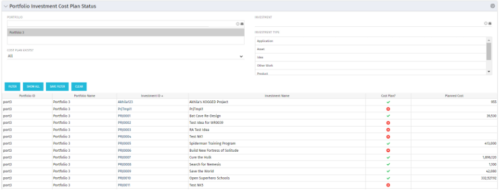 The portlet shows which investments within a portfolio has a cost plan and those that do not. For the ones which do have a cost plan, the Cost Plan? Field shows a Green checkmark. For the ones which do not have a cost plan, the Cost Plan? Field shows a Red cross.
 -
The portlet shows which investments within a portfolio has a cost plan and those that do not. For the ones which do have a cost plan, the Cost Plan? Field shows a Green checkmark. For the ones which do not have a cost plan, the Cost Plan? Field shows a Red cross.
-
The portlet shows which investments within a portfolio has a cost plan and those that do not. For the ones which do have a cost plan, the Cost Plan? Field shows a Green checkmark. For the ones which do not have a cost plan, the Cost Plan? Field shows a Red cross.
-
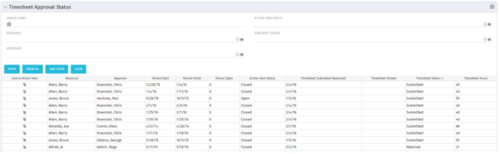 Portlet to show the stage of any Action Item triggered by Timesheet submission. Portlet allows for a period start date input, filters by Resource, Approver, Action Item Status and Timesheet Status. A link to the action item is provided for direct action by review if needed. This portlet is only for the clients who have established a process that triggers on Timesheet Status change to Submitted and to send Action Items to the person responsible for timesheet approval/validation i.e. PM for project tracking and/or RM for overall approval of the timesheet. The portlet won’t display any data if there are no timesheet Action Items. Examples of such processes would be CA’s OOTB Project Manager Approval or the Timesheet Approval - PM and RM process found on RegoXchange.
 -
Portlet to show the stage of any Action Item triggered by Timesheet submission. Portlet allows for a period start date input, filters by Resource, Approver, Action Item Status and Timesheet Status. A link to the action item is provided for direct action by review if needed. This portlet is only for the clients who have established a process that triggers on Timesheet Status change to Submitted and to send Action Items to the person responsible for timesheet approval/validation i.e. PM for project tracking and/or RM for overall approval of the timesheet. The portlet won’t display any data if there are no timesheet Action Items. Examples of such processes would be CA’s OOTB Project Manager Approval or the Timesheet Approval - PM and RM process found on RegoXchange.
-
Portlet to show the stage of any Action Item triggered by Timesheet submission. Portlet allows for a period start date input, filters by Resource, Approver, Action Item Status and Timesheet Status. A link to the action item is provided for direct action by review if needed. This portlet is only for the clients who have established a process that triggers on Timesheet Status change to Submitted and to send Action Items to the person responsible for timesheet approval/validation i.e. PM for project tracking and/or RM for overall approval of the timesheet. The portlet won’t display any data if there are no timesheet Action Items. Examples of such processes would be CA’s OOTB Project Manager Approval or the Timesheet Approval - PM and RM process found on RegoXchange.
-
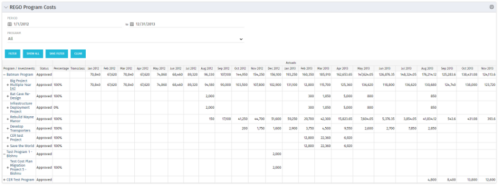 The Program Costs portlet looks like a cost plan. It will summarize all cost plans from projects within the program and display the totals.
 -
The Program Costs portlet looks like a cost plan. It will summarize all cost plans from projects within the program and display the totals.


Copyright 2023 • Rego Consulting Corporation • Privacy Policy