-
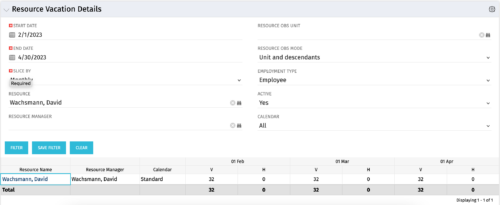 The Resource Vacation Details portlet allows a resource manager, or administrator, to see a resource’s calendar at a glance, displayed by week or month for a selected time period. This portlet shows the Resource Name, Resource Manager, Calendar, H (holiday), and V (vacation) hours for the select time frame.
 -
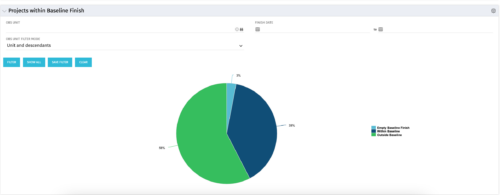 The Projects Within Baseline Finish portlet displays all projects that have a baseline and presents them in a pie chart. This portlet provides management with a way to quickly view the number of projects that are on time. The user may filter by OBS and finish date.
 -
 The Projects Marked for Deletion portlet displays information about projects that are currently pending deletion but excludes templates and programs. This portlet provides an easy way to view all projects that are marked for deletion before the background job actually erases them. The portlet provides all necessary information as well as the project manager in case there are questions about why the project was marked for deletion.
 -
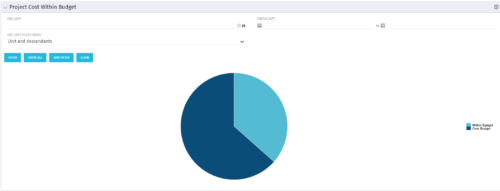 The Project Cost Within Budget portlet shows all projects that are within or exceeding their budgets in a pie chart. The user may filter by OBS and finish dates to narrow the projects. This portlet provides management with a graphical representation of the overall status of cost on all projects.
 -
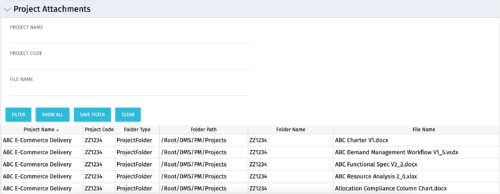 The Project Attachments portlet displays all attachments located on every project, regardless of security rights. This portlet is useful for not only the PM, but also the PMO to determine if a document has been uploaded for the toll gating process. It will also display the folder type, folder path, folder name, and file name. You have the ability to filter by project name, code, file name or file name.
 -
The Project Attachments portlet displays all attachments located on every project, regardless of security rights. This portlet is useful for not only the PM, but also the PMO to determine if a document has been uploaded for the toll gating process. It will also display the folder type, folder path, folder name, and file name. You have the ability to filter by project name, code, file name or file name.
-
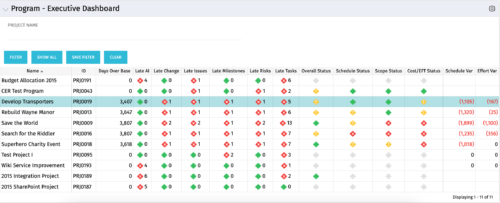 The Program Executive Dashboard portlet displays information regarding sub-projects on a program. It provides a one-stop place for the PMO or management to view all critical information about projects under a specific program. The portlet displays status indicators, dates for late items, variances and days over base, it also displays the project status fields from the Status Report sub-object.
 -
The Program Executive Dashboard portlet displays information regarding sub-projects on a program. It provides a one-stop place for the PMO or management to view all critical information about projects under a specific program. The portlet displays status indicators, dates for late items, variances and days over base, it also displays the project status fields from the Status Report sub-object.
-
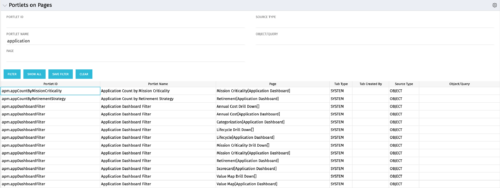 Portlets on Pages displays portlets located on each page within Clarity. This portlet is useful for administrators to determine which users have customized their pages and if they are not seeing a certain portlet, or if a user has placed a portlet on another page and needs help locating it. It also shows the portlet code, name, page the portlet resides on, tab type, who created the tab, source type, and the object/query.
 -
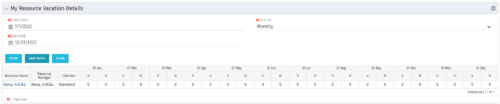 The My Resource Vacation Details portlet returns the logged in users calendar at a glance by week or month for a selected time period. It shows the Resource Name, Resource Manager, Calendar, H (holiday), and V (vacation) hours for the select time frame.
 -
The My Resource Vacation Details portlet returns the logged in users calendar at a glance by week or month for a selected time period. It shows the Resource Name, Resource Manager, Calendar, H (holiday), and V (vacation) hours for the select time frame.
-
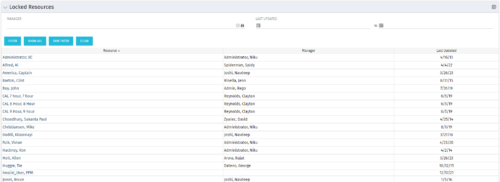 The Locked Resources portlet displays all resources that are locked within Clarity. It also displays the resource manager and last updated date for the user. The portlet can be filtered on resource manager and last updated date range. This portlet can be used by an administrator to determine which resources are locked by the system.


Copyright 2023 • Rego Consulting Corporation • Privacy Policy