
- Object Name – The name of the object to which the attribute belongs
- Object Code – The external ID of the object to which the attribute belongs
- Attribute Name – The name of the attribute
- Attribute Code – The external ID of the attribute
- Partition Code – The partition to which the attribute belongs
- Table Name – The database table where the attribute is located
- Column Name – The database column name of the attribute
- Data Type – The data type of the attribute
- Data Size – The character limit of the attribute
- Data Scale – The scale of numeric attributes
- Is Active – Specifies if the attribute is active
- Extended Data Type – The extended type of the attribute (ex: lookup, money, etc.)
- Lookup Name – The name of the attribute’s lookup
- Lookup Type – The external ID of the attribute’s lookup
- Default Value – The default value assigned to the attribute
- API Alias – The REST API alias assigned to the attribute
- Max Value – The maximum value accepted by the attribute
- Min Value – The minimum value accepted by the attribute
- Curve Name – The name of the Curve for Time-Scaled value attributes
- Curve Type – The type of the Curve for Time-Scaled value attributes
- Is Custom – Is the attribute a stock attribute or custom
- Is Auto-Numbered – Is auto-numbering enabled for the attribute
- Is Multi-Valued – Is the attribute a multi-valued lookup
- Is DWH Enabled – Is the attribute enabled for export to the data warehouse
- Is Editable – Is the attribute editable or read-only
- Is Required – Is the attribute required
- Is Virtual – Is the attribute a virtual attribute
- Is Private – Is the attribute a private attribute used by the application behind the scenes
-
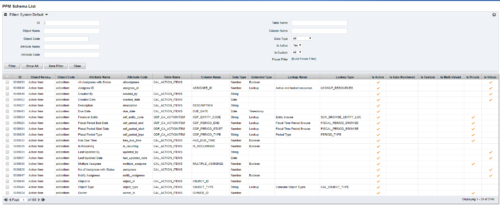 The PPM Data Dictionary Extractor pulls schema and attribute information from each object in CA PPM and places it in a custom object. The following fields provide details information about each attribute in the CA PPM Instance.
 -
 The process is built to clear the random timesheet locks that happens occasionally. There are three Processes and one lookup component and one job definition in the package.
- PRLock (Timesheets) Record Removal (ID: rego_prlock_rec_rmvl). This process requires PRNAME, PRTABLENAME and PRRECORDID from PRLock Table.
- The Lookup PRLock Check (Timesheet) (Id: REGO_PRLOCK_CHECK) should be used to update the GEL parameters for the above process.
- PRLock (Timesheets) Record Removal All (ID: rego_prlk_rc_rmv_all) This deletes ALL prtimesheet locks.
- Rego Remove Timesheet Locks (ID: rego_rmv_ts_locks). This process is run as a job “PrLock Clear for Timesheet Locks” which performs the same functionality as the above two processes. The process and job definition are separate XOG files.
- PRLock (Timesheets) Record Removal (ID: rego_prlock_rec_rmvl). This process requires PRNAME, PRTABLENAME and PRRECORDID from PRLock Table.
-
The process is built to clear the random timesheet locks that happens occasionally. There are three Processes and one lookup component and one job definition in the package.
- PRLock (Timesheets) Record Removal (ID: rego_prlock_rec_rmvl). This process requires PRNAME, PRTABLENAME and PRRECORDID from PRLock Table.
- The Lookup PRLock Check (Timesheet) (Id: REGO_PRLOCK_CHECK) should be used to update the GEL parameters for the above process.
- PRLock (Timesheets) Record Removal All (ID: rego_prlk_rc_rmv_all) This deletes ALL prtimesheet locks.
- Rego Remove Timesheet Locks (ID: rego_rmv_ts_locks). This process is run as a job “PrLock Clear for Timesheet Locks” which performs the same functionality as the above two processes. The process and job definition are separate XOG files.
- PRLock (Timesheets) Record Removal (ID: rego_prlock_rec_rmvl). This process requires PRNAME, PRTABLENAME and PRRECORDID from PRLock Table.
-
The process is built to clear the random timesheet locks that happens occasionally. There are three Processes and one lookup component and one job definition in the package.
- PRLock (Timesheets) Record Removal (ID: rego_prlock_rec_rmvl). This process requires PRNAME, PRTABLENAME and PRRECORDID from PRLock Table.
- The Lookup PRLock Check (Timesheet) (Id: REGO_PRLOCK_CHECK) should be used to update the GEL parameters for the above process.
- PRLock (Timesheets) Record Removal All (ID: rego_prlk_rc_rmv_all) This deletes ALL prtimesheet locks.
- Rego Remove Timesheet Locks (ID: rego_rmv_ts_locks). This process is run as a job “PrLock Clear for Timesheet Locks” which performs the same functionality as the above two processes. The process and job definition are separate XOG files.
- PRLock (Timesheets) Record Removal (ID: rego_prlock_rec_rmvl). This process requires PRNAME, PRTABLENAME and PRRECORDID from PRLock Table.
-
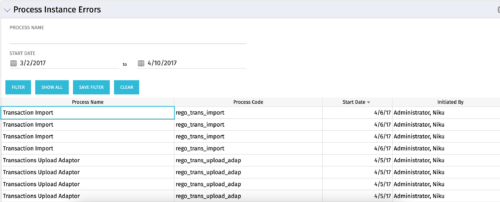 The Process Instance Errors portlet will show all processes that error. This portlet will assist the administrator with determining which processes are in error and whether to skip, retry, or cancel. It will display the process name, code, start date, and who initiated the process. You may also filter by any of the criteria listed in the grid.
 -
The Process Instance Errors portlet will show all processes that error. This portlet will assist the administrator with determining which processes are in error and whether to skip, retry, or cancel. It will display the process name, code, start date, and who initiated the process. You may also filter by any of the criteria listed in the grid.
-
The Process Instance Errors portlet will show all processes that error. This portlet will assist the administrator with determining which processes are in error and whether to skip, retry, or cancel. It will display the process name, code, start date, and who initiated the process. You may also filter by any of the criteria listed in the grid.
-
 For each process, the Process Run Metrics portlet shows the Process Name, Process Code, Description, # Running, # Completed, # Errored, and Last Run Date. This portlet is ideal for system administrators and support staff needing to monitor the health of the environment. Viewers of this portlet can get a sense of the complexity & health of the environment with the # of processes running and visibility into processes that errored out. The table below describes the available filter fields in the portlet.
Column Label Description Process Name Name of the process Start Date Start date of the process’s last ran date End Date End date of the process’s last ran date Description Description of the process Process ID ID of the process -
For each process, the Process Run Metrics portlet shows the Process Name, Process Code, Description, # Running, # Completed, # Errored, and Last Run Date. This portlet is ideal for system administrators and support staff needing to monitor the health of the environment. Viewers of this portlet can get a sense of the complexity & health of the environment with the # of processes running and visibility into processes that errored out. The table below describes the available filter fields in the portlet.
Column Label Description Process Name Name of the process Start Date Start date of the process’s last ran date End Date End date of the process’s last ran date Description Description of the process Process ID ID of the process -
For each process, the Process Run Metrics portlet shows the Process Name, Process Code, Description, # Running, # Completed, # Errored, and Last Run Date. This portlet is ideal for system administrators and support staff needing to monitor the health of the environment. Viewers of this portlet can get a sense of the complexity & health of the environment with the # of processes running and visibility into processes that errored out. The table below describes the available filter fields in the portlet.
Column Label Description Process Name Name of the process Start Date Start date of the process’s last ran date End Date End date of the process’s last ran date Description Description of the process Process ID ID of the process -
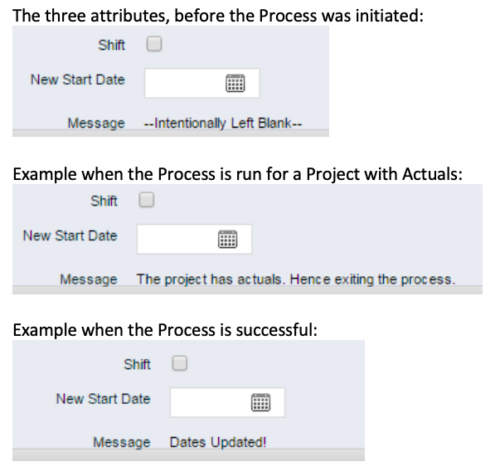 This process, Shift Project Dates, helps Project Managers change an entire Project / Idea’s dates to a new start date. Once the three attributes are added to the Idea /Project Views, the PM can trigger the process by entering a date in the New Start Date field and checking the Shift checkbox. The process runs automatically on Save. The process calculates the date difference between the original Start Date and New Start Date then shifts all Allocation, Task, and Assignment dates by the calculated difference. For example, if a Project is set to begin on January 1st and needs to be pushed to a February 1st start date, the process first determines that there are 31 days between the original start date and the new date. Next the process increases the start date for each Task, Allocation and Assignment by 31 days. NOTE: The process will shift Allocation dates regardless of resource restrictions such as a Termination Date or non-working time as marked on their calendar. The Team page will reflect the Available Start and Finish as shifted by the process, but the Allocation hours and % will take unavailable time into account. For example, if a shift process sets the start date for a resource to be after their date of termination the dates will change by the date difference, but the Allocation hours will correctly be calculated as zero.
 -
This process, Shift Project Dates, helps Project Managers change an entire Project / Idea’s dates to a new start date. Once the three attributes are added to the Idea /Project Views, the PM can trigger the process by entering a date in the New Start Date field and checking the Shift checkbox. The process runs automatically on Save. The process calculates the date difference between the original Start Date and New Start Date then shifts all Allocation, Task, and Assignment dates by the calculated difference. For example, if a Project is set to begin on January 1st and needs to be pushed to a February 1st start date, the process first determines that there are 31 days between the original start date and the new date. Next the process increases the start date for each Task, Allocation and Assignment by 31 days. NOTE: The process will shift Allocation dates regardless of resource restrictions such as a Termination Date or non-working time as marked on their calendar. The Team page will reflect the Available Start and Finish as shifted by the process, but the Allocation hours and % will take unavailable time into account. For example, if a shift process sets the start date for a resource to be after their date of termination the dates will change by the date difference, but the Allocation hours will correctly be calculated as zero.
