-
 The Time by Stage portlet displays time logged to each project task stage. The portlet displays the project id, project name, task stage, and charge code for each different task stage on the project. This portlet provides management with a quick view of all project task stages by project without having to navigate into each project individually.
 -
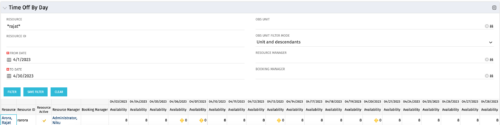 The Time Off by Day portlet displays resource availability by day. The portlet results may be filtered on: Resource Manager, Booking Manager, Resource, OBS Unit, and Date Range. This portlet will display the availability for each resource by day in separate columns and obtains the information from the time slices. When the portlet encounters an exception day (personal day off, or holiday on the base calendar), a yellow caution icon will appear within the same cell. Using this portlet, resource managers are able to quickly determine availability for their resources over a set time range.
 -
 PMOs/EPMOs are feeling some pressure from Agile disruptors in their organizations. Some Agile purists insist that they can do everything with an Agile tool and no PMO governance, but this really isn’t the case. If you belong to a PMO or EPMO, this session will help you to better collaborate with your Agile counterparts in finding better and more holistic solutions to value delivery. Tips on how to use Agile principles in your talking points will also be shared.
 -
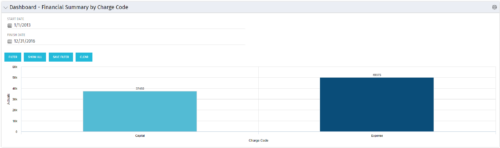 The Dashboard: Financial Summary by Charge Code portlet displays financial information from the project summarized by Charge Code. The portlet is added to the dashboard page of a project and will pull all actuals by charge code on the project. The user may filter by date range to narrow the results.
 -
The Dashboard: Financial Summary by Charge Code portlet displays financial information from the project summarized by Charge Code. The portlet is added to the dashboard page of a project and will pull all actuals by charge code on the project. The user may filter by date range to narrow the results.
-
 With every new PPM process, the organization must adopt change. Change is constant in an organization. This session will talk about keys to successfully leading change vs. just implementing change in your organization.
 -
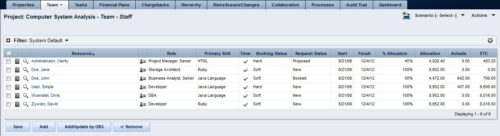 The Rego: Transfer Primary Skill process updates the primary skill on the team object by running the process with the execute process job. The process takes the primary skill that is on the resource object and moves it to all of that resource's team records where the primary skill on the team record is null. Utilizing these fields and process provide a quick way to determine what skill each resource is bringing to the project. This process makes the transition seamless from resource primary skill to team primary skill.
 -
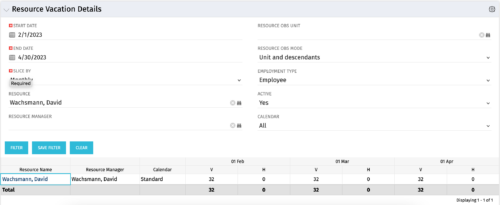 The Resource Vacation Details portlet allows a resource manager, or administrator, to see a resource’s calendar at a glance, displayed by week or month for a selected time period. This portlet shows the Resource Name, Resource Manager, Calendar, H (holiday), and V (vacation) hours for the select time frame.
 -
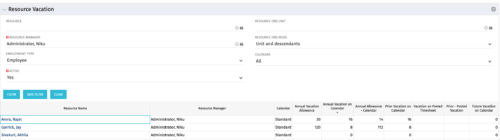 The Resource Vacation portlet allows a resource manager to view a resource’s current annual vacation allowance, as set by the resource manager, against the resource’s vacation calendar hours and actual posted timesheet hours. This portlet is useful for determining the amount of hours a resource has requested off and has remaining. This portlet also ensures the resource has accounted for all annual vacation allowance hours in the calendar and has posted time for all past calendar request hours.
 -
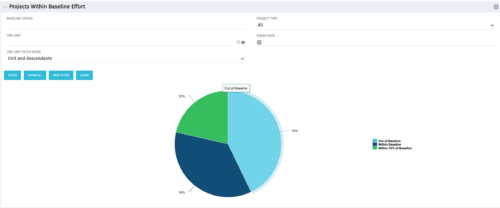 The Projects Within Baseline Effort portlet will display all projects’ baseline effort in a pie chart by three different categories: Out of Baseline, Within Baseline, and Within 10% of Baseline. This portlet is used by the PMO to provide management with a snapshot of all projects and their baselines.
 -
The Projects Within Baseline Effort portlet will display all projects’ baseline effort in a pie chart by three different categories: Out of Baseline, Within Baseline, and Within 10% of Baseline. This portlet is used by the PMO to provide management with a snapshot of all projects and their baselines.
-
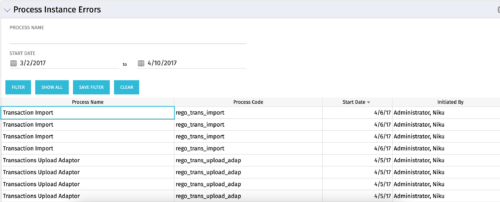 The Process Instance Errors portlet will show all processes that error. This portlet will assist the administrator with determining which processes are in error and whether to skip, retry, or cancel. It will display the process name, code, start date, and who initiated the process. You may also filter by any of the criteria listed in the grid.


Copyright 2023 • Rego Consulting Corporation • Privacy Policy