-
 Course description: “Already have a base understanding of Jaspersoft Studio development? This session will include advanced topics like: duplicating and modifying an OOTB report, Multiple Datasets, Subreports, Charting, Widgets integration, and Crosstabs.” Download file is the presentation slide deck.
 -
 Learn the basics of creating Jaspersoft studio reports. This session will walk through basic features and introduce report development utilizing the basic report capabilities of Jaspersoft Studio such as Text Fields, Frames, Static Text, Breaks, Lines and Common Page Information Components, Grouping/Sorting, Status Indicators, Dynamic Images, Input Controls, and Basic Charting.
 -
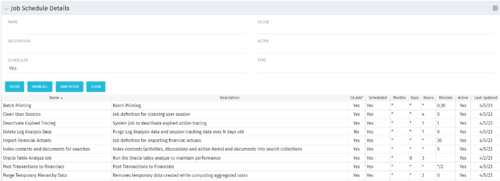 The Job Schedule Details portlet shows al jobs and displays all of the scheduled and non-scheduled information for those jobs – including the months, days, hours, and minutes. It also displays the last time the job was updated and whether or not the job was custom or a CA job. The portlet will help the administrator understand the current job schedule configuration. The table below describes the available columns in the portlet. The first 10 are configured in the default view:
Column Label Description Name Name of the Job Description Description of the Job CA Job? Whether this is CA Job? Yes or No Scheduled Scheduled Status of the Job. Yes or No Months Months the Job is scheduled to run Days Days the Job is scheduled to run Hours Hours the Job is scheduled to run Minutes Minutes the Job is scheduled to run Active Status of Job. Active or Inactive Last Updated Date the Job was Last Updated Code Unique internal Code of the Job Created By Name of Resource who created the Job Date Created Date the Job was created Executable Executable of the Job Job Code Unique Code of the Job Schedule Date Scheduled date of the Job run Type Type Updated By Name of Resource who updated the Job -
The Job Schedule Details portlet shows al jobs and displays all of the scheduled and non-scheduled information for those jobs – including the months, days, hours, and minutes. It also displays the last time the job was updated and whether or not the job was custom or a CA job. The portlet will help the administrator understand the current job schedule configuration. The table below describes the available columns in the portlet. The first 10 are configured in the default view:
Column Label Description Name Name of the Job Description Description of the Job CA Job? Whether this is CA Job? Yes or No Scheduled Scheduled Status of the Job. Yes or No Months Months the Job is scheduled to run Days Days the Job is scheduled to run Hours Hours the Job is scheduled to run Minutes Minutes the Job is scheduled to run Active Status of Job. Active or Inactive Last Updated Date the Job was Last Updated Code Unique internal Code of the Job Created By Name of Resource who created the Job Date Created Date the Job was created Executable Executable of the Job Job Code Unique Code of the Job Schedule Date Scheduled date of the Job run Type Type Updated By Name of Resource who updated the Job -
The Job Schedule Details portlet shows al jobs and displays all of the scheduled and non-scheduled information for those jobs – including the months, days, hours, and minutes. It also displays the last time the job was updated and whether or not the job was custom or a CA job. The portlet will help the administrator understand the current job schedule configuration. The table below describes the available columns in the portlet. The first 10 are configured in the default view:
Column Label Description Name Name of the Job Description Description of the Job CA Job? Whether this is CA Job? Yes or No Scheduled Scheduled Status of the Job. Yes or No Months Months the Job is scheduled to run Days Days the Job is scheduled to run Hours Hours the Job is scheduled to run Minutes Minutes the Job is scheduled to run Active Status of Job. Active or Inactive Last Updated Date the Job was Last Updated Code Unique internal Code of the Job Created By Name of Resource who created the Job Date Created Date the Job was created Executable Executable of the Job Job Code Unique Code of the Job Schedule Date Scheduled date of the Job run Type Type Updated By Name of Resource who updated the Job -
 A presentation by the Broadcom leadership on the meaning of ValueOps and the future of Clarity and Rally.
 -
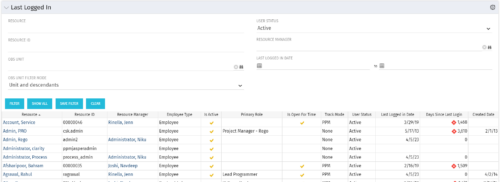 The Last Logged In portlet provides the administrator with an overview of all users within the system and the last time he or she logged into Clarity. Using this portlet, administrators can quickly cleanup any inactive users or provide a list of users to managers that are not logging into the system. The portlet provides several pieces of information related to the resource as well as a “Days Since Last Login” with a status indicator. The administrator may filter on resource/id, OBS, user status, resource manager, or last logged in date to narrow down the results.
 -
The Last Logged In portlet provides the administrator with an overview of all users within the system and the last time he or she logged into Clarity. Using this portlet, administrators can quickly cleanup any inactive users or provide a list of users to managers that are not logging into the system. The portlet provides several pieces of information related to the resource as well as a “Days Since Last Login” with a status indicator. The administrator may filter on resource/id, OBS, user status, resource manager, or last logged in date to narrow down the results.
-
The Last Logged In portlet provides the administrator with an overview of all users within the system and the last time he or she logged into Clarity. Using this portlet, administrators can quickly cleanup any inactive users or provide a list of users to managers that are not logging into the system. The portlet provides several pieces of information related to the resource as well as a “Days Since Last Login” with a status indicator. The administrator may filter on resource/id, OBS, user status, resource manager, or last logged in date to narrow down the results.
-
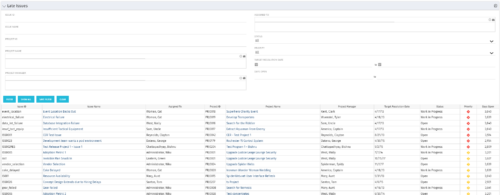 The Late Issues portlet displays all issues related to active projects that the logged in user has view rights to. The issues displayed are those that are past their target resolution date but not Closed or Resolved. The portlet provides a Project Manager the ability to view and track issues across multiple projects without going into each project individually. This portlet displays the issue, the associated project name and project manager, as well as the issue owner, target resolution date, status, and priority of the issue, along with the total number of days the issue has been open. The user has the ability to filter by several criteria in order to narrow down the late issues.
 -
The Late Issues portlet displays all issues related to active projects that the logged in user has view rights to. The issues displayed are those that are past their target resolution date but not Closed or Resolved. The portlet provides a Project Manager the ability to view and track issues across multiple projects without going into each project individually. This portlet displays the issue, the associated project name and project manager, as well as the issue owner, target resolution date, status, and priority of the issue, along with the total number of days the issue has been open. The user has the ability to filter by several criteria in order to narrow down the late issues.
-
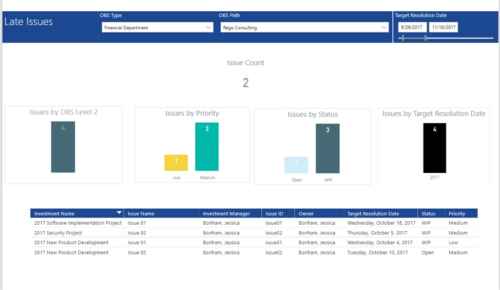 Late Issues report provides the Project Managers a single place to view all the Open Issues that are past their target resolution date. This report provides information such as Issue Count, Issues by OBS Level 2, Priority, Status and Target Resolution Date in Stacked Column Chart. In addition, this report has also Table view of Issue information such as Investment Name, Issue Name, Investment Manager, Issue ID, Owner, Target Resolution Date, Status and Priority. User can further narrow their search by OBS Type & Path and Target Resolution Date.


Copyright 2023 • Rego Consulting Corporation • Privacy Policy