-

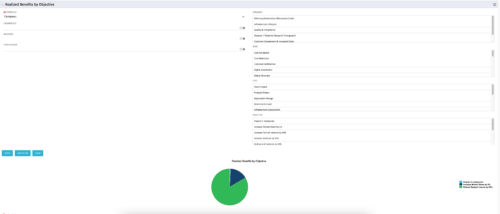 This portlet displays a Pie Chart of a Portfolio’s Realized Benefits partitioned into pie slices by the portfolio’s Investments’ Objectives. Clicking on any pie slice (Objective) drills-down into a portlet that lists the Investments that make up that slice.
 -
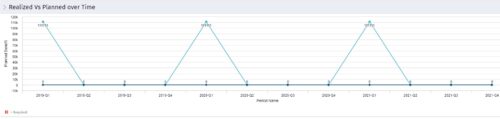 Part of the Business Transformation collection, this line chart portlet displays realized vs planned benefits overtime, for portfolio investments. This provides the PfM with a holistic view of benefits planned vs realized over a period of time.
 -
Part of the Business Transformation collection, this line chart portlet displays realized vs planned benefits overtime, for portfolio investments. This provides the PfM with a holistic view of benefits planned vs realized over a period of time.
-
Part of the Business Transformation collection, this line chart portlet displays realized vs planned benefits overtime, for portfolio investments. This provides the PfM with a holistic view of benefits planned vs realized over a period of time.
-

 “Rego Health Check” is a UI Friendly, Clarity Studio created add-in that allows environment administrators to create configurations which can be executed on a recurring basis to ensure the environment is running optimally. It allows the Clarity admin to run an Infrastructure Health Check and Status Summary, Application Health Check, and Business-related Checks. This is a RegoLink product that is available for purchase. The download materials provide more information on this product. Contact your Rego Account Director for more information.
 -
 This course will review the benefits of utilizing Rego’s Action Item Responder for a variety of tasks in Clarity. Email responses can be used in many cases to forgo logging into Clarity to carry out tasks.
 -
 Learn how Rego has invested $4.5 million dollars over the past two year to develop innovative enhancements and tools to get the most out of your investment in Clarity.
 -
 A presentation slide deck from Rego University 2022. A course outline document reviewing the innovative offerings from Rego. This course reviewed RegoXchange, Action Item Responder, Excel Data Manager, and innovations around Office 365.
 -
 This deck provides an overview of the current and upcoming Rego Innovations.
 -
 A presentation slide deck from RegoU 2023. This course covered innovation items that Rego has created to enhance the usability for Apptio.


Copyright 2023 • Rego Consulting Corporation • Privacy Policy