-
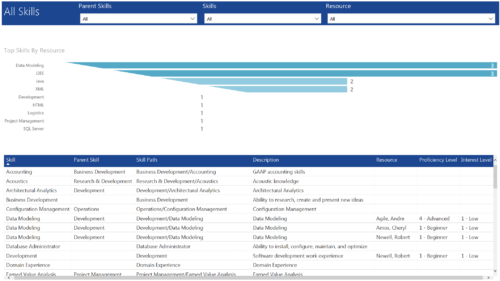 All Skills report provides project managers a single place to view number of resources having a particular skill and its detailed information. This report contains a bar graph and a grid. Top Skills by Resource: Bar graph that displays # of resources having a particular skill. Y- Axis represents various skills available in the system. Resource and Skill details grid: Grid that displays information such as Skill, its parent skill, Skill path, Skill Description, Resource having that skill & his proficiency and interest level in that skill. You can further narrow your search by Parent Skills, Skills and Resource.
 -
 A Quick Reference Guide that reviews access to Project Tasks and Task To Dos in Clarity PPM’s Modern UX.
 -
 This training document is a Rego Consulting Quick Reference Guide to assist with creating a new project in Clarity’s Modern User Experience. The document reviews this both in the Project Page and in the Project Tiles locations.
 -
 This training document is a Rego Consulting Quick Reference Guide to assist with creating and management of a project team in Clarity’s Modern User Experience. The document reviews accessing teams, creating a team, allocating a team on an investment, as well as additional team related information.
 -
 A Quick Reference Guide on setting up Custom Investments in Clarity’s Modern UX. Reviews setting up the Custom Investment, and creating Custom Investment Records.
 -
 This training document is a Rego Consulting Quick Reference Guide to assist with the creation of Risks, Issues and Changes in Clarity’s Modern User Experience. This doc references version 16.3 views. Doc covers creating and management of these project tools.
 -
 This training document is a Rego Consulting Quick Reference Guide to assist with Task Assignments in Clarity’s Modern User Experience. This doc references version 16.1 views. Document provides detail on how to use the Assignments tab to add resources to tasks, tips on how to group resource data, updating ETC values and Per-Period Metrics.
 -
 You are no longer regulated to the desktop browser to respond to action items. Learn how Rego solved this problem using just your email. We’ll talk about various use cases where you would get maximum benefit from a simple response on an action item directly from your email. It doesn’t matter if you are using email on your desktop, laptop, phone or tablet. The Action Item Responder as you covered.
 -
 This process will update the following on Projects: • Risk/Issues/Changes • Task Assignments • Task Data • Project Team Resources • Project Data • NOTE: The ability to remove the right is with the admin only
 -
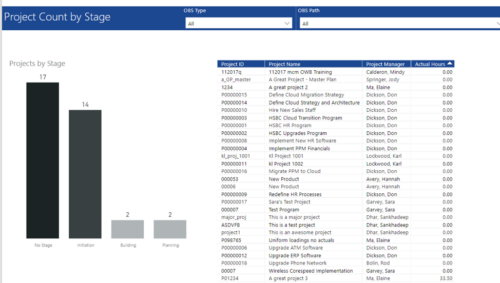 Project Count by Stage report has Stacked Column chart that displays count of Projects by Stage such as Initiation, Building, Planning etc. Also, there is a table view with Project ID, Project Name, Project Manager and Actual hours details. User can further narrow their search by OBS Type & Path.
 -
 A Quick Reference Guide that covers task assignments in Clarity’s Modern UX. The guide reviews the Assignment Tab and updating ETC via two options.
 -
This training document is a Rego Consulting Quick Reference Guide to assist with the creation and editing of Tasks in the Timeline View of Clarity’s Modern User Experience. This doc references version 16.3 views. Doc covers how to create a new task in the Timeline View, how to insert sibling or insert child tasks, how to set Milestones, access the Details pane and add resource Assignments. Also details how to move tasks by clicking and dragging within the Timeline View.


Copyright 2023 • Rego Consulting Corporation • Privacy Policy