RegoXchange
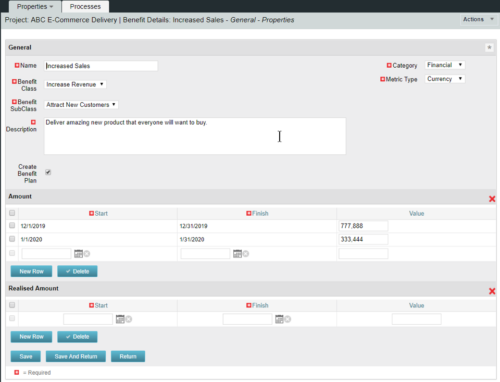
  • This configuration and accompanying process allows users to capture Financial and Non-Financial (Metrics, Soft, etc.) Benefit in a custom sub-object, then programmatically create an out-of-the-box Benefit Plan with just the Financial Portion from the custom sub-object.  The solution is comprised of:
    • Sub-Object (Benefit Plan Details, Parent = Project)
    • Process: Create Benefit Plan (uses sub-object as primary input, native BP is output)
    • Process: Update sql - Cost Benefit Plans (one-time script to update Projects)
    The Process to create the Benefit Plan is initiated when users check the Create Benefit Plan box on the sub-object.  Every time the Process runs it aggregates all rows from the sub-object that are flagged as Financial and creates a new Benefit Plan.  The resulting BP is not linked to any Cost Plans. Users who install this base solution will want to consider:
    • Ensure on the Benefit Details List view the Planned and Realized Amounts are displayed
    • Modifying the Create Benefit Plan Process in support of a BP naming convention consistent with local PMO Practices
    • Modifying the Create Benefit Plan Process to link the BP to the Cost Plan of Record
    • Creating a Portlet that pulls together rows of data from the sub-object across multiple projects in a summarized view as well as a detailed view
    Once installed, please refer to the Benefit Detail Functionality Document for how to create Benefit Detail records, initiate the process, and the Benefit Plan Creation.

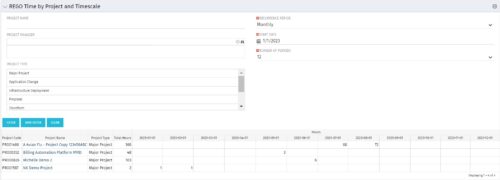
  • This portlet displays Actual Time by Project over a span of time.  It supports Annual, Quarterly, Monthly, and Weekly time periods.  The time span displayed is controlled by a filter field for the Start Date (of the time span) and by a filter field for the Number of Time Periods to be displayed. There are also filters for Project name, Project Manager, and Project Type.
  • This portlet displays Actual Time by Project over a span of time.  It supports Annual, Quarterly, Monthly, and Weekly time periods.  The time span displayed is controlled by a filter field for the Start Date (of the time span) and by a filter field for the Number of Time Periods to be displayed. There are also filters for Project name, Project Manager, and Project Type.
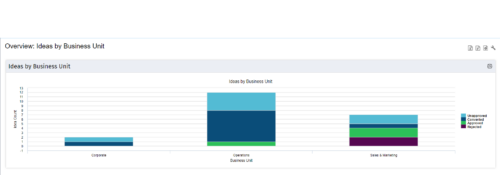
  • Part of the Business Transformation Content collection, this bar chart portlet displays count of ideas per business unit. This provides a holistic view of the idea pipe-line in an organization providing them a high-level of ideas converted, approved, unapproved per business unit.
  • Part of the Business Transformation Content collection, this bar chart portlet displays count of ideas per business unit. This provides a holistic view of the idea pipe-line in an organization providing them a high-level of ideas converted, approved, unapproved per business unit.
  • Are you considering or analyzing PMO value metrics? This class is a working session will cover lessons learned in PMOs, so you can craft guiding metrics, with or without a tool.
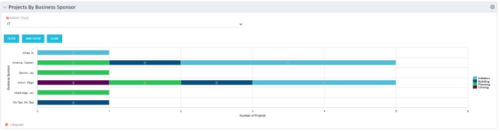
  • Horizontal Bar Graph displays total number of projects for each Business Owner/Sponsor for a selected Project Parent Stage (only Project Investments included).  Vertical Axis displays Business Owner name.  Horizontal Axis displays number of projects.  Filter selectable for any Project Parent Stage.  Color coding of bar and legend are synchronized to detail stage under the parent.  Total for each detail stage displays on each segment of the bar.  A mouseover displays a percent of total for each detail stage.
  • Horizontal Bar Graph displays total number of projects for each Business Owner/Sponsor for a selected Project Parent Stage (only Project Investments included).  Vertical Axis displays Business Owner name.  Horizontal Axis displays number of projects.  Filter selectable for any Project Parent Stage.  Color coding of bar and legend are synchronized to detail stage under the parent.  Total for each detail stage displays on each segment of the bar.  A mouseover displays a percent of total for each detail stage.
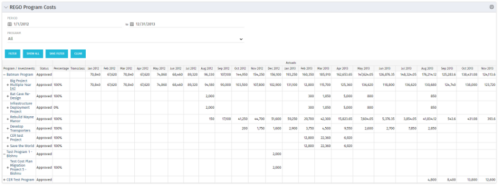
  • The Program Costs portlet looks like a cost plan.  It will summarize all cost plans from projects within the program and display the totals.
  • The Program Costs portlet looks like a cost plan.  It will summarize all cost plans from projects within the program and display the totals.
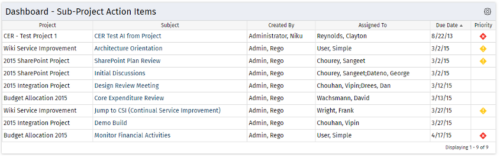
  • The Program Dashboard Sub Project Action Items portlet display Action Items of Sub Projects in a Program.  The portlet will pull the "Action Items" from all the sub projects in the Program, and this information is placed on the Dashboard tab. This portlet displays each Project, name of the Action Item as mentioned in the Subject, and the resource who Created this Action Item. Assigned To field will display the resource to whom the Action Item has been Assigned. Due Date mentions the date the Action Item will be completed and the Priority level of the Action Item is a stoplight showing red, yellow and green for the different levels of priority. The table below describes the available columns in the portlet. The first 6 are configured in the default view:
    Column Label Description
    Project Name of the Project
    Subject Defines the name for Action Item
    Created By Resource who created the Action Item
    Assigned To Resource who the Action Item is Assigned to
    Due Date Date the Action Item is due for completion
    Prty Specifies the priority level of the Action Item
    Action Item ID Internal ID used by the query
    Created By ID Internal ID used by the query
    Created Date Date the Action Item was created
    Days Open No. of days the Status of Action Item has remained opened since it was created
    Priority Name Based on high, medium, or low priority with corresponding red, yellow, or green stoplights
    Project DB ID Internal ID used by the query
    Project ID Unique ID of the Project within Clarity
    Project Manager Project Manager
  • The Program Dashboard Sub Project Action Items portlet display Action Items of Sub Projects in a Program.  The portlet will pull the "Action Items" from all the sub projects in the Program, and this information is placed on the Dashboard tab. This portlet displays each Project, name of the Action Item as mentioned in the Subject, and the resource who Created this Action Item. Assigned To field will display the resource to whom the Action Item has been Assigned. Due Date mentions the date the Action Item will be completed and the Priority level of the Action Item is a stoplight showing red, yellow and green for the different levels of priority. The table below describes the available columns in the portlet. The first 6 are configured in the default view:
    Column Label Description
    Project Name of the Project
    Subject Defines the name for Action Item
    Created By Resource who created the Action Item
    Assigned To Resource who the Action Item is Assigned to
    Due Date Date the Action Item is due for completion
    Prty Specifies the priority level of the Action Item
    Action Item ID Internal ID used by the query
    Created By ID Internal ID used by the query
    Created Date Date the Action Item was created
    Days Open No. of days the Status of Action Item has remained opened since it was created
    Priority Name Based on high, medium, or low priority with corresponding red, yellow, or green stoplights
    Project DB ID Internal ID used by the query
    Project ID Unique ID of the Project within Clarity
    Project Manager Project Manager
Go to Top