-
 Course description: “How do you close the feedback loop with your users? This session will review some innovative ways companies are connecting with CA PPM users to drive constant innovation and improve perception of the process and tool.” Download file is the presentation slide deck.
 -
 Course description: “Do CA PPM performance issues discourage your users? This class will review the root causes behind CA PPM performance problems and identify steps to improve performance, including specific recommendations and real case studies.”
 -
 Course description: “Does CA PPM Timeslice functionality seem like a foreign language to you? This intro to timeslices will cover an Overview of Timeslice Fundamentals, Terminology, Best Practices, Diagnostics, and the basic SQL Constructs to get you started.”
 -
 Course description: “Learn how to take advantage of the ad-hoc reporting capabilities of Jaspersoft, which comes embedded in CA PPM 14.2 and later. This class is designed to provide hands on exercises to teach individuals how to utilize the power of this new product. As users begin building their own reports and dashboards, the burden on developers will decrease and CA PPM perception and adoption will increase.” Download file is the presentation slide deck.
 -
 Course description: “Learn how to take advantage of the dashboard reporting capabilities of Jaspersoft, which comes embedded in CA PPM 14.2 and later. This class is designed to provide hands on exercises to teach individuals how to utilize the power of this Excelius-like capability. Leveraging the advanced UI features of dashboards, CA PPM perception will increase, giving executives the views they want.” Download file is the presentation slide deck.
 -
 Course description: “Already have a base understanding of Jaspersoft Studio development? This session will include advanced topics like: duplicating and modifying an OOTB report, Multiple Datasets, Subreports, Charting, Widgets integration, and Crosstabs.” Download file is the presentation slide deck.
 -
 Learn the basics of creating Jaspersoft studio reports. This session will walk through basic features and introduce report development utilizing the basic report capabilities of Jaspersoft Studio such as Text Fields, Frames, Static Text, Breaks, Lines and Common Page Information Components, Grouping/Sorting, Status Indicators, Dynamic Images, Input Controls, and Basic Charting.
 -
 The Manage Risk Categories document provides the steps needed to modify the current system-defined list of values for the Risk categories
 -

 The Multi-Value Filter in Query-Based technical trick document provides an overview of how to create a multi-value lookup in a portlet filter, where the field is a parameter within the query. If the query imbeds the parameter normally, the portlet will only be able to have a single selection of that parameter. This technical solution will enable you to make these parameters multi-selects.
 -
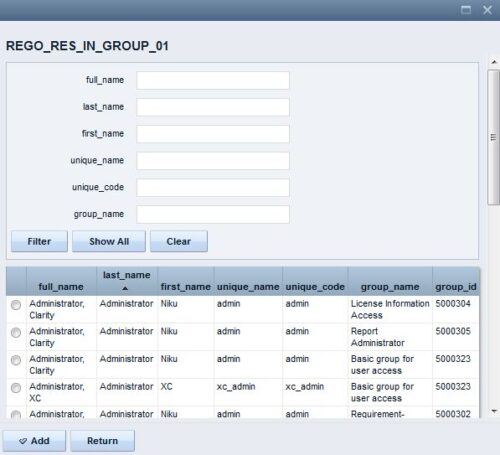 The Resource Lookups in a Group technical trick provides step-by-step instructions on creating a resource lookup based on members of a particular security group. For some fields, you want to narrow the amount of resources that the resource browse window supplies. By adding the selected users to a specific security group, the administrator may only display those resources in a resource browse window on the application side.
 -
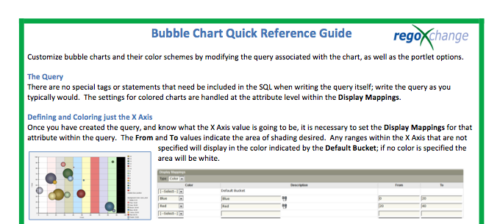 The Bubble Chart Quick Reference Guide provides the user instructions to customize bubble charts and their color schemes by modifying the query associated with the chart, as well as the portlet options. This is very beneficial as it allows the user to match or blend colors among all of the bubble portlets to better display the information the portlets are delivering. Similar data can be one color while different data can be its own color to better show the overall picture.
 -
The Bubble Chart Quick Reference Guide provides the user instructions to customize bubble charts and their color schemes by modifying the query associated with the chart, as well as the portlet options. This is very beneficial as it allows the user to match or blend colors among all of the bubble portlets to better display the information the portlets are delivering. Similar data can be one color while different data can be its own color to better show the overall picture.


Copyright 2023 • Rego Consulting Corporation • Privacy Policy