-
 This training document is a Rego Consulting Quick Reference Guide to assist with the use of the Links and Conversations functionality in Clarity’s Modern User Experience. This doc references version 16.2.1 views.
 -
This training document is a Rego Consulting Quick Reference Guide to assist with Project creations in Clarity’s Modern User Experience. This doc references version 16.2.1 views. Doc covers create project from project page, create project via the New from Template button, selection of template and project creation from the project tile view.
-
This training document is a Rego Consulting Quick Reference Guide to assist with the creation of financial plans within Ideas in Clarity’s Modern User Experience. This doc references version 16.2.1 views. Document includes instructions on how to create cost plans, budget plans and benefit plans.
-
 This training document is a Rego Consulting Quick Reference Guide to assist with the management of Custom Investment Types in Clarity’s Modern User Experience. This doc references version 16.1.2 views. Document provides detail on how to create a Custom Investment Type and how to create Custom Investment records from the Grid View and the Board View.
 -
 This training document is a Rego Consulting Quick Reference Guide to assist with Project creations in Clarity’s Modern User Experience. This doc references version 16.1.2 views. Doc covers create project from project page, create project via the New from Template button, selection of template and project creation from the project tile view.
 -
 This training document is a Rego Consulting Quick Reference Guide to assist with Entering and Submitting Time in Clarity’s Modern User Experience. This doc references version 16.1.2 views. Document includes Accessing & Selecting Timesheets, Populate Timesheet, Updating Timesheet, Submitting Timesheet and Entering Time for Someone Else.
 -
 A presentation slide deck from RegoU 2023. This course covered the various visualization tools available in Clarity and help you understand the best way to output your data.
 -
 Are you looking to extend your investment in Clarity and share it with other stakeholders in your company? We know organizations today are looking for cool collaborative ways to work. Come check out what Clarity has to offer.
 -
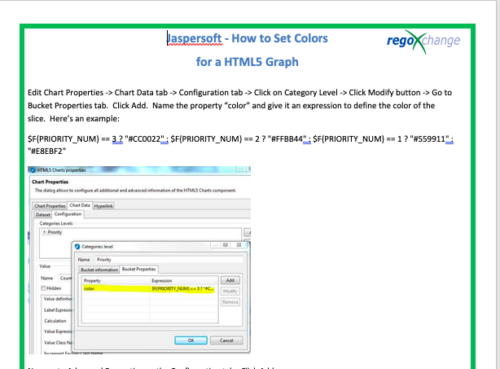 This tech-trick details the steps to set colors for an HTML5 Graph.
 -
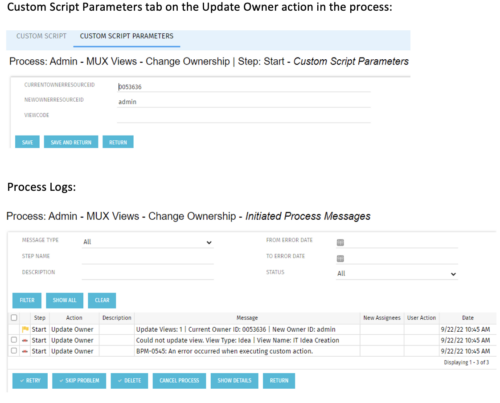 This is a standalone process that can be run by an admin to change the ownership of MUX views from a specified user to another specified user. The process contains a single custom script, which has the following parameters that must be updated prior to running the process:
- currentOwnerId (required): Resource ID for the current Owner (unique_name from srm_resources table)
- newOwnerId (required): Resource ID for the new Owner (unique_name from srm_resources table)
- viewCode (optional): Code for the specific view to update - leave blank if you want to transfer ownership for all views (odf_ui_views.code)
- Navigate to the process called Admin - MUX Views - Change Ownership.
- Navigate to the Start Step tab, Click on the Update Owner action, and click the Custom Script Parameters tab.
- Enter the Resource ID for the current view owner into the currentOwnerId parameter.
- Enter the Resource ID for the new owner into the newOwnerId parameter.
- If you want to update a specific view only, enter that in the viewCode parameter.
- Run the process via Organizer in Classic.
-
 Over time notifications can build up in the CA PPM system and should be purged, so as not to hinder performance. The SQL statements mentioned in the tech doc can be implemented within a process in CA PPM to either purge notifications on an ongoing basis or remove all of them at once.
 -
 JasperSoft as two font databases – one for display and one for pdf exporting. Not all fonts in the display database are in the exporting database. If you find you are not getting the proper fonts when exporting to PDF from JasperSoft this tech trick will show you how to add the missing font so your report exports as expected.


Copyright 2023 • Rego Consulting Corporation • Privacy Policy