-
 This training document is a Rego Consulting Quick Reference Guide to assist with population of project properties in Clarity’s Modern User Experience. This doc references version 16.1.2 views. Doc covers Project Tiles View, Project Properties – Details page and updating from the Project List view.
 -
 Learn how to take advantage of the ad-hoc reporting capabilities of Jaspersoft, which comes embedded in Clarity 14.2 and later. This class is designed to provide hands on exercises to teach individuals how to utilize the power of this new product. As users begin building their own reports and dashboards, the burden on developers will decrease and Clarity perception and adoption will increase.
 -
 Gaining adoption with Clarity can sometimes feel daunting. However, there are some great best practices and lessons that have been learned that drive successful and easy adoption! Come to this session and learn from your peers about better and easier adoption practices. This roundtable will be moderated and give you some great ideas to take home! We will have an expert panel and then divide into small groups and discuss customer selected topics - 100% sharing.
 -
 Are you still using all classicUX? Are you wondering how and when you should transition to the newUX? This class will be a practical guide on how to move your users to the newUX. We will discuss real use cases and help provide guidance on this strategic decision.
 -
 A product roadmap review of Clarity and Rally provided by Broadcom.
 -
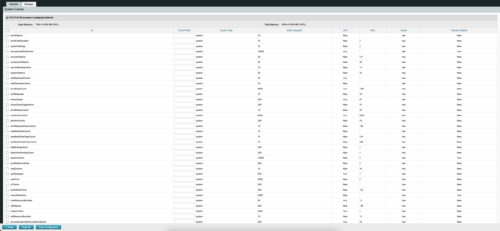
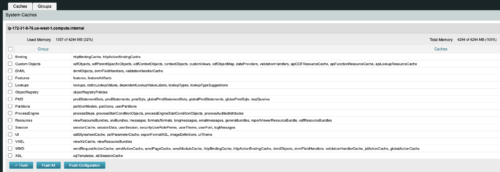 The CA Clarity Hidden Page Flush Caches document provides an overview of how to clear the cache on an application server without exiting the CA Clarity Application itself utilizing a hidden page within the system.
 -
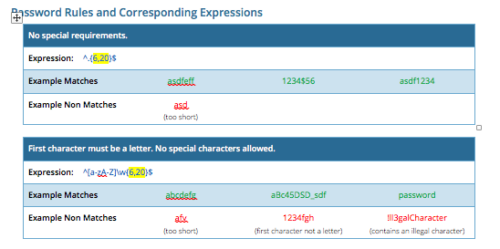 CA PPM allows you to create custom password rules using regex. This document lists expressions for a variety of password rule scenarios. Passwords with length limits default to between 6 and 20 characters. You can change this by editing the highlighted section of the expression. The number before the comma is the minimum password length, and the number after the comma is the maximum password length.
 -
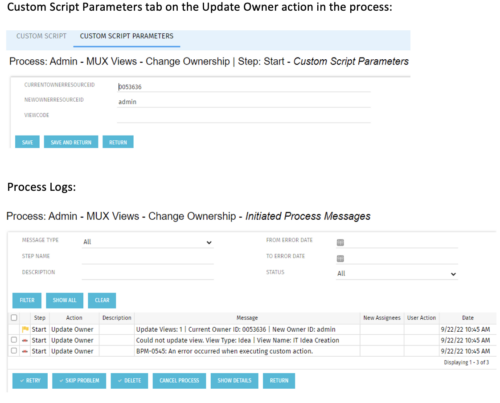 This is a standalone process that can be run by an admin to change the ownership of MUX views from a specified user to another specified user. The process contains a single custom script, which has the following parameters that must be updated prior to running the process:
- currentOwnerId (required): Resource ID for the current Owner (unique_name from srm_resources table)
- newOwnerId (required): Resource ID for the new Owner (unique_name from srm_resources table)
- viewCode (optional): Code for the specific view to update - leave blank if you want to transfer ownership for all views (odf_ui_views.code)
- Navigate to the process called Admin - MUX Views - Change Ownership.
- Navigate to the Start Step tab, Click on the Update Owner action, and click the Custom Script Parameters tab.
- Enter the Resource ID for the current view owner into the currentOwnerId parameter.
- Enter the Resource ID for the new owner into the newOwnerId parameter.
- If you want to update a specific view only, enter that in the viewCode parameter.
- Run the process via Organizer in Classic.
-
 A Quick Reference Guide with tips on creating a Dashboard in Jaspersoft. The document walks through the steps and uses screenshots to show the process.
 -
 Over time notifications can build up in the CA PPM system and should be purged, so as not to hinder performance. The SQL statements mentioned in the tech doc can be implemented within a process in CA PPM to either purge notifications on an ongoing basis or remove all of them at once.
 -
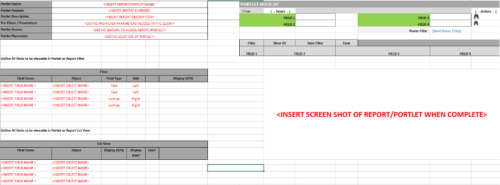 This Excel document provides a template for mocking up and validating portlet requirements. The template is important to use to help end users visualize the final output of a portlet. Template Defines:
- Portlet Name
- Portlet Purpose
- Portlet Description
- Portlet Security
- Portlet Placement
- Portlet Filter Fields/Layout
- Portlet Grid Fields/Layout
-
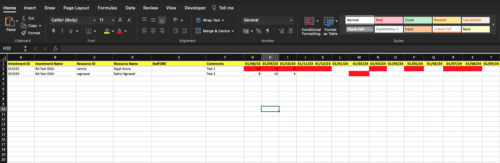
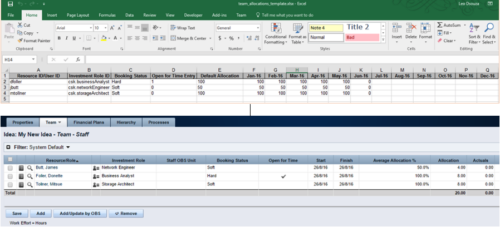 The idea allocation uploader allows you to import in allocations from an external Excel spreadsheet. Populate an Excel template with required fields then import them directly from the Clarity UI. Once imported you’ll see the allocations right on the Team tab of the Idea.


Copyright 2023 • Rego Consulting Corporation • Privacy Policy