-

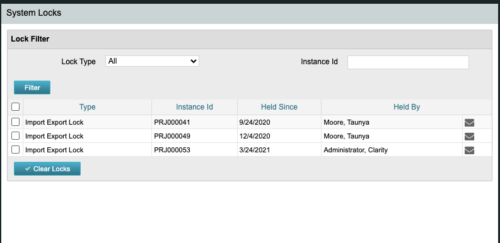 The CA Clarity Hidden Page Security Locks document provides an overview of how to view and remove the locks currently being held on the system using the Security Locks hidden page.
 -
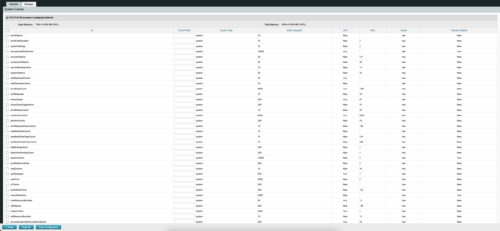
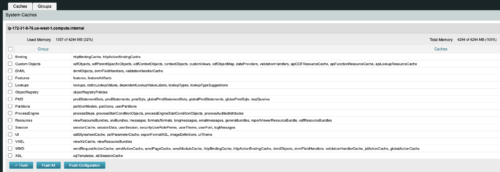 The CA Clarity Hidden Page Flush Caches document provides an overview of how to clear the cache on an application server without exiting the CA Clarity Application itself utilizing a hidden page within the system.
 -
 The primary purpose of roles is to determine the amount of resource requests based on unapproved (uncommitted) and approved (committed) projects. Roles are non-named resources which are later allocated to named resources within CA PPM. Using roles is the best way to do "What If" scenario planning and determine needed capacity. This document assists in making Best Practice decisions around setting up roles in Clarity.
 -
 The CA Clarity Hidden Page WSDL document provides an overview of how to access the system documentation page for you CA Clarity application from the web.
 -
 When configuring the Timesheet Options, the browse window for selecting a lookup on the User Value 1 field only shows a choice of one lookup definition and that is the definition for the stock 'Time Entry User Value 1' Static Lookup. We want to develop our own user-defined dynamic query lookup for use on this field. How can we get this to work properly? Are there any special requirements or configuration considerations that should be reviewed in understanding this functionality for using a custom Time Entry User Value 1 dynamic query lookup? The use of a custom, dynamic lookup on the Timesheet Entry is available with specific requirements and special considerations for storing and displaying data for this field. It is recommended that you use the stock, 'Time Entry User Value 1' Static Lookup if possible.
 -
 A Rego Base Training Course that reviews the Jaspersoft Ad Hoc Reporting features. Elements include an Overview, Accessing Advanced Reporting, Running a Report, Running an Ad Hoc Report, Saving and Accessing a Saved Report, Creating a Cross Tab View, Creating a Chart, Creating a Dashboard, and Scheduling a Report.
 -
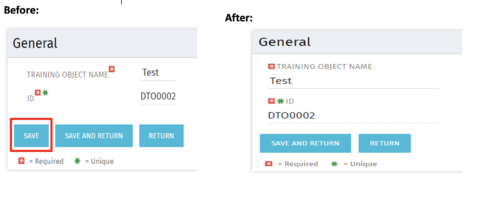 Often, you would want to disallow users from making edits to stay on the same page after changing the data by clicking Save. By forcing the users to click Save and Return, they are forced out of the page. For the above-mentioned reason, the Clarity admin can add the code in the attached tech-trick document, and that will hide the Save button from being displayed.
 -
 Are you considering or analyzing PMO value metrics? This class is a working session will cover lessons learned in PMOs, so you can craft guiding metrics, with or without a tool.
 -
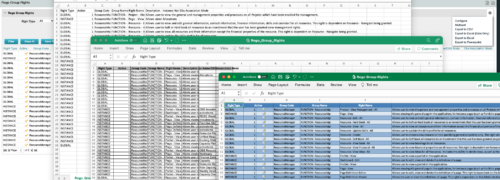
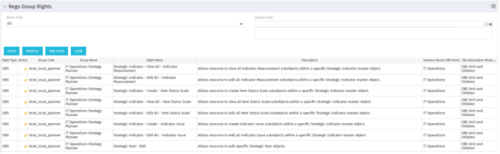 The Rego Group Rights portlet is a useful list view for functional administrators. It provides a flat view of all the Global, OBS and Instance rights that have been granted to all the groups in Clarity. It can be further filtered by just the rights type and/or the security group. It is also possible to export out to file in spreadsheet (csv, xlsx) or PowerPoint formats with OOB Clarity functionality.
 -
The Rego Group Rights portlet is a useful list view for functional administrators. It provides a flat view of all the Global, OBS and Instance rights that have been granted to all the groups in Clarity. It can be further filtered by just the rights type and/or the security group. It is also possible to export out to file in spreadsheet (csv, xlsx) or PowerPoint formats with OOB Clarity functionality.
-
The Rego Group Rights portlet is a useful list view for functional administrators. It provides a flat view of all the Global, OBS and Instance rights that have been granted to all the groups in Clarity. It can be further filtered by just the rights type and/or the security group. It is also possible to export out to file in spreadsheet (csv, xlsx) or PowerPoint formats with OOB Clarity functionality.
-
 For each process, the Process Run Metrics portlet shows the Process Name, Process Code, Description, # Running, # Completed, # Errored, and Last Run Date. This portlet is ideal for system administrators and support staff needing to monitor the health of the environment. Viewers of this portlet can get a sense of the complexity & health of the environment with the # of processes running and visibility into processes that errored out. The table below describes the available filter fields in the portlet.
Column Label Description Process Name Name of the process Start Date Start date of the process’s last ran date End Date End date of the process’s last ran date Description Description of the process Process ID ID of the process


Copyright 2023 • Rego Consulting Corporation • Privacy Policy