-
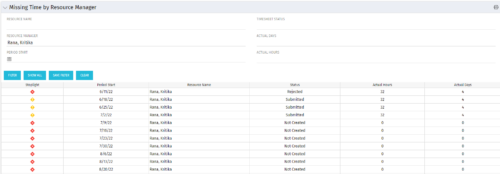 The Missing Time by RM portlet displays all missing or late timesheets for resources for which the logged in user has resources (logged in user is the RM). Resources will be listed if they are open for time entry, have a track mode of Clarity, and have timesheet that is not posted (accommodates for hire and termination dates). Resource managers may use this portlet to determine the timesheet status of all resources in open time periods. The portlet will display an indicator based on timesheet status, the status, period start, resource name, and actual hours for the timesheet.
 -
 The Dashboard: Project Status Single-line portlet gives an overview of the project overall status as well as the status indicators on the "current" status report object. The portlet will pull the "id" from the page it is placed on, so this portlet is usually placed on the project dashboard tab. This portlet displays the report date, symbols relating to the overall status, scope, schedule, cost/effort, and the overall explanation across a single line in the portlet.
 -
 The Dashboard: Project Information portlet gives a set of high-level information about the project. The portlet will pull the "id" from the page it is placed on, so this portlet is usually placed on the project dashboard tab. The portlet displays the name, project ID, project manager, description, start date, finish date, baseline start, and baseline finish.
 -
The Dashboard: Project Information portlet gives a set of high-level information about the project. The portlet will pull the "id" from the page it is placed on, so this portlet is usually placed on the project dashboard tab. The portlet displays the name, project ID, project manager, description, start date, finish date, baseline start, and baseline finish.
-
The Dashboard: Project Information portlet gives a set of high-level information about the project. The portlet will pull the "id" from the page it is placed on, so this portlet is usually placed on the project dashboard tab. The portlet displays the name, project ID, project manager, description, start date, finish date, baseline start, and baseline finish.
-
The Dashboard: Project Status Single-line portlet gives an overview of the project overall status as well as the status indicators on the "current" status report object. The portlet will pull the "id" from the page it is placed on, so this portlet is usually placed on the project dashboard tab. This portlet displays the report date, symbols relating to the overall status, scope, schedule, cost/effort, and the overall explanation across a single line in the portlet.
-
The Dashboard: Project Status Single-line portlet gives an overview of the project overall status as well as the status indicators on the "current" status report object. The portlet will pull the "id" from the page it is placed on, so this portlet is usually placed on the project dashboard tab. This portlet displays the report date, symbols relating to the overall status, scope, schedule, cost/effort, and the overall explanation across a single line in the portlet.
-
 The Changing Application Logo and Title tech trick provides an overview of how to change the logo and title within the application. This allows administrators to rebrand Clarity to their own logo and title. By customizing the logo, employees may be more encouraged to take ownership of the tool.
 -
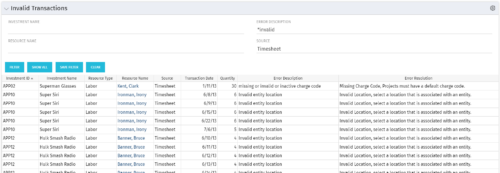 The Invalid Transactions portlet displays all of the transactions that did/will not post in Clarity. The benefit of this portlet is that you can use the filter to select a specific project, resource, or error to display all transactions associated to your selection. There are several reasons a transaction may fail to post such as inactive resource, no location or inactive location selected on the Financial sub-page, project on hold, etc. To resolve the error, the user must go into the project or resource and make the noted change. Once all corrections are complete, the Post Transactions to Financials job must be run to evaluate the corrected WIP transactions to be sure the data is now complete and accurate. If additional incorrect data is found, the transaction will fail to post again and the new error/reason will display.
 -
The Invalid Transactions portlet displays all of the transactions that did/will not post in Clarity. The benefit of this portlet is that you can use the filter to select a specific project, resource, or error to display all transactions associated to your selection. There are several reasons a transaction may fail to post such as inactive resource, no location or inactive location selected on the Financial sub-page, project on hold, etc. To resolve the error, the user must go into the project or resource and make the noted change. Once all corrections are complete, the Post Transactions to Financials job must be run to evaluate the corrected WIP transactions to be sure the data is now complete and accurate. If additional incorrect data is found, the transaction will fail to post again and the new error/reason will display.
-
The Invalid Transactions portlet displays all of the transactions that did/will not post in Clarity. The benefit of this portlet is that you can use the filter to select a specific project, resource, or error to display all transactions associated to your selection. There are several reasons a transaction may fail to post such as inactive resource, no location or inactive location selected on the Financial sub-page, project on hold, etc. To resolve the error, the user must go into the project or resource and make the noted change. Once all corrections are complete, the Post Transactions to Financials job must be run to evaluate the corrected WIP transactions to be sure the data is now complete and accurate. If additional incorrect data is found, the transaction will fail to post again and the new error/reason will display.
-
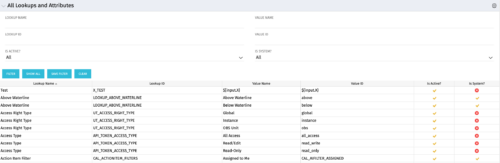 The All Lookups and Attributes portlet provides the ability to see all static lookups in the system, as well as their lookup values. Ability to filter and view the population by lookup name and ID, value name and ID, whether or not the item is active, and whether or not the item is a system (seeded) value. A system value is a record that comes with a base installation of Clarity as opposed to a value that was added manually or through a Clarity Add-in.


Copyright 2023 • Rego Consulting Corporation • Privacy Policy