
- Object (Resource, Project, etc.)
- Object Name (Jim Brown, Project A, etc.)
- Parent Name (if the object were a sub-object)
- Attribute code (the attribute id from the attributes list on the object)
- Operation (Update, Insert, Delete)
- Changed By
- Old Value
- New Value
- Date Changed
-
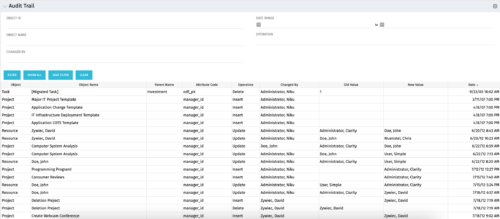 The Audit Trail portlet displays information about audited attributes. It is nearly identical to the view and functionality of the “Global Audit Trail” offering on the admin side. It offers filters for the Object ID (resource internal id, project internal id, etc.), Object Name (Jim Brown, Project A, etc.), Changed By, a date range for the changed date and the operation of the change. It is capable of reporting on the following:
 -
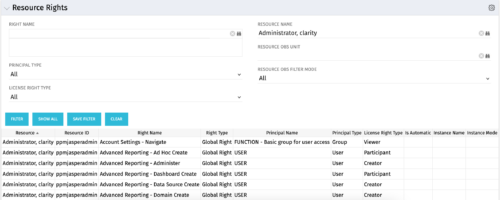 The Resource Rights portlet displays information for all global, OBS, and instance-based rights that are present in the system. This portlet can easily determine who has certain rights and what is causing them to retain a certain license status (creator, studio developer, etc).
 -
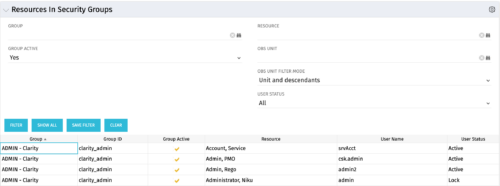 The Resources in Security Groups portlet shows security group information for resources. (Note: the information displayed is dependent on what the user has security rights to view.) The portlet displays the Group, Group ID, if the Group is active, Resource, User Name and User Status. This portlet also includes the ability to filter on a specific group or resource, by whether the group is active, by user status or OBS.
 -
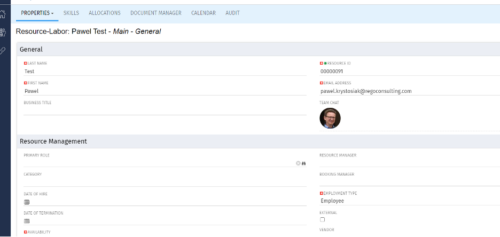
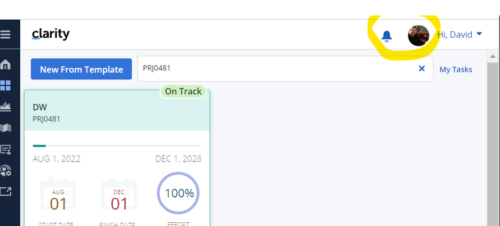 Connect with user and get familiar with them via Office 365/Azure Profile photos synced with the Clarity PPM Avatars. This is a good way to collaborate with the team and users for any quick update or interaction. This is a scheduled process in Clarity named Sync Profile Photo from Office 365 and will be scheduled to run as a job. When the process is executed, it will be setting the Microsoft O365 profile photo into the users Avatar photo in Clarity PPM and optionally, sync custom attribute of the Resource with profile photo, which can be used for quick identification of the user. Sync Process come with some parameters for the Support team, which they can use as per there environment configurations. These some important Gel parameters for quick configuration are:
- msProfilePicField : Custom Resource Field to store Photo, if not provided process will skip syncing the custom field.
- msTenantId: Microsoft Azure Tenant Id
- msClientId: Microsoft Azure Application client Id
- msClientSecret: Microsoft Azure Application client Secret
- msTeamPhotoSize: Define size of the photo to be fetched
- syncPPMAvatar: Parameter to Sync PPM User Avatar photo from MS Team
-
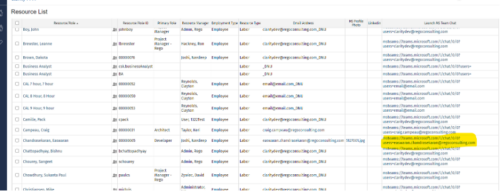
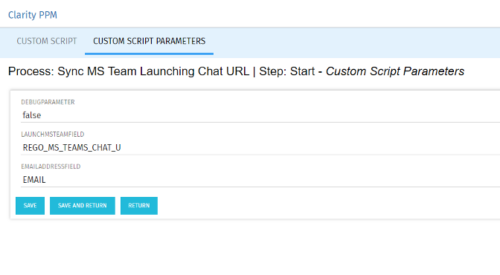 Launch a Team chat with your users directly from the Clarity PPM tool. This is a good way to collaborate with the team and users for any quick update or interaction. This is a scheduled process in Clarity named Sync MS Team Launching Chat URL and will be scheduled to run for various frequency. When the process kick in it will be setting the Team link into the custom URL attribute of the Resource, which can be used to Launch Team chat from the tool. Sync Process come with two parameters for the Support team, which they can use as per there environment configurations. These two Gel parameters for quick configuration are:
- launchMSTeamField: parameter for the Custom Resource Field to store Launch URL
- emailAddressField: parameter for field to pick mail address in SRM_RESOURCES table
-
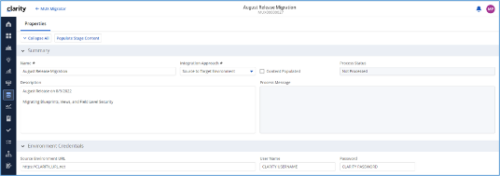
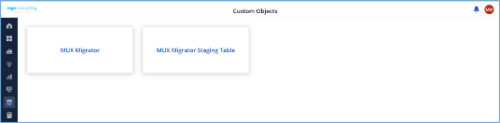
*Note: MUX Migrator v2.0 will only work on Clarity versions 16.1.0 and higher. The Migration Tool for Modern UX Components provides the ability to migrate Blueprints, Views, and Field Level Security between environments. Previously, the promotion of these components needed to be done manually. This functionality, to be utilized by an administrator, is available under the Custom Objects Area of Clarity. Source to Target Approach The user would first create an ‘MUX Migrator’ instance and populate the associated details. Once ready, they will use the “Populate Stage Content” action which will run a workflow in the background to populate a Staging Table with Source Environments content. (Blueprints, Views, and Field Level Security)Installation files are not provided with the download. While the MUX Migration Tool is free, it does require some time by Rego Technical Staff to install. Approximately 4 hours is required. If you are current Rego Customer, this time can be applied against a current project if you choose, or against an Ad Hoc SOW/PO you have in place with us. Please reach out to your friendly Rego Account Director to arrange to have the tool installed. Installation files are not provided with this download. They will be installed by our staff. If you are currently not a Rego client, we invite you to reach out to us at info@regoconsulting.com and we can arrange to set up an Ad Hoc bucket of hours for this install and any future work we can do for you. After a successful populate, they would navigate to the “MUX Configuration” module where they can decide on what content they want to migrate between environments. They can select one to many components they wish to migrate. Once the “MUX Configuration” sub-object is populated, the user can navigate back to the “Properties” module. Once a password is populated, the user can use the Actions drop-down to run the “Migrate Content to Environment” workflow. This will run a process that will migrate the content from the source environment to the target environment. JSON Approach The user would first create an ‘MUX Migrator’ instance and populate the associated details. They would navigate to the “MUX Configuration” module where they can decide on what content they want to migrate between environments. They can select one to many components they wish to migrate. Once the “MUX Configuration” sub-object is populated, the user can navigate back to the “Properties” module. The user can use the Actions drop-down to run the “Export JSON” workflow. This will run a process that will generate a .txt file located in the “JSON File” attribute. That file can be downloaded from the Source Environment. The user can then login to the Target Environment. The user would first create an ‘MUX Migrator’ instance and populate the associated details. Once the ‘MUX Migrator’ instance is created, they can upload the JSON File that was downloaded from the Source Environment. The user can use the Actions drop-down to run the “Import JSON” workflow. This will run a process that will generate read the file located in the “JSON File” attribute and load the configuration into the Target Environment. View Administration The user would first create an ‘MUX Migrator’ instance and populate the associated details. They would navigate to the “MUX View Administration” module where they can decide on what views they would like to update the creator of. They can also reset the “default” view displayed when logged in for a resource(s), Security Group(s), or Resource OBS Node(s). Prerequisites - The user will create the migrator instances/run the processes in the Target Environment they wish to migrate content to (E.g., Run this in PROD to migrate the content from a lower environment to PROD)
- Any attributes that are part of the Blueprints, Views, or Field Level Security must exist in the target environment.
- The user that is utilizing the content must have the following security rights associated to their account.
- XOG rights to all the associated objects
- View/edit security rights to the MUX Migrator Object and MUX Migrator Content Object
- oView rights to the MUX Migrator Staging Table Object
- API-Access
- Process Start or Process AutoStart – All
-
 A presentation slide deck from Rego University 2022. Document reviews the 7 trends that Rego is seeing in the PPM space.
- Trend 1: Going Beyond Strategic Alignment
- Trend 2: Pivoting Quickly
- Trend 3: Value Scrutiny for PPM
- Trend 4: Hybrid Financial Management
- Trend 5: AI has the Buzz, Predictive Analytics has the Momentum
- Trend 6: Balanced Ecosystem of Tools
- Trend 7: Collaboration
-
 A presentation slide deck from Rego University 2022. The document reviews the process to follow post tool implementation.
- Typical Post-Implementation / Operational Challenges
- Aspirations for and Outcomes of a High Performing Ownership Team
- Model Solution:
- Roles and Responsibilities
- Intake, Triage, and Delivery Process
- Clarity Board-Based Solution
-
 A presentation slide deck from Rego University 2022. This document reviews the issues around tool adoption and strategies to overcome them.
- The Perception of Adoption
- Top 5 Signs That You May Have Low Adoption
- What is Adoption
- Survey – What is Your State of Adoption
- Keys to Success – What We Have Seen
-
 A presentation slide deck from Rego University 2022. This is a document used to moderate a round table discussion at Rego U.
- What are the Agile Buzz-words and what do they mean?
- Are the Scrum Master and Product Owner roles really full-time?
- Do we need PMs when moving to Agile?
- What’s the role of a Business Analysist in Agile?
- How do you manage a PPM portfolio with Agile teams?
- How do you know when it’s time to “go off-script?”
-
 A presentation slide deck from Rego University 2022. The document reviews creating views and using Apps in Rally. Then digs into creation of Dashboards.
- Refresh on Creating View and Using Apps
- Introduction to Concepts of Dashboards
- Configuring Dashboards & Apps
- Patterns of Useful Dashboards
- Dashboard Patterns
- Examples
- Exercise: Lets create a Dashboard
-
 A presentation slide deck from Rego University 2022. The document covers Doing Agile, Agile Manifesto and then Being Agile.
