RegoXchange
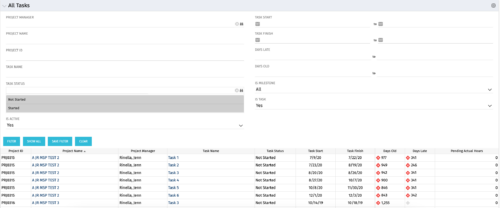
  • The All Tasks portlet displays all tasks related to active projects that the logged in user has view rights to.  The portlet provides the project manager a single place to view tasks across multiple projects without having to go into each project individually, and allows for more efficient management and reporting across projects. The portlet displays project actuals and estimates from the project (datamart tables). The portlet allows analysis like:
    • PMs may have several critical tasks that were supposed to start on a certain date.  To verify progress, they filter for that start date to perform a review of the tasks.
    • PMs can review days late to see how tasks are doing against the baseline date (<7 days is green, 7-14 is yellow, and >14 is red)
    • PMs can review days old to see how tasks are doing against today’s date (<7 days is green, 7-14 is yellow, and >14 is red)
    The table below describes the available columns in the portlet. The first 10 are configured in the default view:
    Column Label Description
    Project ID Unique project identifier
    Project Name Name of the project
    Project Manager Manager of the project
    Task Name Name of the task
    Task Status Not Started, Started, or Completed
    Task Start Start Date of this task
    Task Finish Finish Date of this task
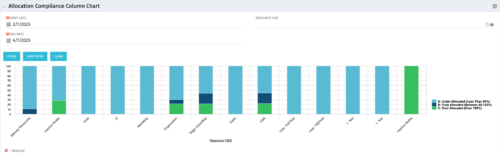
  • This view depicts Allocation Compliance for resources grouped by OBS.  Using the daily Resource Availability and Daily Resource Allocation Time Slices this column chart groups aggregate Allocation vs Availability by OBS Unit.  The chart allows quick analysis to see if resources are adequately allocated (between 80% to 120% of their capacity) or if they are significantly under or over allocated. NOTE:  The grouping of OBS unit is limited to 1 level below the selected OBS in the portlet filter.
  • This view depicts Allocation Compliance for resources grouped by OBS.  Using the daily Resource Availability and Daily Resource Allocation Time Slices this column chart groups aggregate Allocation vs Availability by OBS Unit.  The chart allows quick analysis to see if resources are adequately allocated (between 80% to 120% of their capacity) or if they are significantly under or over allocated. NOTE:  The grouping of OBS unit is limited to 1 level below the selected OBS in the portlet filter.
  • This view depicts Allocation Compliance for resources grouped by OBS.  Using the daily Resource Availability and Daily Resource Allocation Time Slices this column chart groups aggregate Allocation vs Availability by OBS Unit.  The chart allows quick analysis to see if resources are adequately allocated (between 80% to 120% of their capacity) or if they are significantly under or over allocated. NOTE:  The grouping of OBS unit is limited to 1 level below the selected OBS in the portlet filter.
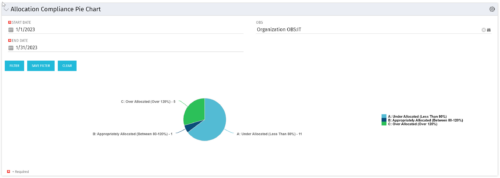
  • The Allocation Compliance Pie Chart portlet gives a view of active resources' allocation compliance within a date range and OBS displayed in a pie chart.  It allows the user to the percentage of resources over, under, and adequately staffed on projects over a selected time period.   This portlet leverages the daily allocation and daily availability slices as well as only active investments.  The portlet provides filters for specific dates (required) and OBS.
  • The Allocation Compliance Pie Chart portlet gives a view of active resources' allocation compliance within a date range and OBS displayed in a pie chart.  It allows the user to the percentage of resources over, under, and adequately staffed on projects over a selected time period.   This portlet leverages the daily allocation and daily availability slices as well as only active investments.  The portlet provides filters for specific dates (required) and OBS.
  • The Allocation Compliance Pie Chart portlet gives a view of active resources' allocation compliance within a date range and OBS displayed in a pie chart.  It allows the user to the percentage of resources over, under, and adequately staffed on projects over a selected time period.   This portlet leverages the daily allocation and daily availability slices as well as only active investments.  The portlet provides filters for specific dates (required) and OBS.
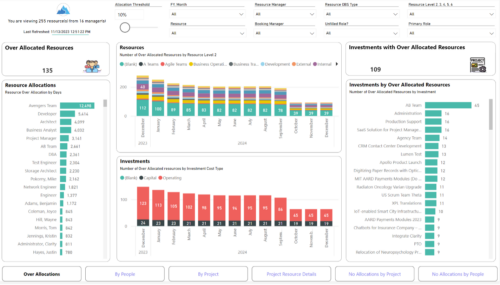
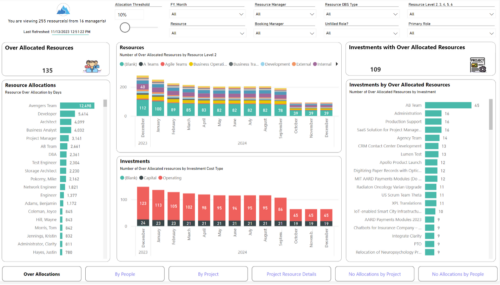
  • Evaluate resource allocations, identify bottlenecks, and ensure optimal resource utilization across projects and teams. Report Views include: • Over Allocation • By Project • By People • Project Resource Details • No Allocations by Project • No Allocations by People The main .rpt file will access data through the Data Warehouse.
  • Evaluate resource allocations, identify bottlenecks, and ensure optimal resource utilization across projects and teams. Report Views include: • Over Allocation • By Project • By People • Project Resource Details • No Allocations by Project • No Allocations by People The main file will access data through custom queries created via Rego Odata connector.
  • Lean Portfolio Management (LPM) is one of the seven SAFe components of the Lean Enterprise. LPM helps organizations solve numerous challenges by decreasing the delivery of time to value, enabling the organization to pivot quickly in ever-shifting markets, and more.
  • Annual planning shouldn’t be an Excel nightmare—or disconnected from strategy. In this session, see how one organization used Strategic Portfolio Management (SPM) with Clarity to transform their budgeting process from reactive to strategic.
  • A presentation slide deck from Rego University 2022.   The document reviews the best practices around annual planning for your Clarity instance.
    • Introduction
    • Annual Planning Basics
    • Clarity in Annual Planning
    • Investment Tracking
    • Resource Planning
    • Financial Tracking
    • Prioritization
Go to Top