-
 A Quick Reference Guide that assists in managing project tasks in Clarity’s Modern UX via the Classic Gantt. Reviews how to open the Project Scheduler and use of the Gantt View.
 -
 Rego’s training materials for Managing Portfolios in Clarity. The slide deck was put together using Clarity version 15.4.1. This course will describe how to:
- Organize Portfolios
- Define Portfolio Properties
- Build Portfolio Contents and Synchronization
- Define Portfolio Targets
- Utilize the Portfolio Waterline
- Ranking Investments
- Scenario Planning
- Portfolio Analysis and Outputs
-
 This training document is a Rego Consulting Quick Reference Guide to assist with management of Custom Investments in Clarity’s Modern User Experience. The document reviews navigation to a custom investment and then the various tabs related to the management of the investment.
 -
 A Quick Reference Guide to assist in managing a Custom Investment in Clarity’s Modern UX. Reviews accessing the Custom Investment Link and navigating the tabs.
 -
 Course Description: Does your IT organization struggle with IT budgeting and annual planning? Does your annual budget and planning process take months? This session explores leading approaches and purpose-built tools to shorten your budget cycle, align resources to business needs, and plan resources into future years while reducing errors and manual effort.
 -
 A presentation slide deck from Rego University 2022. This course taught an Agile approach to managing finances.
- IT Planning Essentials
- Common Practices & Challenges
- Leading IT Planning Approaches
- Continuous Planning vs Annual Planning
-
 London Stock Exchange shares their Clarity journey (since 2008) and where they want to take the tool next. Current goals are: • Moving toward standardized ways of working. Focused on connecting our ecosystem of tools with Clarity as a focal point for Portfolio Management and SPM. • With an end goal of Faster Time to Market, on a journey to be a Customer Lead organization.
 -
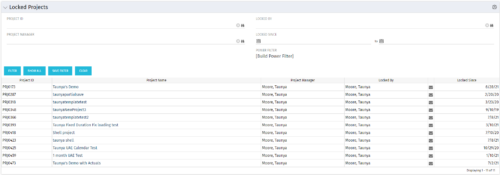 The Locked Projects portlet displays all of the projects in the system that are currently in a ‘locked’ state. The user may view the project ID, Project Name, Project Manager, the user who locked the project, the user's email address, and the date the project was locked. Administrators may utilize the data in this portlet in order to determine if a manual unlock should be executed on a project that has been locked for an extended period of time. Extended locks may indicate the individual has forgotten that he or she had obtained the lock. The portlet includes a hyperlink on the Project Name field, which will allow the administrator to more easily access and unlock the project as well as an email link to mail the user who locked the project.
 -
The Locked Projects portlet displays all of the projects in the system that are currently in a ‘locked’ state. The user may view the project ID, Project Name, Project Manager, the user who locked the project, the user's email address, and the date the project was locked. Administrators may utilize the data in this portlet in order to determine if a manual unlock should be executed on a project that has been locked for an extended period of time. Extended locks may indicate the individual has forgotten that he or she had obtained the lock. The portlet includes a hyperlink on the Project Name field, which will allow the administrator to more easily access and unlock the project as well as an email link to mail the user who locked the project.
-
The Locked Projects portlet displays all of the projects in the system that are currently in a ‘locked’ state. The user may view the project ID, Project Name, Project Manager, the user who locked the project, the user's email address, and the date the project was locked. Administrators may utilize the data in this portlet in order to determine if a manual unlock should be executed on a project that has been locked for an extended period of time. Extended locks may indicate the individual has forgotten that he or she had obtained the lock. The portlet includes a hyperlink on the Project Name field, which will allow the administrator to more easily access and unlock the project as well as an email link to mail the user who locked the project.
-
 This training document is a Rego Consulting Quick Reference Guide to assist with the adding of URL links and use of the conversation functionality in Clarity’s Modern User Experience.
 -
 The primary purpose of roles is to determine the amount of resource requests based on unapproved (uncommitted) and approved (committed) projects. Roles are non-named resources which are later allocated to named resources within CA PPM. Using roles is the best way to do "What If" scenario planning and determine needed capacity. This document assists in making Best Practice decisions around setting up roles in Clarity.


Copyright 2023 • Rego Consulting Corporation • Privacy Policy