
- Introduction
- First time setup
- Activating Modern UX and Timesheets
- Creating a Link to the Modern UX in the Classic Home Menu
- Navigation and modules
- Blueprints
-
 A presentation slide deck from Rego University 2022. This document is an outline of the basic administration of Clarity’s Modern User Experience.
 -
 A presentation slide deck from Rego University 2022. An introduction to Jaspersoft Studio for reporting in Clarity.
- Introduction
- Configuration Basics
- Security Basics
- Installing Jaspersoft Studio
- Interface Introduction
- Data Adapter Setup
- Server Connection Setup
-
 A presentation slide deck from Rego University 2022. This document outlines the training for our Data Model Class.
- Base Tables
- Modern UX
- Data Warehouse (DWH)
- Tips and Tricks
- Admin Activities and System Settings
-
 A presentation slide deck from Rego University 2022. This document reviews the importance and principles of Organizational Change Management.
- Why is Organizational Change Management Important?
- Impacts of not recognizing the need for an Organization Readiness (OR) Plan
- What are the components of Organizational Change Management?
- Considerations and activities for building a good OR Plan
- How to execute Organizational Change Management
- Framework – Proven Methodologies and Tools
- Q&A
-
 A presentation slide deck from Rego University 2022. This document reviews best practices for maintaining Clarity.
- Why is it required?
- When?
- Processes
- Jobs
- DWH
- High Volume Data
- Access Rights
- Volatile Date
- Rego’s Recommendations
-
 A presentation slide deck from Rego University 2022. This document reviews the best practices around change and impact management.
- Introduction
- Change and Impact Basics
- How did we get here?
- Demo and Discussion
-
 A presentation slide deck from Rego University 2022. This document reviews the principles of Lean Portfolio Management. • What is Lean Portfolio Management (LPM)? • Artifacts of the LPM • Roles of the LPM • Ceremonies of the LPM
 -
 A presentation slide deck from Rego University 2022. The document reviews creating views and using Apps in Rally. Then digs into creation of Dashboards.
- Refresh on Creating View and Using Apps
- Introduction to Concepts of Dashboards
- Configuring Dashboards & Apps
- Patterns of Useful Dashboards
- Dashboard Patterns
- Examples
- Exercise: Lets create a Dashboard
-
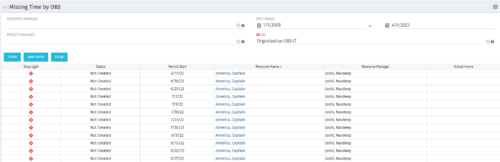 The Missing Time by OBS portlet displays all missing or late timesheets for resources staffed within a specific OBS. Resources will be included if they are open for time entry, have the track mode of ‘Clarity’ and have a timesheet that is not posted. The portlet accommodates for hire and termination dates. Also, the portlet only shows resources that the active user has the security rights to view. Administrators and the Project Management Office may use this portlet to determine the timesheet status of all resources within a specific OBS in open time periods. This portlet allows a user to quickly search by OBS and view all timesheets under that area. After selecting the OBS, the user can also filter on time period start date, Resource Manager and/or Project Manager. The portlet will display a ‘Stop Light’ indicator based on timesheet status, the status, period start, Resource Name, Resource Manager and any actual hours entered for the timesheet.
 -
 The Executive Dashboard portlet displays information regarding projects the user has security rights to view. It provides a one-stop place for the PMO or management to view all critical information about projects. The portlet not only displays status indicators as well as dates for late items, variances and days late, but also displays the project status fields from the Status Report sub-object.
 -
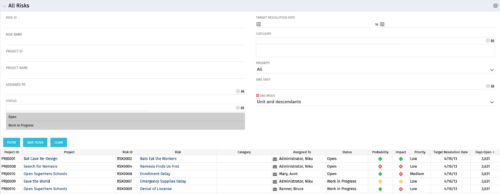 The All Risks portlet displays all risks related to active projects that the logged in user has view rights to access. The portlet provides the project manager a single place to view risks across multiple projects without having to go into each project individually, and allows for more efficient management and reporting across projects. The portlet displays Project ID, Project, Risk ID, Risk, Category, Assigned to, Status, Probability, Impact, Priority, Target Resolution Date, and Days opened. The filter allows narrowing down of the risks by several different criteria. Note: Only the projects that the user has viewer rights to see will show up in the list.
 -
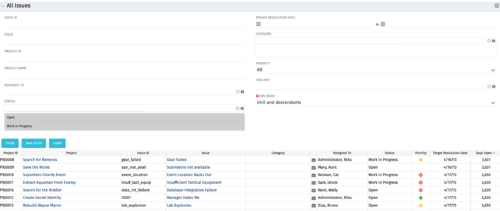 The All Issues portlet displays all Issues related to active projects that the logged in user has view rights to. The portlet provides the project manager a single place to view issues across multiple projects without having to go into each project individually, and allows for more efficient management and reporting across projects. The filter then allows the user to narrow their search by Issue ID, Issue Name, Project ID, Project Name, the individual to whom the issue is assigned, and Issue Status. You may also narrow the view to display issues with a target resolution date within a certain date range, or Issues associated with a particular Category or OBS unit. Note: Only the projects that the user has viewer rights to will show up in the list.
