RegoXchange
  • This Portlet can be used to define User License Output information including the following:
    • Resource
    • Resource User Name
    • Resource Id
    • Email
    • Resource Manager
    • Resource Manager Email
    • Primary Role
    • Employment Type
    • Org Structure Path
    • Org Structure Lowest Unit
    • Last Logged in Date
    • User License
    • Right License
    • Access Right
    • Access Right Type
    • Access Right to OBS
    • Granted Through Type
    • Granted Through (Security Group)
    • Access Right Description
    Filters Include:
    • Resource OBS
    • Resource
    • Resource Manager
    • Primary Role
    • Employment Type
  • This Portlet can be used to define User License Output information including the following:
    • Resource
    • Resource User Name
    • Resource Id
    • Email
    • Resource Manager
    • Resource Manager Email
    • Primary Role
    • Employment Type
    • Org Structure Path
    • Org Structure Lowest Unit
    • Last Logged in Date
    • User License
    • Right License
    • Access Right
    • Access Right Type
    • Access Right to OBS
    • Granted Through Type
    • Granted Through (Security Group)
    • Access Right Description
    Filters Include:
    • Resource OBS
    • Resource
    • Resource Manager
    • Primary Role
    • Employment Type
  • Are you looking for some great examples of dashboards that include metrics/KPIs? This session will review a host of sample metric dashboards in use today that can spark ideas for you to implement in your company.
  • The Dashboard: Programs Portfolios portlet is placed on the dashboard page of a project. This portlet will show any programs or portfolios the project is a subproject of. The portlet will display the name, code, connection type, manager, and start/finish dates.
  • The Dashboard: Programs Portfolios portlet is placed on the dashboard page of a project. This portlet will show any programs or portfolios the project is a subproject of. The portlet will display the name, code, connection type, manager, and start/finish dates.
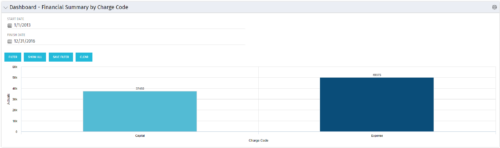
  • The Dashboard: Financial Summary by Charge Code portlet displays financial information from the project summarized by Charge Code. The portlet is added to the dashboard page of a project and will pull all actuals by charge code on the project. The user may filter by date range to narrow the results.
  • The Dashboard: Financial Summary by Charge Code portlet displays financial information from the project summarized by Charge Code. The portlet is added to the dashboard page of a project and will pull all actuals by charge code on the project. The user may filter by date range to narrow the results.
  • The Dashboard: Financial Summary by Charge Code portlet displays financial information from the project summarized by Charge Code. The portlet is added to the dashboard page of a project and will pull all actuals by charge code on the project. The user may filter by date range to narrow the results.
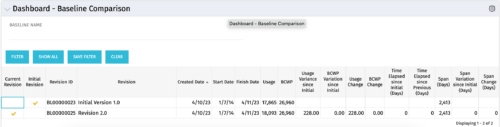
  • The Dashboard: Baseline Comparison portlet compares multiple baselines on a single project. The portlet is added to the dashboard page of a project and will pull in both baselines for that project and perform a comparison between the two. This portlet provides a quick way for project managers to view the differences between their baselines, especially if they have multiple members updating the project.
  • The Dashboard: Baseline Comparison portlet compares multiple baselines on a single project. The portlet is added to the dashboard page of a project and will pull in both baselines for that project and perform a comparison between the two. This portlet provides a quick way for project managers to view the differences between their baselines, especially if they have multiple members updating the project.
  • The Dashboard: Baseline Comparison portlet compares multiple baselines on a single project. The portlet is added to the dashboard page of a project and will pull in both baselines for that project and perform a comparison between the two. This portlet provides a quick way for project managers to view the differences between their baselines, especially if they have multiple members updating the project.
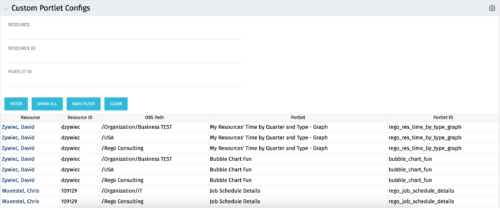
  • The Custom Portlet Configs portlet will display all portlets where the user has modified any settings like the filter or list views. This portlet is helpful for troubleshooting and to determine which users may be affected during an upgrade. The portlet may be filtered by several criteria and displays the resource name, ID, OBS path, portlet, and portlet ID.
Go to Top