
| Column Label | Description |
| From | Who the email is coming from |
| Sent To | Individual users the message should send to |
| Send to Group | Security groups the message should send to (users within the security groups) |
| Message Project Team | Should this message be sent to a project team |
| Associated Investment | If Message Project Team is checked, which project should the team list be pulled from |
| Message Subject | Subject line of the email |
| Message Content | Body of the email (html) |
| Message date | Internal code used by the query |
-
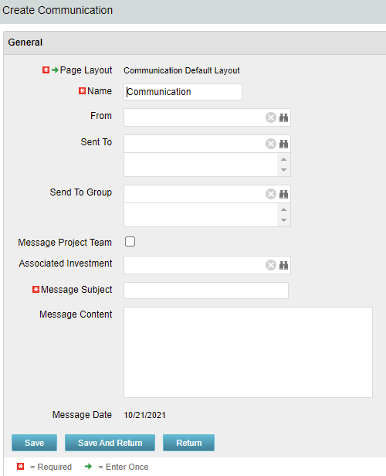 The Communications Object allows a user to send an html-based email to all users on a project, in a security group, or to individual users directly from Clarity. An email can be sent by creating a new entry on the Communication List page, upon saving a new entry the email process with trigger and send the email. Auto Start Solution: An email can be sent by creating a new entry on the Communication List page, upon saving a new entry the email process with trigger. On Demand Solution: All emails could be sent together as a broadcast communication by running the process manually from the Organizer. This process could also be scheduled to run on a specific time using Jobs The table below describes the available columns on the object.
Either of the on-demand process or auto start process should be active at a time. The package provides two Processes: 1. Send Notification (ID:rego_send_notification) This is an auto start process. The notification is sent immediately when a new entry is created on the Communication object. Only one email notification will be sent for one entry. Any updates to the same entry will not trigger any new notifications. 2. Email Communication (ID:rego_email_comm) This is an on-demand process that could be run from the Organizer. This send notification to all the entries on the Communication objects for which a communication was not already sent. This process does not have a Primary object. The processes are designed to work both in Oracle and Postgres environment. If the DB vendor information from Properties.xml is Postgres the SQL query for Postgres will be called. If not, the default SQL is Oracle. Important Note: Either of the processes should be active for an Implementation. If both the processes are active the on-demand process has no effect and will never send any communication. All object entries have a sent flag which will be marked whenever a notification is sent. Both the processes set the same flag on the object instance. Only with admin DB rights this flag could be overwritten. Object Name:Communication Object ID: rego_communication Flag Attribute Name: Sent (Id: rego_sent) -
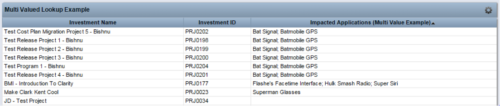 The Concatenate Multi-Value Lookup into One Field for Display Purposes technical trick provides an overview of how to group or concatenate the various levels and values of a Multi-Value lookup into one field in both Oracle and SQL Server environments. This allows the lookup values to be more easily displayed in a portlet. The function concatenates the values together using a choice of delimiter, which then allows the multi-value lookup to be viewed as one portlet column, in the same manner as any other object attribute.
 -
The Concatenate Multi-Value Lookup into One Field for Display Purposes technical trick provides an overview of how to group or concatenate the various levels and values of a Multi-Value lookup into one field in both Oracle and SQL Server environments. This allows the lookup values to be more easily displayed in a portlet. The function concatenates the values together using a choice of delimiter, which then allows the multi-value lookup to be viewed as one portlet column, in the same manner as any other object attribute.
-
 Styles can be applied to reports in two ways. The first is to select the item and apply a style directly to it. The other is to apply a style to an entire report. When an item has had a style directly applied to it the application of a style to the entire report will not change the styles with manual styles applied. The manual styles override the entire report style application. This trick shows you how to find and remove manual styles.
 -
 It is quite common for Rally and Jira to coexist. However, connecting them effectively enhances the value stream for development teams and product owners. Learn what is available to make this happen along with some typical design patterns.
 -
 The Convert Incident to Task workflow process allows users to quickly create tasks from incidents without the need to input the information twice. It utilizes a newly added checkbox and project fields on the incident object. The user will need to select the project that he or she wants the task added to using the “Project” field on the incident object. Next, the “Convert to Task” checkbox will kick off the process. Once ticked, the process will perform the necessary actions to create a task on the specified project.
 -
The Convert Incident to Task workflow process allows users to quickly create tasks from incidents without the need to input the information twice. It utilizes a newly added checkbox and project fields on the incident object. The user will need to select the project that he or she wants the task added to using the “Project” field on the incident object. Next, the “Convert to Task” checkbox will kick off the process. Once ticked, the process will perform the necessary actions to create a task on the specified project.
-
The Convert Incident to Task workflow process allows users to quickly create tasks from incidents without the need to input the information twice. It utilizes a newly added checkbox and project fields on the incident object. The user will need to select the project that he or she wants the task added to using the “Project” field on the incident object. Next, the “Convert to Task” checkbox will kick off the process. Once ticked, the process will perform the necessary actions to create a task on the specified project.
-
 This is workflow that allows you to copy documents from one item to another. This can be altered to move documents from any place they are stored to another. In this particular instance, the focus is on moving documents from one risk to another. When creating a risk that you want to copy from, utilize the attachments section of the page and the associated lookup. The lookup is filtered to only show those risks that already have documents associated with them. Upon clicking the save button, a process runs in the background to copy the requested documents from the requested risk to this newly created risk.
 -
This is workflow that allows you to copy documents from one item to another. This can be altered to move documents from any place they are stored to another. In this particular instance, the focus is on moving documents from one risk to another. When creating a risk that you want to copy from, utilize the attachments section of the page and the associated lookup. The lookup is filtered to only show those risks that already have documents associated with them. Upon clicking the save button, a process runs in the background to copy the requested documents from the requested risk to this newly created risk.
-
This is workflow that allows you to copy documents from one item to another. This can be altered to move documents from any place they are stored to another. In this particular instance, the focus is on moving documents from one risk to another. When creating a risk that you want to copy from, utilize the attachments section of the page and the associated lookup. The lookup is filtered to only show those risks that already have documents associated with them. Upon clicking the save button, a process runs in the background to copy the requested documents from the requested risk to this newly created risk.
-
 This asset in used to update investment level TSV attributes using Cost Plan, Budget plan, Actual transaction, Planned and Budgeted Benefit Cost data as needed. It uses mappings/logic from ‘Cost Rollup Mappings’ object. Compatibility – Its compatible from 16.0 onwards with Oracle, PostgreSQL and MSSQL.
