-
 Are you looking for some great examples of dashboards in Clarity? We know you can’t get enough of them and neither can we! Come to this session to see a host of new reports that Rego has created! This session will review a myriad of pre-built dashboards in use today that can spark ideas for you to implement in your organization. Learn about Rego's approach to prioritize and create reports, and how we gathered requirements from our Rego experts to target the content you need!
 -
 Join this session for best practices in optimizing Clarity's Modern UX modules. Learn how - and when - to use specific modules in Clarity (roadmaps vs hierarchies, CITs vs Projects, etc.). Let’s really dive into the power and adaptability of Modern UX features, through the lens of finding the best fit to meet the needs of your end users and business processes.
 -
 London Stock Exchange shares their Clarity journey (since 2008) and where they want to take the tool next. Current goals are: • Moving toward standardized ways of working. Focused on connecting our ecosystem of tools with Clarity as a focal point for Portfolio Management and SPM. • With an end goal of Faster Time to Market, on a journey to be a Customer Lead organization.
 -
 Every chocolate bar starts as a cocoa bean, just like every project starts as an idea. Clarity was designed as the centralized process that transforms raw ideas into beautifully wrapped, ready-to-launch deliverables. It took a partnership across multiple divisions to ensure success!
 -
 Hear from existing Clarity customers as they share what's working well in their implementations. Gain insights from these real-world success stories. This deck is from Day 2 of the presentations.
 -
 If you work in a busy Project Management Office (PMO), then you know that good quality data is paramount to effective planning, decision making, and project delivery. You also know that sometimes a single data point can be enhanced when it is supplemented by additional information. But as an administrator or part of the PMO, how can you guide team members to ensure they enter meaningful data into your project management system? Clarity now offers the capability to create business rules which can enforce data-entry based on the way that other attributes have been updated. In this article, you’ll get step-by-step instructions on how to update your Clarity blueprints to utilize the new Conditional Required Modal.
 -
 Join this session to learn best practices of when to use what module in Clarity (roadmaps vs hierarchies, CITs vs Projects...). Let’s really look at the power and adaptability of Modern UX features, through the lens of finding the best fit to meet the needs of your end users and business processes.
 -
 Learn what you need to do today to be ready for the AI Innovation coming our way.
 -
 The movement from managing technology organizations and development by Products instead of Projects has grown in recent years. This has many advantages, but only if there are critical changes in defining and funding the development. First, we shift from defining specific solutions to developing and defining the outcomes we want to accomplish with that development. Second, we should rethink how we fund development. Instead of funding a specific scope of work, we should fund the capacity to develop products.
 -
 PMOs/EPMOs are feeling some pressure from Agile disruptors in their organizations. Some Agile purists insist that they can do everything with an Agile tool and no PMO governance, but this really isn’t the case. If you belong to a PMO or EPMO, this session will help you to better collaborate with your Agile counterparts in finding better and more holistic solutions to value delivery.
 -
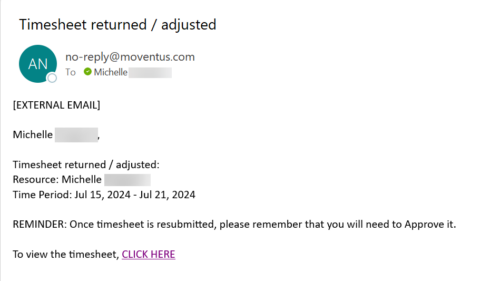 The Adjusted Timesheet Stalker process is designed to be run via a scheduled job. The end user will need to set up the job and can choose the frequency at which this job should be run. The process will search the system for timesheets with a status of ‘Adjusted’. An email is sent to the resource manager for any resources identified as having adjusted timesheets. The email will provide: • Name of resource • Time period The resource manager is advised that once the timesheet is resubmitted, they will need to approve it. A link to the timesheet itself is provided in the body of the email.
 -
A Quick Reference Guide to assist in the administrative process of adding an attribute to a Clarity object. Attributes store information associated with object views. For example, Start and Finish are a Date type attributes and Project Type is a lookup type attribute on the Project object.


Copyright 2023 • Rego Consulting Corporation • Privacy Policy