-
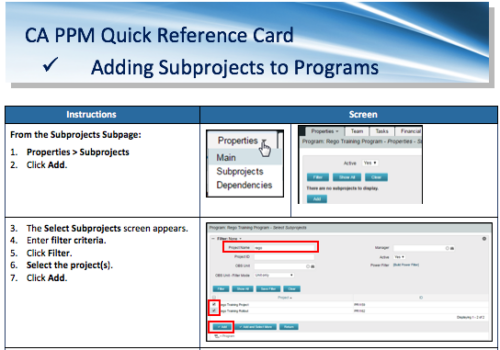 A Quick Reference Card to assist in the adding of Subprojects to Programs. Shows how add and remove from the Subprojects Subpage or from the Hierarchy Tab.
 -
 A Quick Reference Guide to assist in the process of adding Rights to a Group in Clarity’s Modern User Experience. A group is a collection of users that require the same set of access rights. Access rights (Global, OBS, Instance) can be added to a group.
 -
A Quick Reference Guide to assist in the process of adding Rights to a Group in Clarity’s Modern User Experience. A group is a collection of users that require the same set of access rights. Access rights (Global, OBS, Instance) can be added to a group.
-
 This tip with show you the html needed to add a JasperSoft report to a CA PPM HTML portlet.
 -

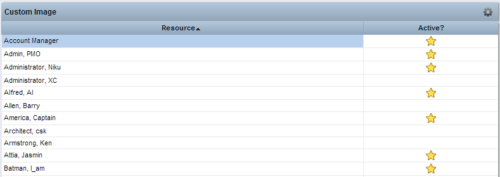 This Tech Trick provides step-by-step instructions for adding images into Clarity v13+ for use in portlets.
 -
 JasperSoft as two font databases – one for display and one for pdf exporting. Not all fonts in the display database are in the exporting database. If you find you are not getting the proper fonts when exporting to PDF from JasperSoft this tech trick will show you how to add the missing font so your report exports as expected.
 -
 A presentation slide deck from Rego University 2022. The document reviews the process to follow post tool implementation.
- Typical Post-Implementation / Operational Challenges
- Aspirations for and Outcomes of a High Performing Ownership Team
- Model Solution:
- Roles and Responsibilities
- Intake, Triage, and Delivery Process
- Clarity Board-Based Solution
-
 Today's workforce is more diverse than ever, and a "one size fits all" approach to leadership is seldom effective. A remote/hybrid workforce presents unique challenges, and teams often represent many different generations each with unique characteristics and needs. Even if you are not in a formal leadership position, we all are responsible for reflecting leadership skills and traits that encourage a collaborative spirit where everyone can bring the best version of themselves to their efforts. We'll offer some insights and opportunities that will help you and your teams to thrive.
 -
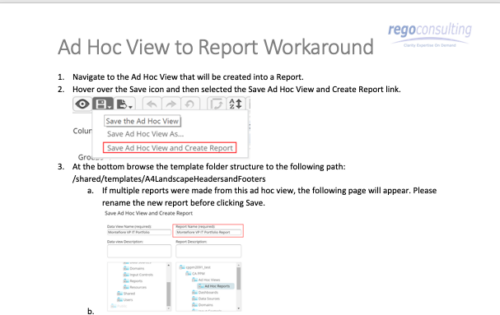 This tech-trick details the steps to convert an ad-hoc view to a report.
 -
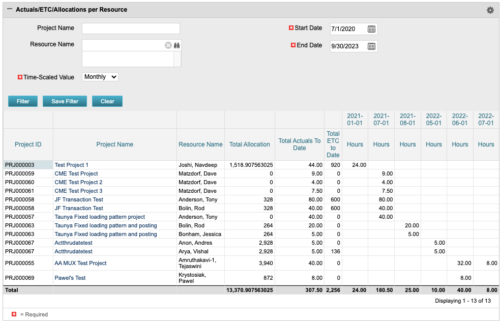 The portlet displays posted time by project for the logged in user based on time period and date range. This allows the user to see at a glance their ETC and actuals on the projects. The portlet displays the Total Allocation and Total Actuals to Date for the user on the projects they are allocated/assigned to. The actuals are displayed per month in the form of TSVs.
 -
The portlet displays posted time by project for the logged in user based on time period and date range. This allows the user to see at a glance their ETC and actuals on the projects. The portlet displays the Total Allocation and Total Actuals to Date for the user on the projects they are allocated/assigned to. The actuals are displayed per month in the form of TSVs.


Copyright 2023 • Rego Consulting Corporation • Privacy Policy