-
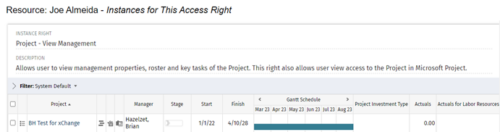
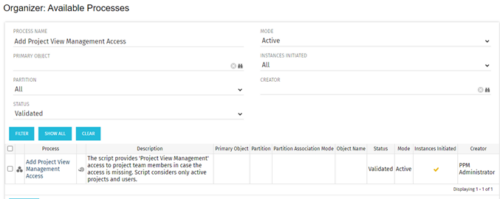 This process grants Project Management instance rights to all of the project team members within the program hierarchy. Allows users to view management properties, roster and key tasks of the project. This also allows user view access to the project in Microsoft Project.
 -
 This training document is a Rego Consulting Quick Reference Guide to assist with the use of the Staffing View in Clarity’s Modern User Experience. This doc references version 16.1 views. Document provides information on how to swap between views to see investments by resource or resources by investment. Instructions on filtering are provided, as well as detail on how to update the unit of measure between FTE (Full Time Equivalent) and Hours. Tips are provided on how to expand the list of investments within each view and how to view the properties for the allocations. A Legend is also documented to provide information on each of the icons that are displayed on this page.
 -
 A presentation slide deck from Rego University 2022. Broadcom’s presentation on OKRs in an Agile environment.
- What are OKRs? Why are they important?
- Why ValueOps for OKRs?
- How do we do this?
-
 A presentation slide deck from Rego University 2022. Presentations by Erie Insurance, University of California, San Francisco, and The Hershey Company.
 -
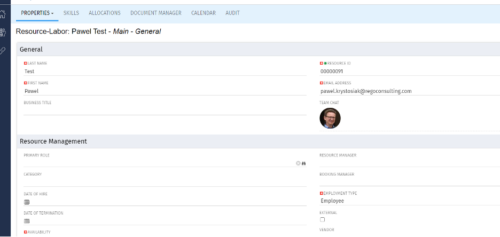
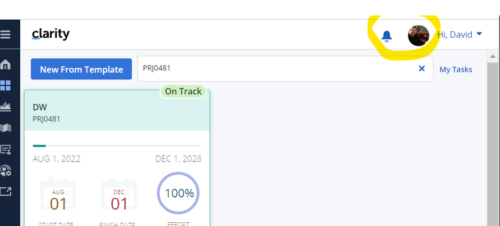 Connect with user and get familiar with them via Office 365/Azure Profile photos synced with the Clarity PPM Avatars. This is a good way to collaborate with the team and users for any quick update or interaction. This is a scheduled process in Clarity named Sync Profile Photo from Office 365 and will be scheduled to run as a job. When the process is executed, it will be setting the Microsoft O365 profile photo into the users Avatar photo in Clarity PPM and optionally, sync custom attribute of the Resource with profile photo, which can be used for quick identification of the user. Sync Process come with some parameters for the Support team, which they can use as per there environment configurations. These some important Gel parameters for quick configuration are:
- msProfilePicField : Custom Resource Field to store Photo, if not provided process will skip syncing the custom field.
- msTenantId: Microsoft Azure Tenant Id
- msClientId: Microsoft Azure Application client Id
- msClientSecret: Microsoft Azure Application client Secret
- msTeamPhotoSize: Define size of the photo to be fetched
- syncPPMAvatar: Parameter to Sync PPM User Avatar photo from MS Team
-
 Imagine responding to Clarity PPM workflow tasks (like timesheet approvals, budget reviews, and stage gate decisions) directly from your email. No login required, yet all conversations, decisions, and even context from attachments and images are automatically - and securely - captured in Clarity. Sound like a dream? Join this class to learn how to save time and increase adoption with this easy innovation.
 -
 Bringing back a classic topic with a modern update! Join this session to discuss tips and tricks for an optimized project manager experience in Clarity. This session is designed so attendees can share, collaborate, and benefit from their diverse experiences.
 -
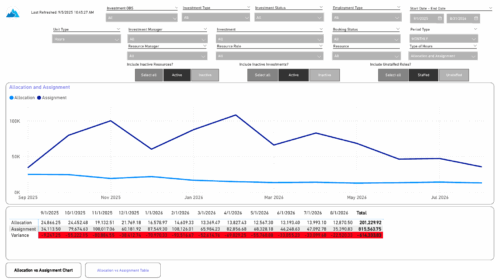 The Investment Allocations and Assignments report provides visibility into team member allocation, task assignment, and variance amounts by investment across time periods. A chart highlights allocation compared to assignment amounts by period. Results can be displayed by week, month, or in total, and viewed in either hours or FTEs for each team member and investment. Interactive visuals make it easy to compare planned effort against actual assignments at the team member and investment level. Content Type: Business Intelligence, PowerBI Report
 -
 This training document is a Rego Consulting Quick Reference Guide to assist with the management of Project Tasks via the PPM Gantt view in Clarity’s Modern User Experience. This doc references version 16.2.1 views. Doc covers PPM Gantt, View Legend, Menu Icons, Create New Task, Indent Tasks, Move Tasks and Set Dependencies.
 -
This training document is a Rego Consulting Quick Reference Guide to assist with the utilization of some of the most common components in Clarity’s Modern User Experience. This doc references version 16.2.1 views. Document includes content on Grid View, View Options, Adjust Columns, Details Panel, Group By, Save Views and Manage Views.
-
 This training document is a Rego Consulting Quick Reference Guide to assist with the use of the Links and Conversations functionality in Clarity’s Modern User Experience. This doc references version 16.1.2 views.
 -
 This training document is a Rego Consulting Quick Reference Guide to assist with the creation of Risks, Issues and Changes in Clarity’s Modern User Experience. This doc references version 16.1.2 views. Doc covers creating and management of these project tools.


Copyright 2023 • Rego Consulting Corporation • Privacy Policy