
| Column Label | Description |
| Timesheet Period Start | Range of time periods to display filtered by start date |
| Timesheet Period Finish | Range of time periods to display filtered by finish date |
| Resource | Resource(s) to display |
| Type | Note on a timesheet or time entry (task specific) |
-
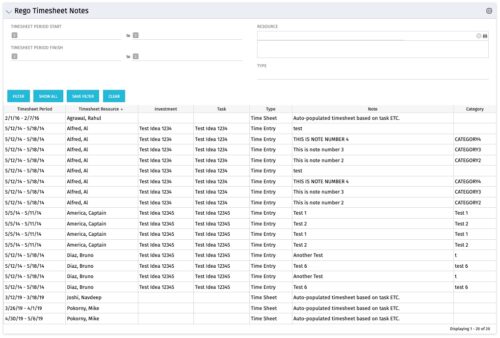 The Timesheet Notes portlet displays all timesheet notes split out by resource, investment and task. This is very useful in situations where you want to review multiple notes as you do not have to open each note separately. The table below describes the available filter fields in the portlet.
 -
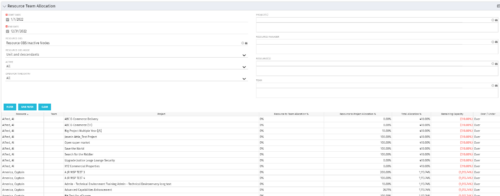 This portlet displays the % allocation of resources to projects. The portlet shows if the resource is allocated to the projects as an individual resource or as part of an Agile team, in which case it will display the resource % allocation to the team and what that will represent in terms of % allocation to the project. The Total Allocation % display the allocation of the resource to all investments is allocated to. Remaining Capacity and Over/Under columns will help identify the resources that still have availability and the ones that are over allocated.
 -
 Broadcom’s Laureen Knudsen and Noël Rodriguez discuss the current and evolving state of the PMO.
 -
 PMOs/EPMOs are feeling some pressure from Agile disruptors in their organizations. Some Agile purists insist that they can do everything with an Agile tool and no PMO governance, but this really isn’t the case. If you belong to a PMO or EPMO, this session will help you to better collaborate with your Agile counterparts in finding better and more holistic solutions to value delivery. Tips on how to use Agile principles in your talking points will also be shared.
 -
 Course Description: In the new bimodal IT environment, does your organization lack insights into what Agile work is being done and what value is being delivered? Learn how Apptio Agile Insights merges data from multiple Agile tools, including Clarity PPM, to bring together a total picture of the value IT is delivering.
 -
 Course Description: How mature is your PMO? Where do you go from here? This class is a working session, which includes an exercise to assess how far you’ve come and help direct your course.
 -
 Course Description: Do you want to improve the success of your projects? This class will discuss some lessons learned on making projects more successful. We will discuss things like: • Developing robust test plans, creating effective use and test cases, and implementing test scripts that make sense.
- Why failures occur and what you can do to minimize the impact and plan for success—including a case study on lessons learned.
- Developing, testing, fine-tuning, and executing deployment plans for success.
-
 Course Description: Do you want to talk to other customers that are using or plan to use project management? In this moderated round table, customers can share experiences and provide insights on process, configurations, challenges, and successes. We will divide into small groups and discuss customer selected topics—100% sharing
 -
 Course Description: Does your organization own Workfront in a marketing or other group doing digital asset management? In this session, we will dive into what Workfront is and how it complements your current Clarity PPM solution.
 -
 The Re-Baseline via Change Request process is a simple method for a member of the project (who has the ability to create change requests) to request a re-baseline of the project without the project manager having to perform it. First, the user must create the change request. The user must then start the process within the change request by using the Processes tab. Once started, the process will route an action item to the Project Manager. If rejected, the process will end and the user must start it again (if needed). If approved, the process will then baseline the project and close out the change request.
 -
 The Convert Incident to Task workflow process allows users to quickly create tasks from incidents without the need to input the information twice. It utilizes a newly added checkbox and project fields on the incident object. The user will need to select the project that he or she wants the task added to using the “Project” field on the incident object. Next, the “Convert to Task” checkbox will kick off the process. Once ticked, the process will perform the necessary actions to create a task on the specified project.
 -
The Convert Incident to Task workflow process allows users to quickly create tasks from incidents without the need to input the information twice. It utilizes a newly added checkbox and project fields on the incident object. The user will need to select the project that he or she wants the task added to using the “Project” field on the incident object. Next, the “Convert to Task” checkbox will kick off the process. Once ticked, the process will perform the necessary actions to create a task on the specified project.
