-
 This training document is a Rego Consulting Quick Reference Guide to assist with General Navigation in Clarity’s Modern User Experience. This doc references version 16.3 views. Doc reviews the Menu Bar and User Tool Bar. Document provides instructions on how to access blueprints, create a new blueprint and edit the fields available on the blueprint. Detail is also provided on how to update the modules, rules and actions associated with a blueprint. Instructions are listed to show the user how to modify the create from template page, how to add a new channel and how to set a default blueprint. Tips on the user of the API Attribute ID are also provided.
 -
 A Quick Reference Guide to assist in the process of converting a Idea into an Investment in Clarity. Includes information on adding financial and resource data into the new investment.
 -
 Do you want to add interfaces to your CA PPM instance? This class will review the pros and cons of various integration methods and provide best practice on how to handle various interfaces. We’ll walk you through specific interface examples and showcase Rego’s pre-built interface sets you can leverage to reduce the time and cost of implementation.
 -
This training document is a Rego Consulting Quick Reference Guide to assist with the management of Custom Investments in Clarity’s Modern User Experience. This doc references version 16.3 views. Document provides detail on how to navigate to custom investments and provides detail on the modules that are available within a custom investment.
-
 This training document is a Rego Consulting Quick Reference Guide to assist with General Navigation in Clarity’s Modern User Experience. This doc references version 16.1.2 views. Doc reviews the Menu Bar and User Tool Bar. Document provides instructions on how to access blueprints, create a new blueprint and edit the fields available on the blueprint. Detail is also provided on how to update the modules, rules and actions associated with a blueprint. Instructions are listed to show the user how to modify the create from template page, how to add a new channel and how to set a default blueprint. Tips on the user of the API Attribute ID are also provided.
 -
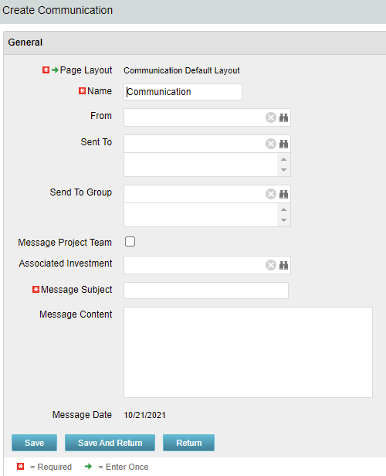 The Communications Object allows a user to send an html-based email to all users on a project, in a security group, or to individual users directly from Clarity. An email can be sent by creating a new entry on the Communication List page, upon saving a new entry the email process with trigger and send the email. Auto Start Solution: An email can be sent by creating a new entry on the Communication List page, upon saving a new entry the email process with trigger. On Demand Solution: All emails could be sent together as a broadcast communication by running the process manually from the Organizer. This process could also be scheduled to run on a specific time using Jobs The table below describes the available columns on the object.
Either of the on-demand process or auto start process should be active at a time. The package provides two Processes: 1. Send Notification (ID:rego_send_notification) This is an auto start process. The notification is sent immediately when a new entry is created on the Communication object. Only one email notification will be sent for one entry. Any updates to the same entry will not trigger any new notifications. 2. Email Communication (ID:rego_email_comm) This is an on-demand process that could be run from the Organizer. This send notification to all the entries on the Communication objects for which a communication was not already sent. This process does not have a Primary object. The processes are designed to work both in Oracle and Postgres environment. If the DB vendor information from Properties.xml is Postgres the SQL query for Postgres will be called. If not, the default SQL is Oracle. Important Note: Either of the processes should be active for an Implementation. If both the processes are active the on-demand process has no effect and will never send any communication. All object entries have a sent flag which will be marked whenever a notification is sent. Both the processes set the same flag on the object instance. Only with admin DB rights this flag could be overwritten. Object Name:Communication Object ID: rego_communication Flag Attribute Name: Sent (Id: rego_sent)Column Label Description From Who the email is coming from Sent To Individual users the message should send to Send to Group Security groups the message should send to (users within the security groups) Message Project Team Should this message be sent to a project team Associated Investment If Message Project Team is checked, which project should the team list be pulled from Message Subject Subject line of the email Message Content Body of the email (html) Message date Internal code used by the query -
 Course Description: For clients that have both ServiceNow and Clarity PPM, passing information between the systems becomes vital for the enterprise with ITSM, demand, and PPM toolsets. One of the biggest areas of interaction is around demand management. Come and see Rego's integration solution, which flexibly allows for ServiceNow records (incident, problem, idea, enhancement, and demands) to generate Clarity PPM ideas or projects.
 -
 Annual planning shouldn’t be an Excel nightmare—or disconnected from strategy. In this session, see how one organization used Strategic Portfolio Management (SPM) with Clarity to transform their budgeting process from reactive to strategic.
 -
 A .pdf file that has the slide by slide presentation at 2015 RegoU on how other companies are using CA PPM. The agenda covers an overview, definitions, business value, key requirements and best practices.
 -
 Have you looked in the regoXchange or reviewed Rego’s innovation offerings? This class will show you the power of Rego’s pre-built content library, integrations, and other assets. See example after example of portlets, processes, and materials you can use to add value to your instance of Clarity. Learn how you can introduce email-based approvals with Rego's action item responder. Get a peek at Rego's new MSP integration that avoids the issues faced with the OOTB integration. Finally, understand Rego's pre-built connectors and how they can benefit your instance. Including blueprint migrator. Include free tools like GEL builder, query, XOGbridge.
 -
 Value Stream Management (VSM) isn’t just another buzzword; it’s the visibility layer your digital transformation is starving for. In this session, learn how to map, measure, and maximize value across the entire delivery lifecycle.
 -
This training document is a Rego Consulting Quick Reference Guide to assist with the management of Custom Investment Types in Clarity’s Modern User Experience. This doc references version 16.2.1 views. Document provides detail on how to create a Custom Investment Type and how to create Custom Investment records from the Grid View and the Board View.


Copyright 2023 • Rego Consulting Corporation • Privacy Policy