-
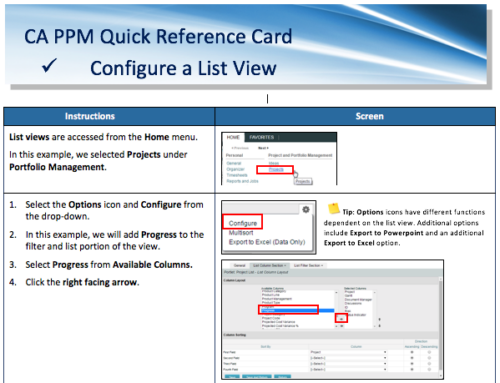 A Quick Reference Card for configuring List Views in CA PPM. List views are accessed from the Home menu.
 -
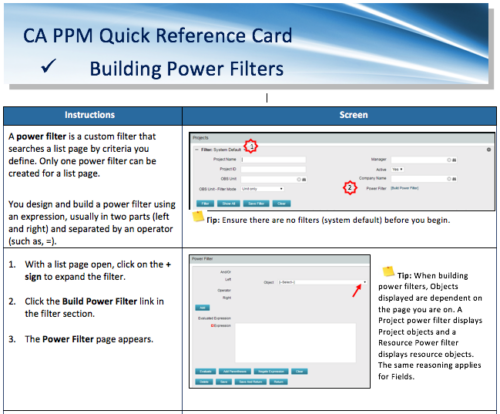 A Quick Reference Card to assist in the building of Power Filters in CA PPM. A power filter is a custom filter that searches a list page by criteria you define. Only one power filter can be created for a list page.
 -

The Transaction Adapter – is a text based CSV file which automates the importing of monthly non labor financial data into Clarity directly from your financial system. This integration eliminates the need to create non-labor transactions manually in Clarity and will provide more accurate project, program, and portfolio financial reporting. -
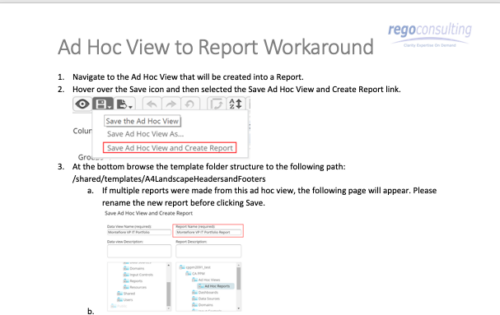 This tech-trick details the steps to convert an ad-hoc view to a report.
 -
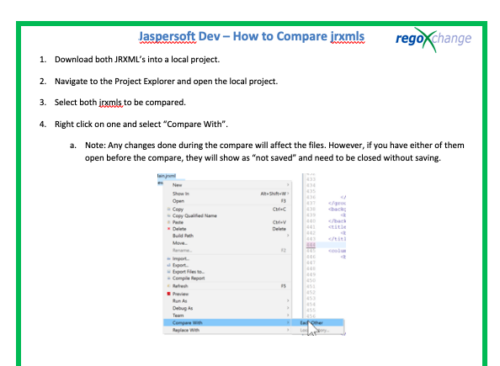 This document’s purpose is to help the reader compare jrxmls for Jaspersoft.
 -
 This tech trick document reviews the different reporting options you have in CA PPM and the benefits of each options. Jaspersoft, PowerBI and Tableau are all discussed.
 -
 Fiscal periods in DWH may need to be changed if we need to increase or decrease the number of periods for reporting.
 -
 So, you have the portlet xogged in, what now? This guide will show you how to create a page, add the portlet to the page, and add the page to the menu. This activity requires the appropriated admin rights to add content to CA PPM.
 -
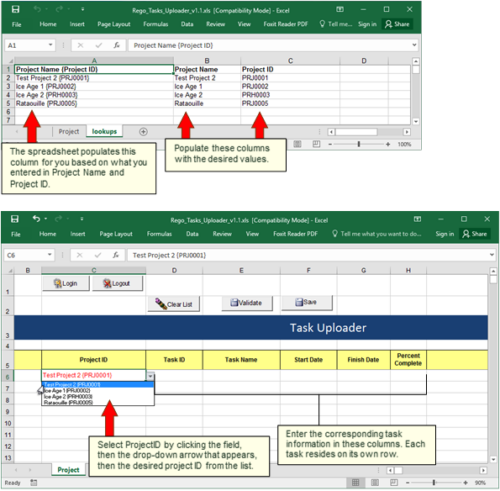 Take your project task information straight from Excel right into CA PPM. Task Name, Start Date, Finish Date and Percent Complete can all be imported or updated directly. Other fields can be added with a short Rego Consulting engagement. Installation of the base app requires 10 hours of Rego Consulting engagement time. Since this item requires Rego staff and hours (see special instructions) to install, download items are informational only. Install files will be utilized by Rego staff.
 -
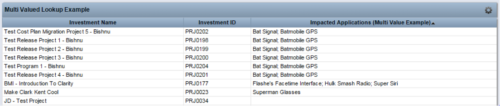 The Concatenate Multi-Value Lookup into One Field for Display Purposes technical trick provides an overview of how to group or concatenate the various levels and values of a Multi-Value lookup into one field in both Oracle and SQL Server environments. This allows the lookup values to be more easily displayed in a portlet. The function concatenates the values together using a choice of delimiter, which then allows the multi-value lookup to be viewed as one portlet column, in the same manner as any other object attribute.
 -
The Concatenate Multi-Value Lookup into One Field for Display Purposes technical trick provides an overview of how to group or concatenate the various levels and values of a Multi-Value lookup into one field in both Oracle and SQL Server environments. This allows the lookup values to be more easily displayed in a portlet. The function concatenates the values together using a choice of delimiter, which then allows the multi-value lookup to be viewed as one portlet column, in the same manner as any other object attribute.
-
 Many times Roles are spread out geographically or by function and these Roles will have different rates. For example, a developer in India may charge $25/hour vs a Developer in US may charge $50/hour. When the project team has a requirement of several developers, the PM will have to add a region specific role (Developer-US, Developer-India) so that the right rates can be applied when a cost plan is created. This creates a challenge in terms of Resource Management. As the Demand and Capacity can be spread between different region specific roles. Proper configuration on the Rate Matrix can allow you to have one Role name but different rates based on Location or Department. This allows greater flexibility and takes away the redundancy of Role Names. You can do so with the Project Team Member Properties.


Copyright 2023 • Rego Consulting Corporation • Privacy Policy