-
 Do you have enough experience with the data model to be dangerous - maybe just the basic project and resource tables? This class will take you to the next level in understanding the Clarity data model and provide training on how to write NSQL queries within Clarity for use in your portlets and reports.
 -
 Digital transformation is hard, only 15% of businesses succeed. This course looks at the five biggest customer issues hurting the digital transformation, with a discussion around possible solutions.
 -
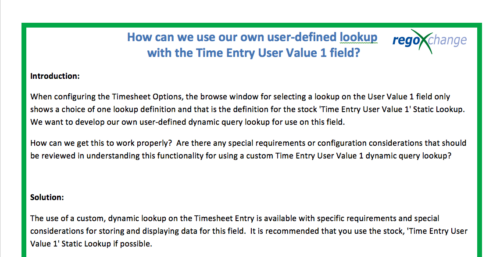 When configuring the Timesheet Options, the browse window for selecting a lookup on the User Value 1 field only shows a choice of one lookup definition and that is the definition for the stock 'Time Entry User Value 1' Static Lookup. We want to develop our own user-defined dynamic query lookup for use on this field. How can we get this to work properly? Are there any special requirements or configuration considerations that should be reviewed in understanding this functionality for using a custom Time Entry User Value 1 dynamic query lookup? The use of a custom, dynamic lookup on the Timesheet Entry is available with specific requirements and special considerations for storing and displaying data for this field. It is recommended that you use the stock, 'Time Entry User Value 1' Static Lookup if possible.
 -
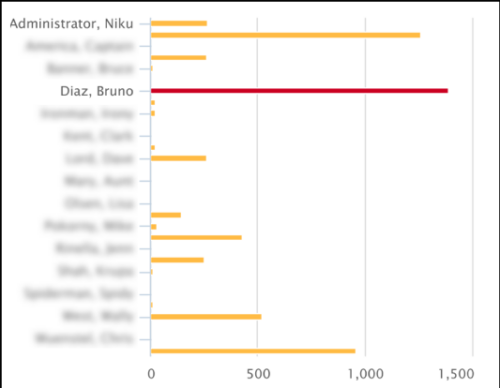 This Tech Trick covers instructions for modifying the default colors of a Chart in Jaspersoft Studio Reports using a dynamic expression. It includes step-by-step instructions for an example bar chart color change.
 -
 Styles can be applied to reports in two ways. The first is to select the item and apply a style directly to it. The other is to apply a style to an entire report. When an item has had a style directly applied to it the application of a style to the entire report will not change the styles with manual styles applied. The manual styles override the entire report style application. This trick shows you how to find and remove manual styles.
 -
 An HTML portlet that displays two buttons that link the user instantly to an object create page. The portlet comes with two buttons and the buttons can be modified to link to any creation page. Administrator can choose: Project, Idea, Application, Program, etc.
 -
 This training document is a Rego Consulting Quick Reference Guide to assist with utilization of the Staffing page in Clarity’s Modern User Experience. This doc references version 16.0.3 views. Document provides detail on the layout and capabilities of the Staff Grid as well as the Allocations Timeline. Information is provided on columns, widgets and filtering. Instructions are provided on how to save Views. Summary information is provided on the layout of the Allocation Timeline and includes detail on the Investment Timeline and the Resource Histogram. Investment Timeline summary contains information on the Allocations by Investments and the Allocations by Resources tabs. While the Resource Histogram section provides screenshots on Resource Availability and Resources by Role.
 -
 This training document is a Rego Consulting Quick Reference Guide to assist with the adding of resources to the Staff tab for Ideas in Clarity’s Modern User Experience. This doc references version 16.0.3 views. Document provides detail on how to add resources to the Staff tab, Default Allocation % and Per-Period metrics.
 -
 This training document is a Rego Consulting Quick Reference Guide to assist with Idea approval and conversion to projects in Clarity’s Modern User Experience. This doc references version 16.0.3 views. Doc reviews setting Ideas as Approved and converting Ideas to projects.
 -
 This training document is a Rego Consulting Quick Reference Guide to assist with Financial Actuals and Reporting in Clarity’s Modern User Experience. This doc references version 16.0.2 views. Document includes detail on which jobs should be run to ensure project and financial data is synchronized with the latest posted actuals. Information is provided on how to analyze cost plans and how to review actual transactions. Instructions are provided on how to analyze budget plans.
 -
 This training document is a Rego Consulting Quick Reference Guide to assist with Task Assignments in Clarity’s Modern User Experience. This doc references version 16.0.2 views. Document provides detail on how to use the Assignments tab to add resources to tasks, tips on how to group resource data, updating ETC values and Per-Period Metrics.
 -
 This training document is a Rego Consulting Quick Reference Guide to assist with the management of project tasks from within the Tasks tab in Clarity’s Modern User Experience. This doc references version 16.0.2 views. Document covers Task Tab, Timeline View, Board View, Grid View, adding and removing columns, saving views, task details, To Dos, Assignments, Links, Conversations and View Options settings.


Copyright 2023 • Rego Consulting Corporation • Privacy Policy