RegoXchange
  • This Portlet can be used to define User License Output information including the following:
    • Resource
    • Resource User Name
    • Resource Id
    • Email
    • Resource Manager
    • Resource Manager Email
    • Primary Role
    • Employment Type
    • Org Structure Path
    • Org Structure Lowest Unit
    • Last Logged in Date
    • User License
    • Right License
    • Access Right
    • Access Right Type
    • Access Right to OBS
    • Granted Through Type
    • Granted Through (Security Group)
    • Access Right Description
    Filters Include:
    • Resource OBS
    • Resource
    • Resource Manager
    • Primary Role
    • Employment Type
  • This Portlet can be used to define User License Output information including the following:
    • Resource
    • Resource User Name
    • Resource Id
    • Email
    • Resource Manager
    • Resource Manager Email
    • Primary Role
    • Employment Type
    • Org Structure Path
    • Org Structure Lowest Unit
    • Last Logged in Date
    • User License
    • Right License
    • Access Right
    • Access Right Type
    • Access Right to OBS
    • Granted Through Type
    • Granted Through (Security Group)
    • Access Right Description
    Filters Include:
    • Resource OBS
    • Resource
    • Resource Manager
    • Primary Role
    • Employment Type
  • This Portlet can be used to define User License Output information including the following:
    • Resource
    • Resource User Name
    • Resource Id
    • Email
    • Resource Manager
    • Resource Manager Email
    • Primary Role
    • Employment Type
    • Org Structure Path
    • Org Structure Lowest Unit
    • Last Logged in Date
    • User License
    • Right License
    • Access Right
    • Access Right Type
    • Access Right to OBS
    • Granted Through Type
    • Granted Through (Security Group)
    • Access Right Description
    Filters Include:
    • Resource OBS
    • Resource
    • Resource Manager
    • Primary Role
    • Employment Type
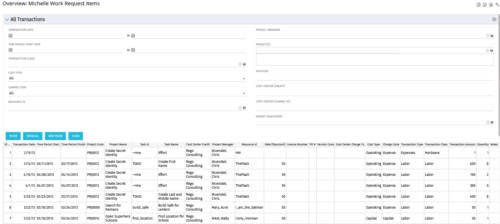
  • The All Transactions portlets have the capability to display any transaction within the system. Transactions from any type of investment can be viewed on this page. There are two version of this process:
    • All Transactions (with security) – this will display rows only where the logged in resource has access to cost plans for projects or ideas. The portlet will check instance, OBS and global rights.
    • All Transactions (without security) – will display all rows, regardless of cost plan access rights.
    By default, there are numerous filter options displayed, such as transaction dates, transaction class and cost type. The table below describes the available columns in the portlet.
    Column Label Description
    ID An unique identifier for each row displayed in the portlet.
    Transaction Date The data the transaction has been coded to.
    Time Period Start For transactions arising from timesheet entries, this will show the start period of the timesheet.
    Time Period Finish For transactions arising from timesheet entries, this will show the finish period of the timesheet.
    Project Code The ID of the investment.
    Project Name The name of the investment.
    Task ID The ID of the investment task where the actual cost has been assigned.
    Task Name The name of the investment task where the actual cost has been assigned.
    Cost Center Credit The department assigned to the resource where a cost needs to be credited.
    Project Manager The resource managing the investment.
    Resource ID The ID for the resource that has been assigned the cost.
    Rate (Standard) The rate for the cost.
    Invoice Number The invoice number. May come from a manual transaction or may be imported from a financial system integration.
    PO # The purchase order number. May come from a manual transaction or may be imported from a financial system integration.
    Vendor Code The vendor code that has been listed against the transaction.
    Cost Centre Charge To The department assigned to the resource where a cost needs to be charged.
    Cost Type Indicates whether the transaction is capital or operating.
    Charge Code The charge code assigned to the transaction as per the Clarity Charge Code list.
    Transaction Type Labour, Expense, Equipment or Material.
    Transaction Class The transaction class assigned to the transaction as per the Clarity transaction class list.
    Transaction Amount Rate x Quantity.
    Quantity The number of units.
    Notes Free text field for the transaction.
  • This training document is a Rego Consulting Quick Reference Guide to assist with the creation of Benefit Plans in Clarity’s Modern User Experience.  This doc references version 16.1.2 views. Doc provides detail on how to create a Benefit Plan, how to categorize Benefit Class and Benefit Subclass, how to add financial values to your Benefit Plan, and how to add the Benefit Plan to your Cost Plan.
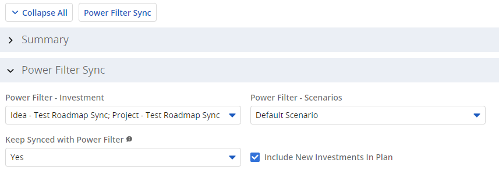
  • The Power Filter Sync functionality allows users to define rules for syncing investments to Roadmaps or Hierarchies on a scheduled (and on-demand in Roadmaps only) basis.  Users may choose one or more saved views from investments that are allowed on the Roadmap/Hierarchy to define the list of investments they want that Roadmap/Hierarchy to contain.  If the option to Keep Synced with Power Filter is set to Yes, then each time the process runs, the Investments returned by the saved views will be added to the Roadmap/Hierarchy if they don’t exist there already, and any investment not found in the saved views will be removed.
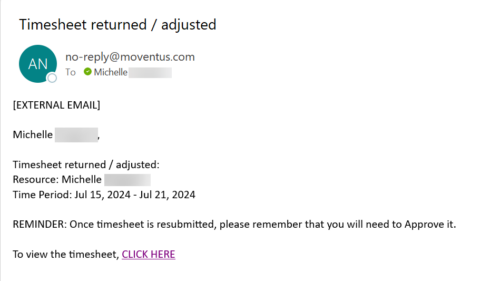
  • The Adjusted Timesheet Stalker process is designed to be run via a scheduled job. The end user will need to set up the job and can choose the frequency at which this job should be run. The process will search the system for timesheets with a status of ‘Adjusted’. An email is sent to the resource manager for any resources identified as having adjusted timesheets. The email will provide: • Name of resource • Time period The resource manager is advised that once the timesheet is resubmitted, they will need to approve it. A link to the timesheet itself is provided in the body of the email.
  • The Adjusted Timesheet Stalker process is designed to be run via a scheduled job. The end user will need to set up the job and can choose the frequency at which this job should be run. The process will search the system for timesheets with a status of ‘Adjusted’. An email is sent to the resource manager for any resources identified as having adjusted timesheets. The email will provide: • Name of resource • Time period The resource manager is advised that once the timesheet is resubmitted, they will need to approve it. A link to the timesheet itself is provided in the body of the email.  
  • The Adjusted Timesheet Stalker process is designed to be run via a scheduled job. The end user will need to set up the job and can choose the frequency at which this job should be run. The process will search the system for timesheets with a status of ‘Adjusted’. An email is sent to the resource manager for any resources identified as having adjusted timesheets. The email will provide: • Name of resource • Time period The resource manager is advised that once the timesheet is resubmitted, they will need to approve it. A link to the timesheet itself is provided in the body of the email.
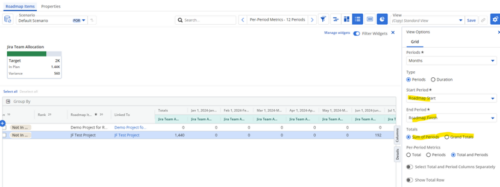
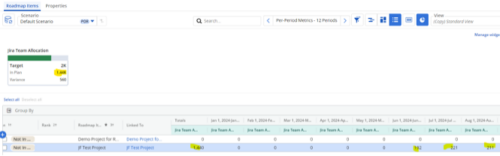
  • Capture and present allocation data by Team for the Investments included in your Roadmap to enable the ability to compare to Targets or Limits. Allocation data can be presented in Hours or FTE, for Teams Only.
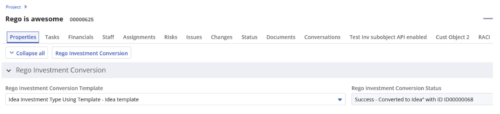
  • Converts one Investment type to another investment type. Functionality • One investment type instance converted to another investment type • Investment object level attributes are copied over by default • Investment sub-objects can be chosen to be copied • The attributes and sub-objects to be copied to must be api enabled • Can convert from non api enabled object like other work to api enabled Custom CIT • Attribute mapping does not support multivalued lookups yet • If auto-numbering is not enabled for target investment type of the sub-objects, an ID will be auto-generated. • Associated risks and issues will not be copied over • Target investment status will be "Unapproved" • If there are Mandatory target investment type attributes either o use a template to convert where having a value in the attribute is not mandatory or Have a default value in the mandatory field defined on the object • If effort task creation is enabled, the effort task will also be brought over. o The effort task will appear with custom code if a investment template is used for conversion • The allocations will extend to the finish of the new investment if investment template is used which has tasks • Almost 500 instances of sub-objects are supported at this point. • The values in lookups need to be active or the process will error out • All required attributes must be api enabled
  • This asset in used to update investment level TSV attributes using Cost Plan, Budget plan, Actual transaction, Planned and Budgeted Benefit Cost data as needed. It uses mappings/logic from ‘Cost Rollup Mappings’ object. Compatibility – Its compatible from 16.0 onwards with Oracle, PostgreSQL and MSSQL.
Go to Top