-
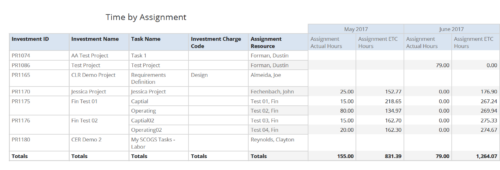 Time by Assignment report displays time logged to assignments and its associated actuals on monthly basis for all filtered investments. It also displays total ETC and Actual hours associated with an assignment. User can further narrow their search by OBS Type & Path, Investment Type, Investment Charge Code, Investment Name, Task Name, Resource Name, Assignment Start Date and Assignment Finish Date. User can use exact dates or relative dates for Assignment Start and Finish Dates filter parameters.
 -
 Review of functional and technical changes to Clarity from version 16.3.1 through 16.4.0. Some previous decks are available if you need to see further back in the versions. You can request them via the Librarian or emailing suport@regoxchange.com.
 -
 Rego’s training video that walks through the Time Entry and Approval process for Clarity PPM – Modern User Experience. This video was created using Clarity PPM version 15.6.
 -
This course will provide an overview of CA PPM Demand Management functionality. Topics include: - What is Demand Management?
- Accessing and Creating Ideas
- Staffing the Idea Team
- Creating and Approving Idea Financial Plans
- Idea Conversion to another Investment Type
- Accessing and Creating Incidents
- Adding Incident Tasks to a Project
-

The Transaction Adapter – is a text based CSV file which automates the importing of monthly non labor financial data into Clarity directly from your financial system. This integration eliminates the need to create non-labor transactions manually in Clarity and will provide more accurate project, program, and portfolio financial reporting. -
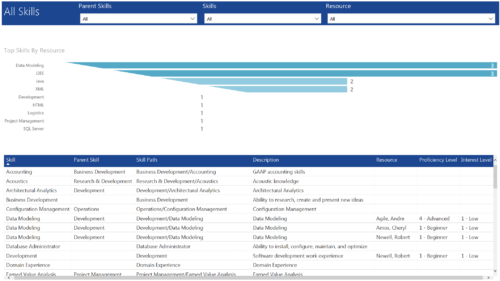 All Skills report provides project managers a single place to view number of resources having a particular skill and its detailed information. This report contains a bar graph and a grid. Top Skills by Resource: Bar graph that displays # of resources having a particular skill. Y- Axis represents various skills available in the system. Resource and Skill details grid: Grid that displays information such as Skill, its parent skill, Skill path, Skill Description, Resource having that skill & his proficiency and interest level in that skill. You can further narrow your search by Parent Skills, Skills and Resource.
 -
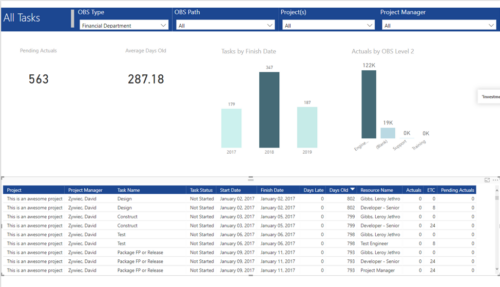 All Tasks report provides project managers a single place to view KPIs related to Tasks. All the KPIs are depicted in various visualizations. Pending Actuals: Scorecard that displays the # of Actuals that are still open and not yet posted. Average Days Old: Scorecard that displays the average number of Task Days Old. Days Old is the difference between Task Finish date and Today’s Date (when Today’s Date > Task Finish date. In other cases, it is zero) Tasks by Finish Date: Column chart that displays # of Tasks by Year of Finish date. X axis display Calendar years. Data labels indicate the number of Tasks finish date within that year. Actuals by OBS level 2: Column chart that displays sum of Task Actuals by OBS level 2. X axis display OBS level2. Data labels indicate the Actuals within that OBS level2. Grid: Displays Risk details such as Project Name, Project Manager, Task Name, Task Status, Start Date, Finish Date, Days Late, Days Old, Actuals, ETC and Pending Actuals Days Late is the difference between Task Finish date and Baseline Finish Date (when Baseline Finish Date > Task Finish date. In other cases, it is zero) You can further narrow your search by OBS Type, OBS Path, Project(s) and Project Manager.
 -
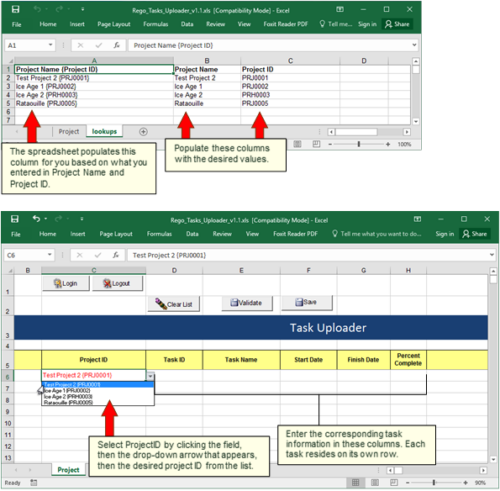 Take your project task information straight from Excel right into CA PPM. Task Name, Start Date, Finish Date and Percent Complete can all be imported or updated directly. Other fields can be added with a short Rego Consulting engagement. Installation of the base app requires 10 hours of Rego Consulting engagement time. Since this item requires Rego staff and hours (see special instructions) to install, download items are informational only. Install files will be utilized by Rego staff.
 -
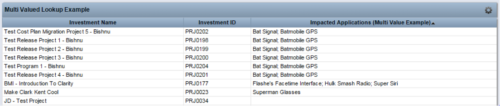 The Concatenate Multi-Value Lookup into One Field for Display Purposes technical trick provides an overview of how to group or concatenate the various levels and values of a Multi-Value lookup into one field in both Oracle and SQL Server environments. This allows the lookup values to be more easily displayed in a portlet. The function concatenates the values together using a choice of delimiter, which then allows the multi-value lookup to be viewed as one portlet column, in the same manner as any other object attribute.
 -
The Concatenate Multi-Value Lookup into One Field for Display Purposes technical trick provides an overview of how to group or concatenate the various levels and values of a Multi-Value lookup into one field in both Oracle and SQL Server environments. This allows the lookup values to be more easily displayed in a portlet. The function concatenates the values together using a choice of delimiter, which then allows the multi-value lookup to be viewed as one portlet column, in the same manner as any other object attribute.
-
 This solution provides an administrator the ability to log into the CA Clarity application as any user in the system. This ability is especially helpful when troubleshooting user issues and security settings. (Will not work with On-Demand Instances.)
 -
 This solution provides an administrator the ability to log into the CA Clarity application as any user in the system. This ability is especially helpful when troubleshooting user issues and security settings. (Will not work with On-Demand Instances.)


Copyright 2023 • Rego Consulting Corporation • Privacy Policy